Report Writer Update - Duplicate Report Templates, Job Location Accuracy & EverHome Report Cleanup

Summary
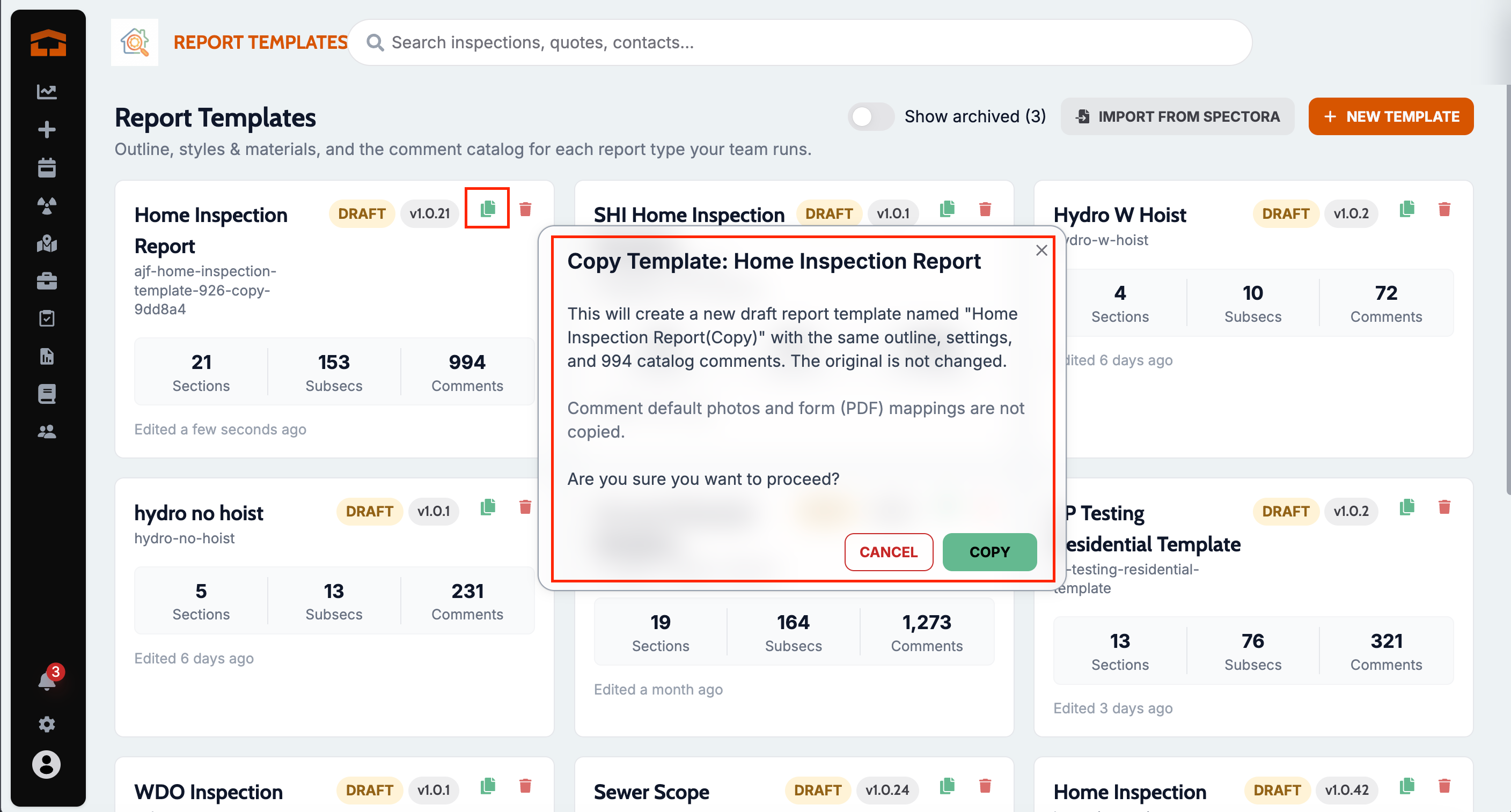
Duplicate any of your company's report templates into an editable draft from Report Templates
Dispatch, scheduling, and maps now follow the property's current address, including approximate pins when the location isn't street-level
EverHome reports no longer show deleted comments or raw HTML
Unused optional sections stay off the client report and PDF until an inspector adds them
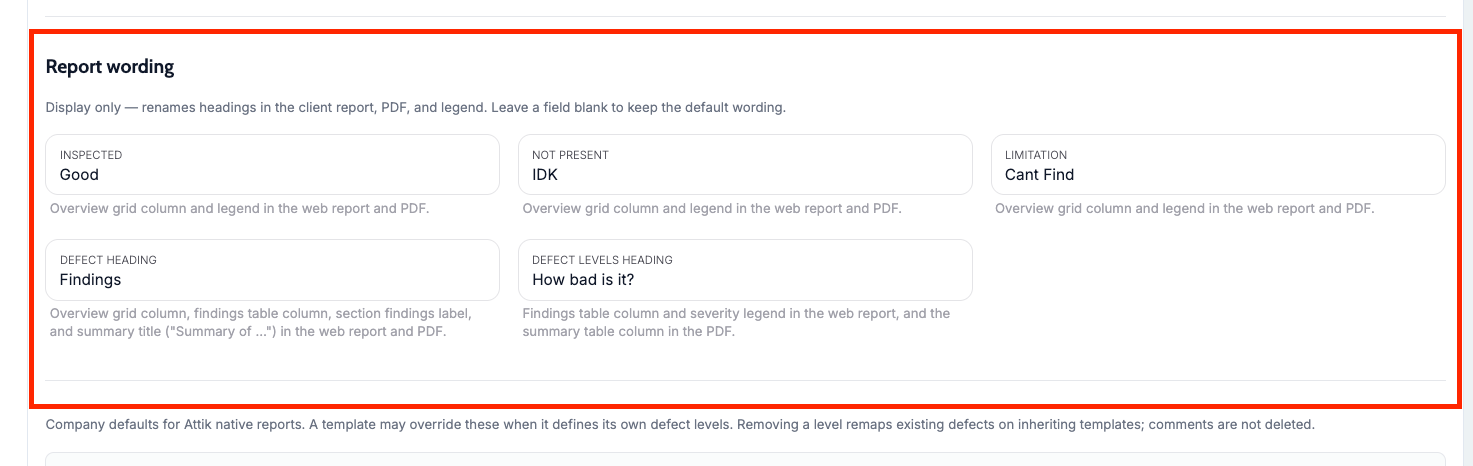
Your company can rename the defect and severity headings clients see on the web report, the full PDF, and the summary PDF
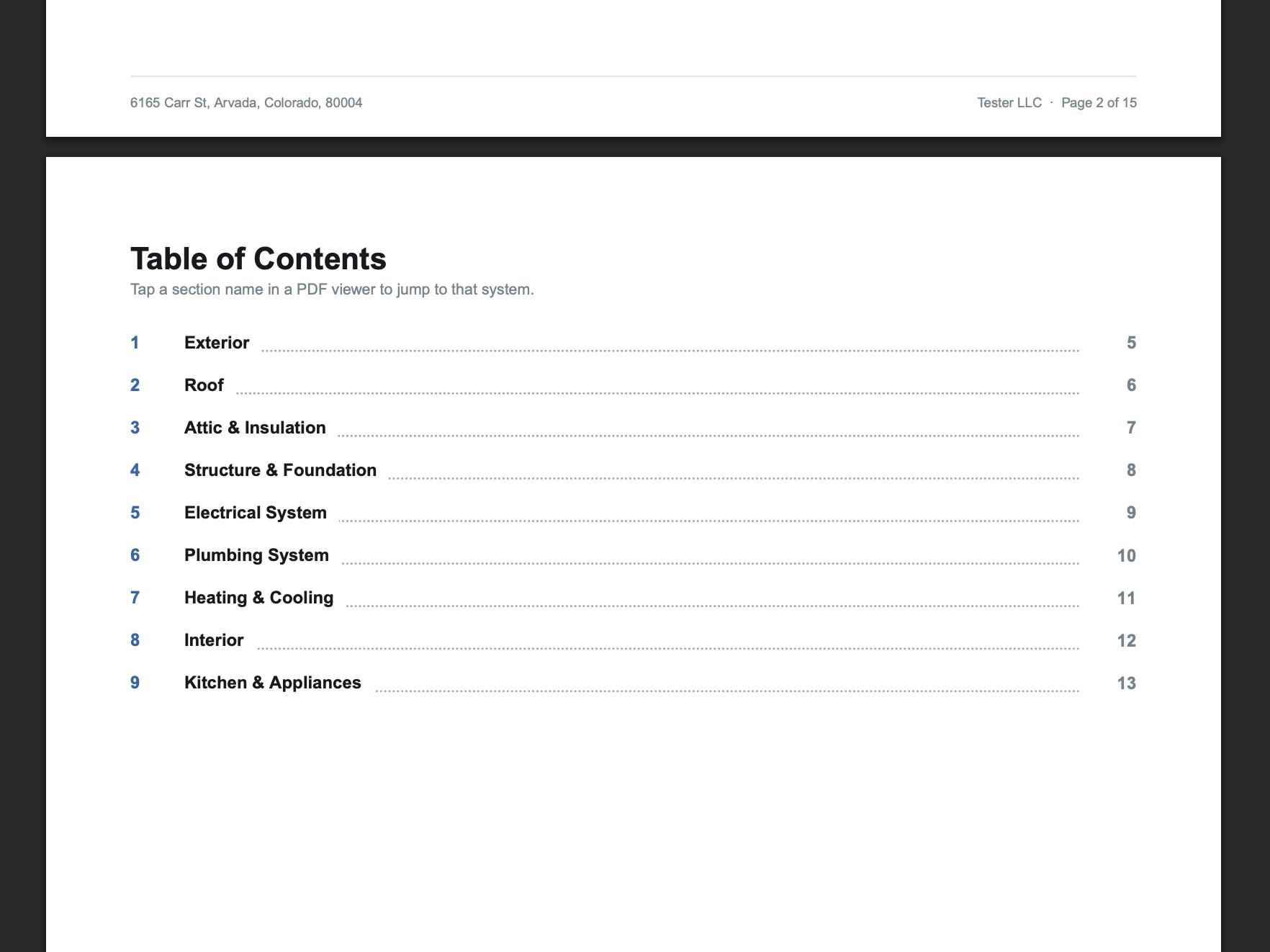
The full PDF's Table of Contents now shows the page each section starts on
New Features
Duplicate a report template
What changed: Users with template-management access can duplicate an existing company template into an editable draft copy in the same instance, without copying from another company.
Where to find it:
Open Report Templates.
Choose Duplicate on a template.
Improvements
Use your own wording for defects and severity
What changed: Your company can now choose its own words for the defect heading and the severity heading, for example Observations instead of Defects. They show on the web report, the full PDF, and the summary PDF, including the findings and severity table columns and the summary title ("Summary of …"). Leave a field blank to keep the default wording. The Report wording fields now show for every report look, not only the legacy look.
Where to find it:
Open Report Settings.
Under Report wording, fill in Defect heading and Defect Levels heading.
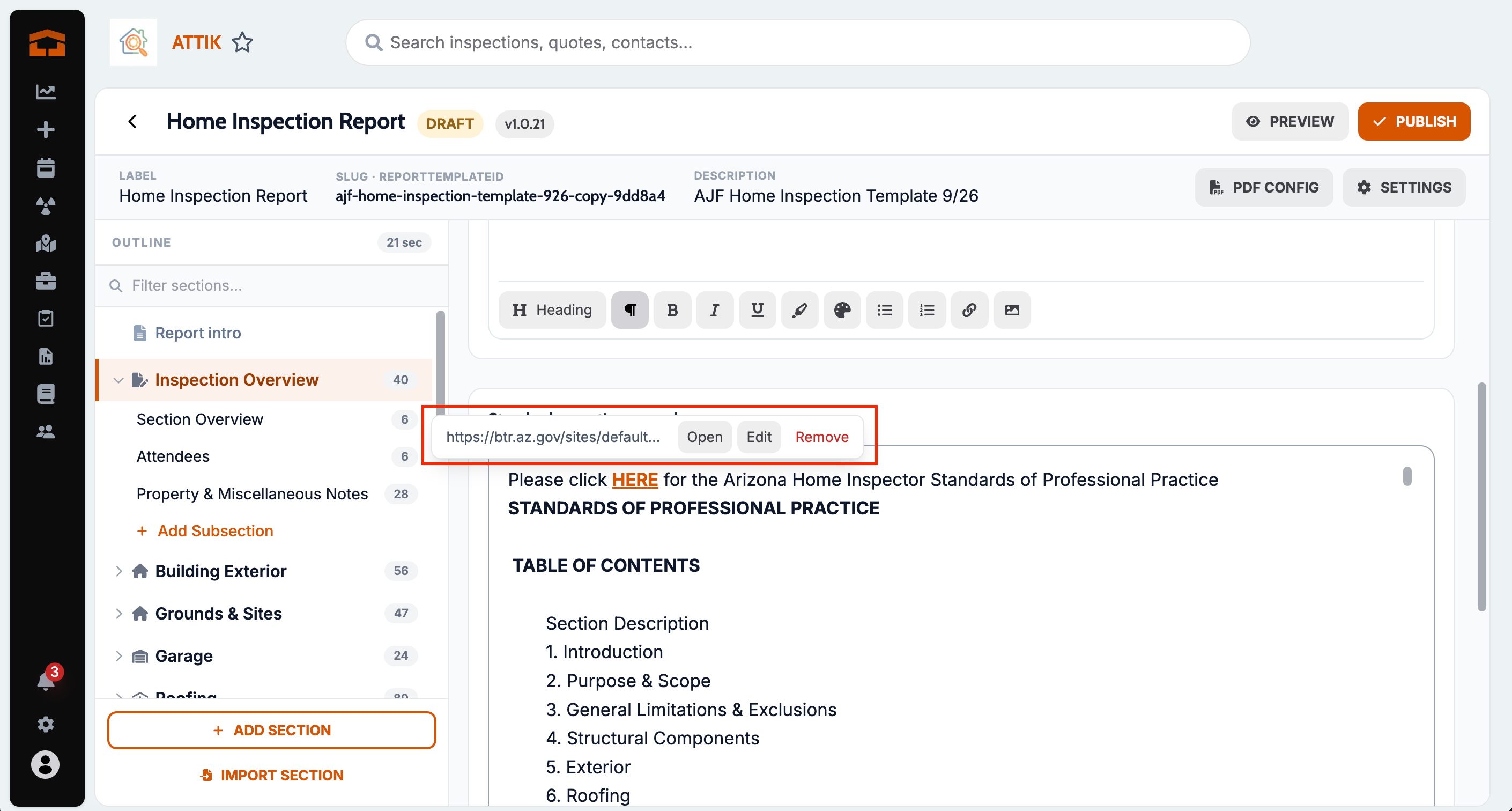
Check and open links in the template editor
What changed: While editing a report template, clicking a link now shows its address with Open, Edit, and Remove buttons, so you can check where it goes without leaving the editor. Cmd+click on a Mac or Ctrl+click on Windows opens the link in a new tab.
Where to find it:
Open Report Templates and pick a template.
In the Report intro, or a section's overview or SOPs, click a link.
Bug Fixes
Table of Contents shows page numbers
What changed: The Table of Contents page in the full report PDF now shows the page where each section starts, instead of a dash. Tapping an entry still jumps to that section. Reinspection PDFs get the same fix.
Where to find it: The Table of Contents page of any full report PDF.
Applies to: Existing and future records.
Editing a link keeps its text intact
What changed: Editing a link with the cursor inside it now updates the whole link. Before, the link text could be duplicated and split between the old and new address. Adding a link from the toolbar with the cursor inside an existing link had the same problem and is fixed too.
Where to find it: Report template text editors, such as the Report intro.
Applies to: Existing and future records.
Job locations match the property address
What changed: Dispatch, scheduling, rescheduling, and map views now use the property's current location, so corrected addresses produce accurate pins and drive times. Choosing an address suggestion saves the suggestion you actually picked, and approximate locations are marked as approximate instead of looking exact.
Where to find it: Work order addresses, Dispatch, calendar, scheduling, and rescheduling workflows.
Applies to: Existing and future records.
EverHome reports hide deleted comments and show clean text
What changed: EverHome reports no longer include deleted comments or their media, and report text shows as clean readable content instead of HTML markup.
Where to find it: EverHome reports generated from Attik inspections.
Applies to: Existing and future records.
Unused optional sections stay off client reports
What changed: Optional template sections no longer appear on the client report or PDF just because they contain default-checked comments. They stay hidden until an inspector adds content or unlocks them.
Where to find it: Client reports and full report PDFs for templates that use optional sections.
Applies to: Future records only.