Changelog

Follow new updates and improvements to Attik.

July 14th, 2026

Summary

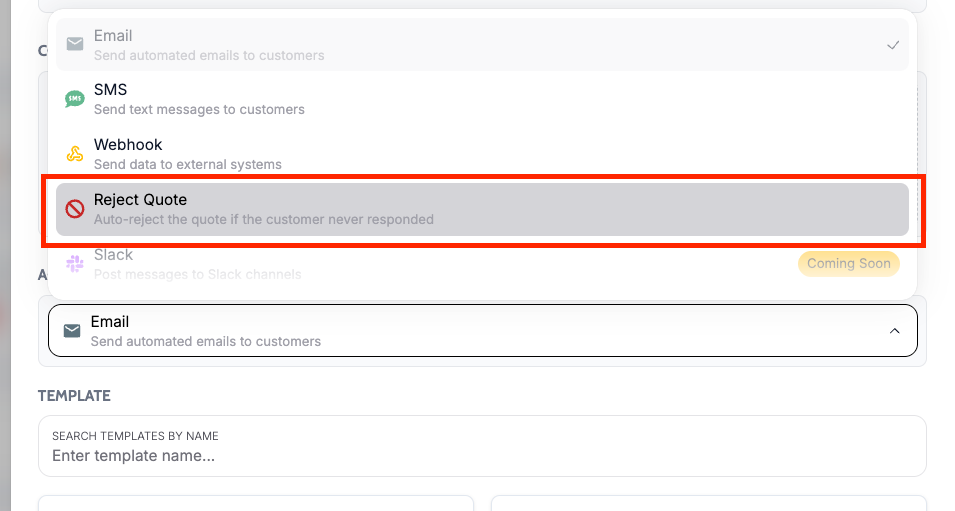
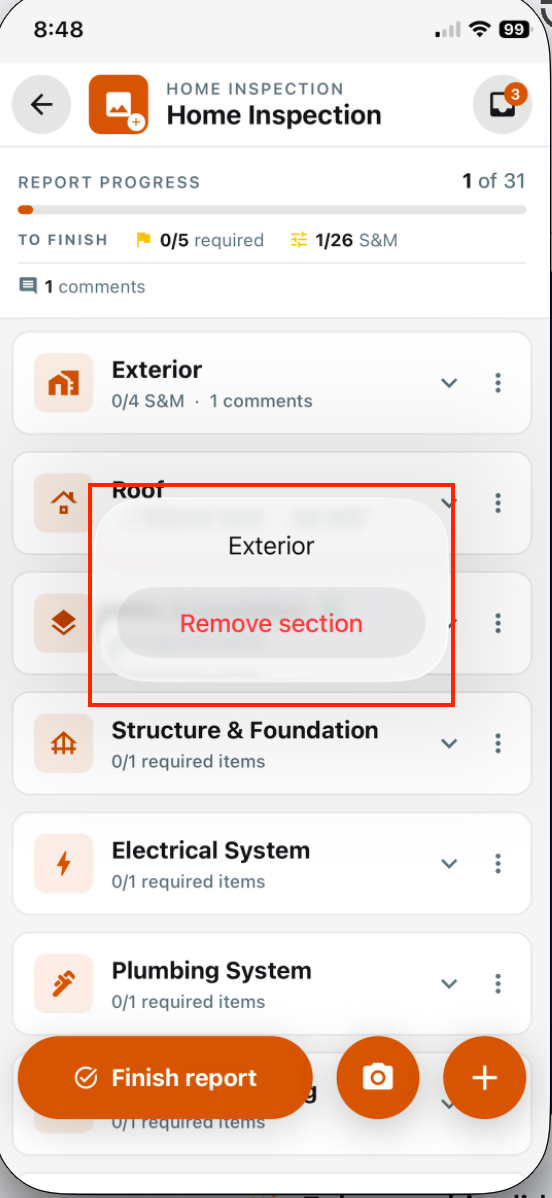
  • Staff can now select a reason when cancelling an inspection, drawing from a standardized list approved by brand leadership

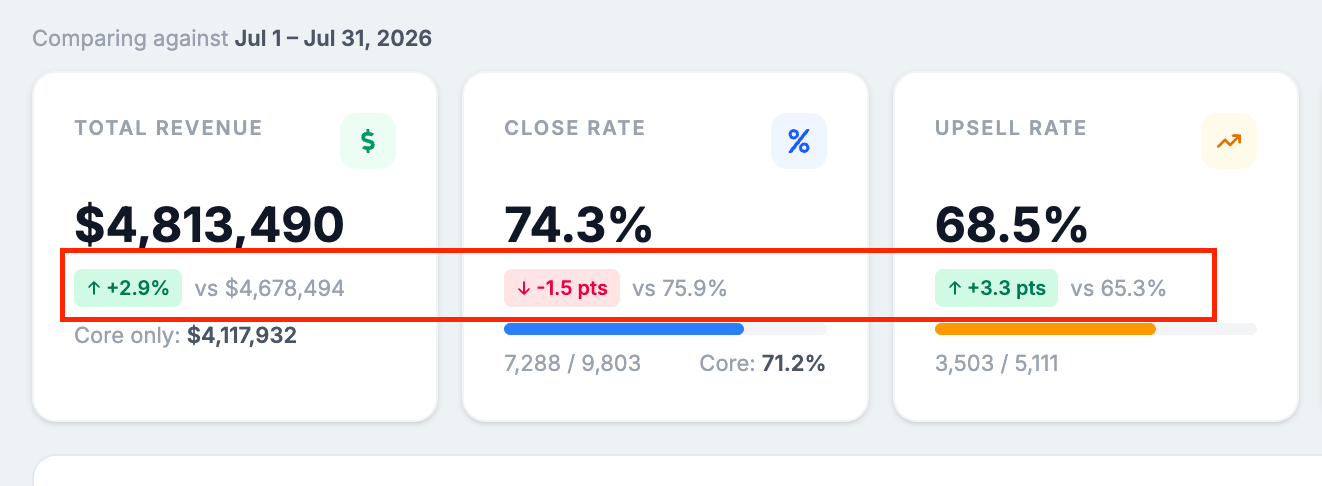
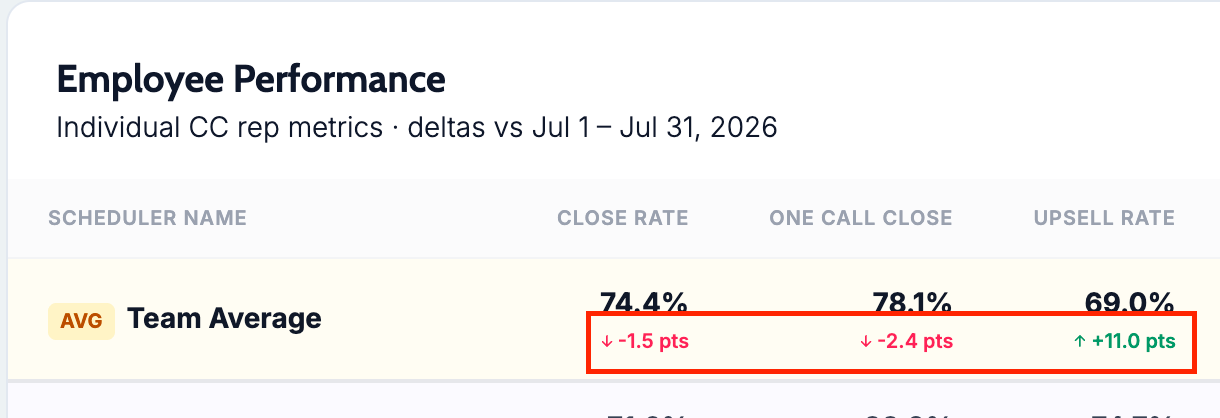
  • The Client Care Dashboard's Employee Performance table now supports toggling close rate attribution between Scheduled By and Quote Creator

  • Admin Attik gained two dashboard controls: a toggle to view data across all brands, and a setting to exclude specific companies from stats.

  • Contact search now finds nickname and partial-name matches, cutting down on duplicate contacts.


New Features

View Dashboard Data Across All Brands

What changed — Admin Attik users with brand dashboard access can now toggle their dashboards between "Assigned Instances" and "All Instances," giving cross-regional users and leadership a full organization-wide view without needing full backend access to every instance. This applies to all Admin Attik dashboards (Launchpad Revenue, Post-Inspection Revenue, and others).

Where to find it:

  1. Any Admin Attik dashboard (e.g. Launchpad Revenue, Post-Inspection Revenue)

  2. Use the new toggle to switch between Assigned Instances and All Instances

Setup: A super-user must grant brand dashboard visibility per user before the toggle appears — via Instance Management → User Management → the user's Admin Permissions section.


Include or Exclude Companies from Admin Stats

What changed — Admin Attik users can now mark specific companies (test/demo accounts, spun-out tenants, incomplete setups, etc.) to be excluded from all admin stats and dashboards, so they don't skew aggregate metrics. Excluded companies stay out of every dashboard, table, and breakdown consistently, and changes apply immediately without a redeploy.

Where to find it:

  1. Admin Attik → Settings → Dashboard Companies

  2. Toggle any company's include/exclude status

NOTE: This setting does not need to be edited each time reports are run, only when instances are no longer required.


Export Service Area Polygons

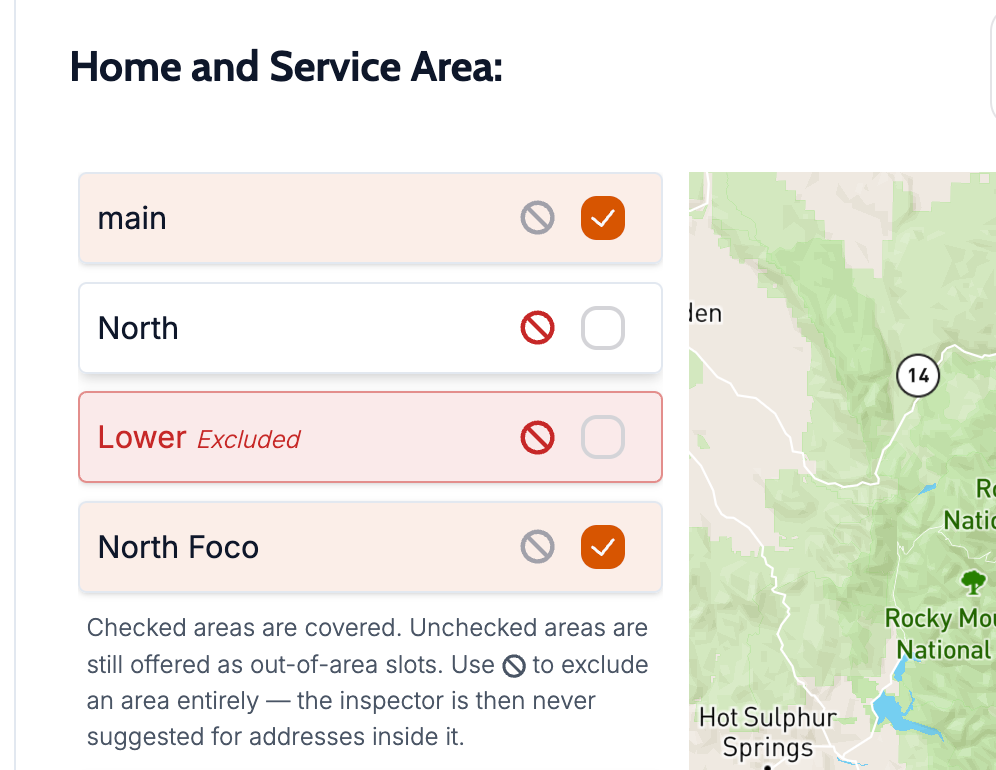
What changed — Companies can now export their service area boundaries as polygon coordinate data, with disconnected regions automatically split into separate shapes. There's an option to exclude expanded/out-of-area zones from the export.

Where to find it:

  1. Settings → Service Areas

  2. Select Export next to Add New


Improvements

Cancellation Reason Required When Cancelling an Inspection

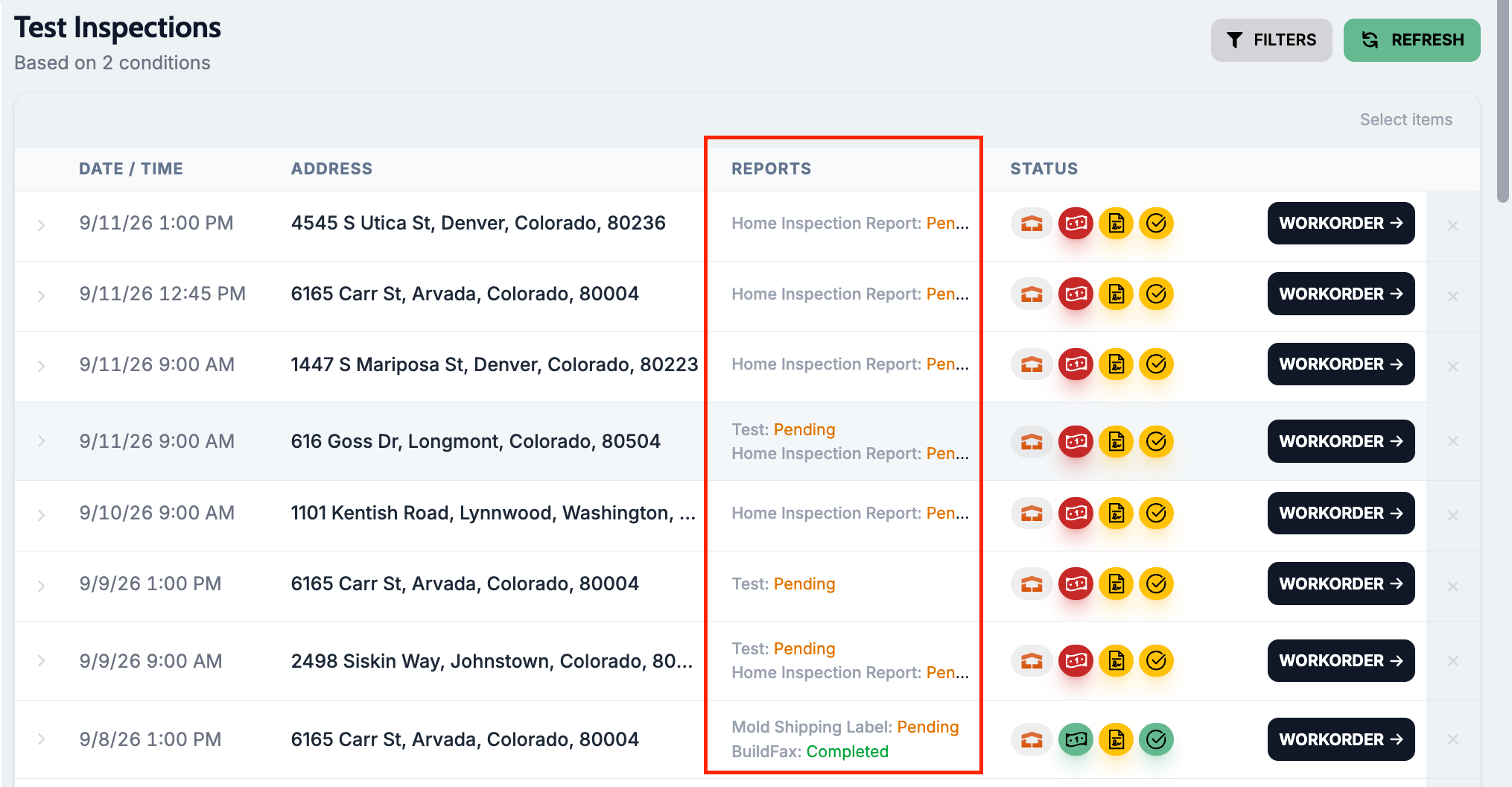
Cancelling an inspection now requires selecting a reason before the cancellation can go through. Staff choose from a standardized dropdown list (Access Issue, Transaction Canceled, Postponed, etc.) or select "Other" to type a custom reason.

Where to find it:

  1. Open any inspection

  2. Select the option to cancel the job

  3. Choose a cancellation reason from the dropdown (required before confirming)


Close Attribution Toggle on Client Care Dashboard

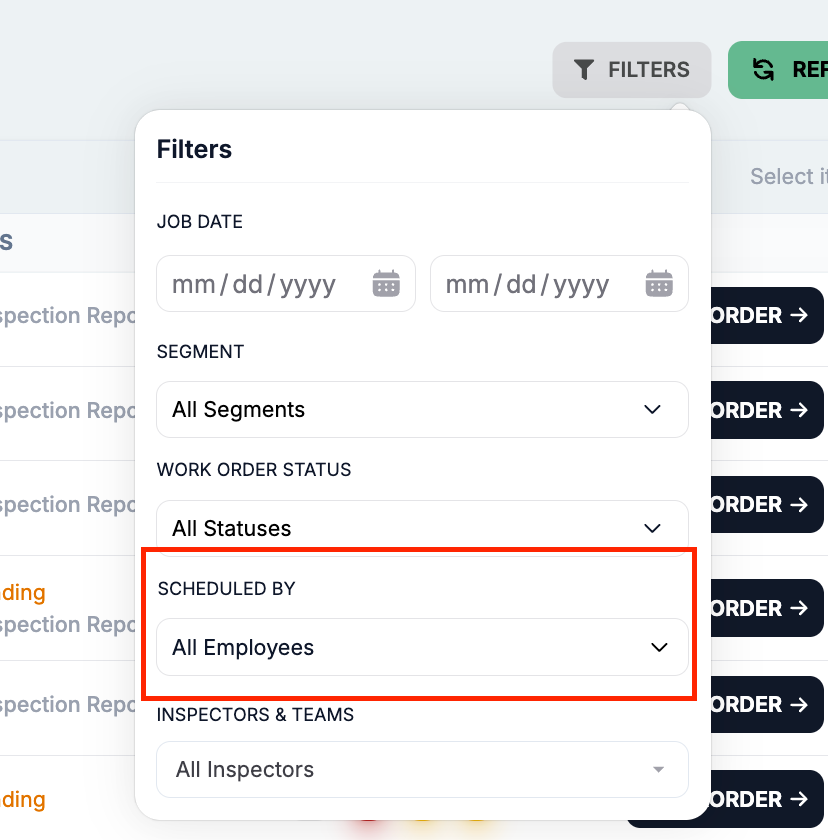
The Employee Performance table on the Client Care Dashboard now has a toggle to switch how close rate is attributed. Staff can choose between Scheduled By (who booked the job) or Quote Creator (who originated the quote/lead). Revenue, upsell, and cancel columns are unaffected by the toggle — only close-related metrics shift.

Where to find it:

  1. Go to the Client Care Dashboard

  2. Find the Employee Performance block

  3. Use the new toggle in the table controls to switch between Scheduled By and Quote Creator


Undo UKG Send Now Available on Payroll History Records

After sending payroll to UKG, an Undo UKG Send button now appears on the payroll history record. Using it will attempt to remove the pending earnings from UKG before they are processed — useful when a correction is needed after a send. Lines that have already been processed in UKG payroll cannot be removed and will remain in UKG.

Where to find it:

  1. Go to HR → Payroll

  2. Open a payroll history record that has been sent to UKG

  3. Use the Undo UKG Send button to remove pending earnings from UKG


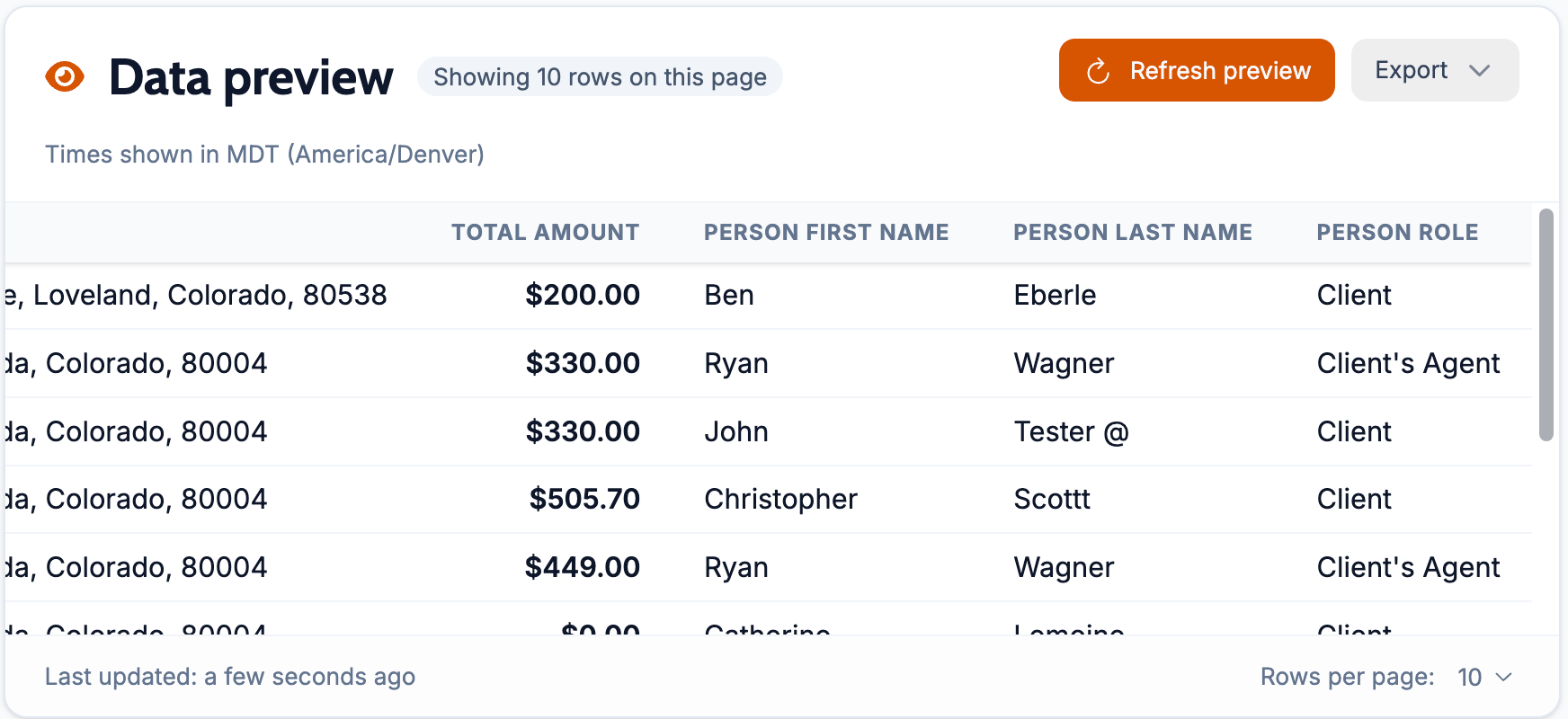
Required Service Info Fields Now Export as Columns

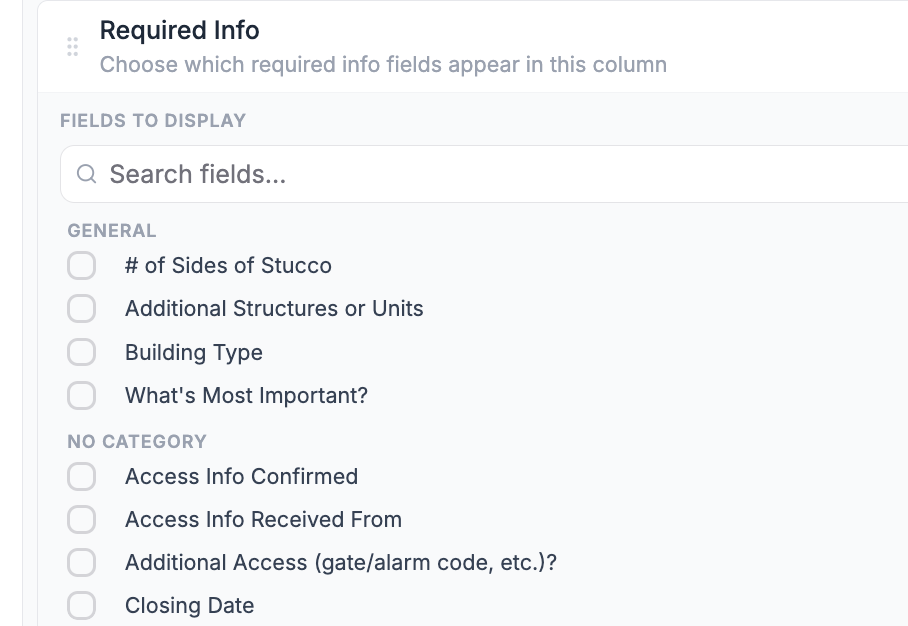
When you select a Required Service Info field, that field now appears as a column in the exported results. Fields are added and removed from the column list automatically as you select or deselect them.

Where to find it:

  1. Go to Data Exports

  2. Open or create a report

  3. Use the "Required info fields to include" dropdown (above the Filters section) to select any Required Service Info field — it will appear as a column in the export preview automatically


Per-Charge Detail in Launchpad Revenue Exports

What changed — The Launchpad Revenue CSV export now breaks out each charge on an inspection into its own set of columns (name, amount, service category, and bundle name) at the end of the row, instead of only summary revenue totals. Inspections with no charges still export cleanly.

Where to find it:

  1. Admin Attik → Launchpad Revenue dashboard

  2. Select Download data


Bug Fixes

QuickBooks Sync Error Alerts Silenced for PAC Payment Retry Loop

A loop where FlexFund PAC webhook activity was repeatedly re-queuing already-completed payments for QuickBooks sync — generating hundreds of redundant failure alerts — has been stopped. Deposited payments and other known terminal sync states no longer trigger repeat alerts on every retry cycle.

Applies to: Existing and future records


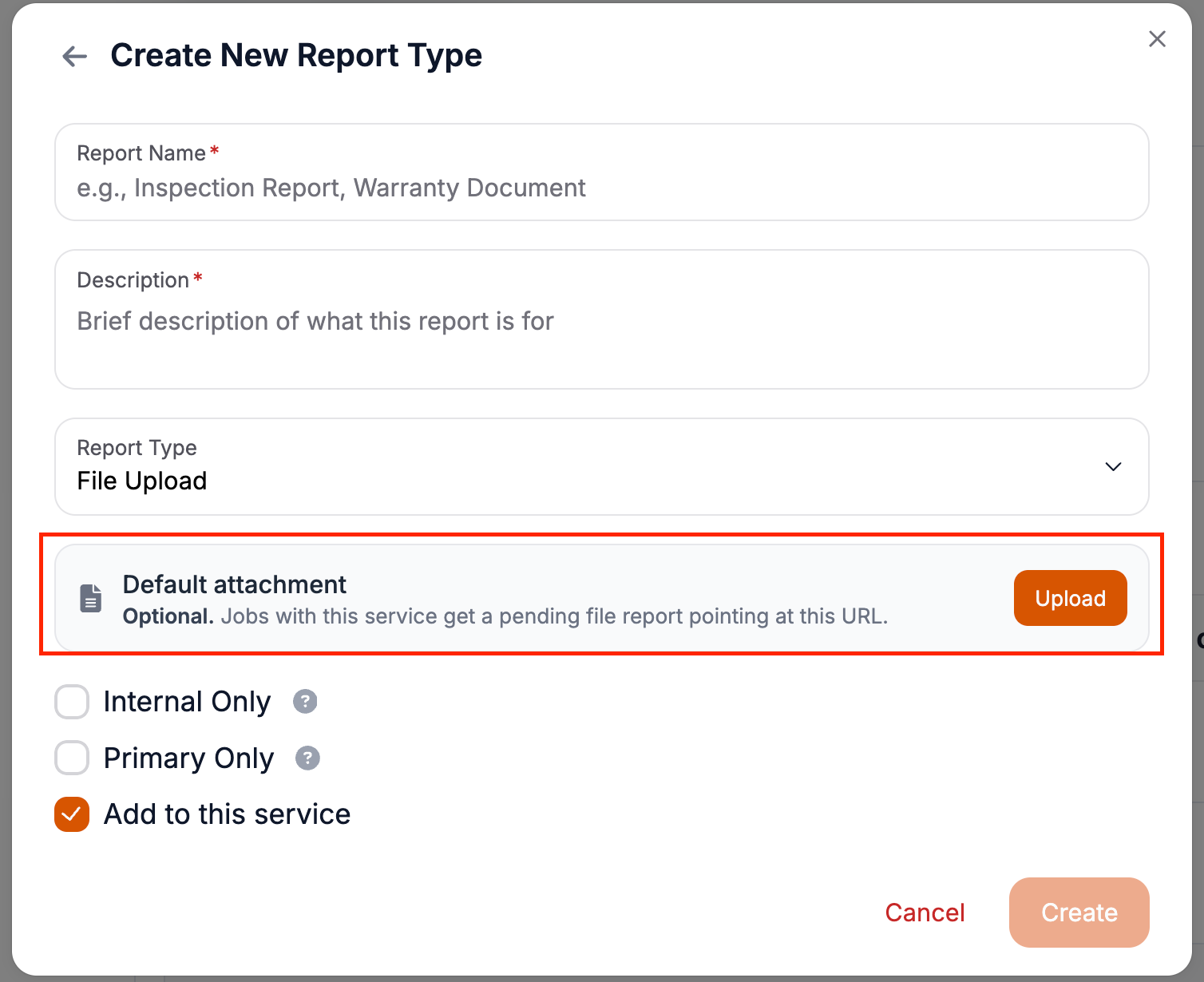
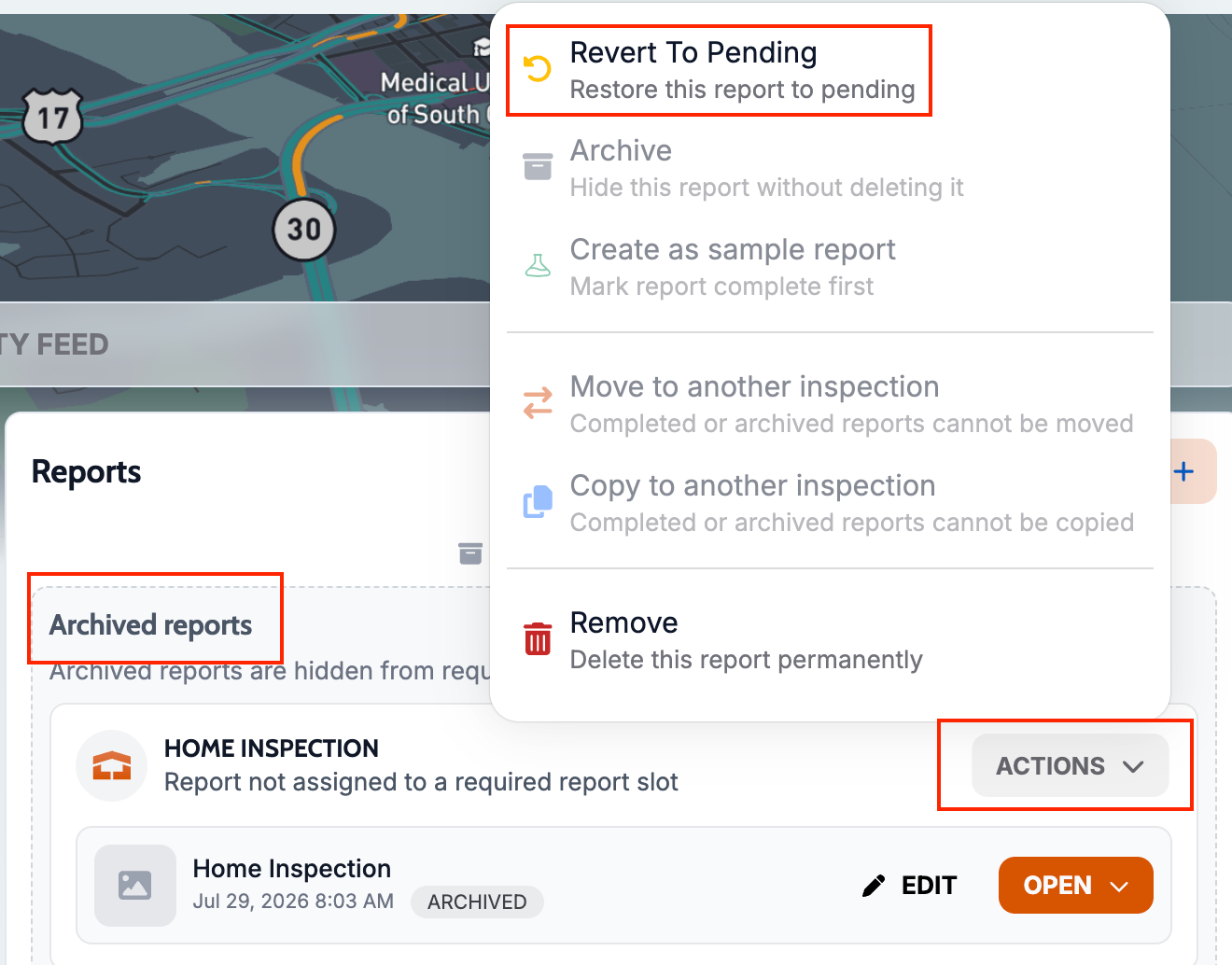
Primary-Only Required Reports No Longer Appear on Add-On Services

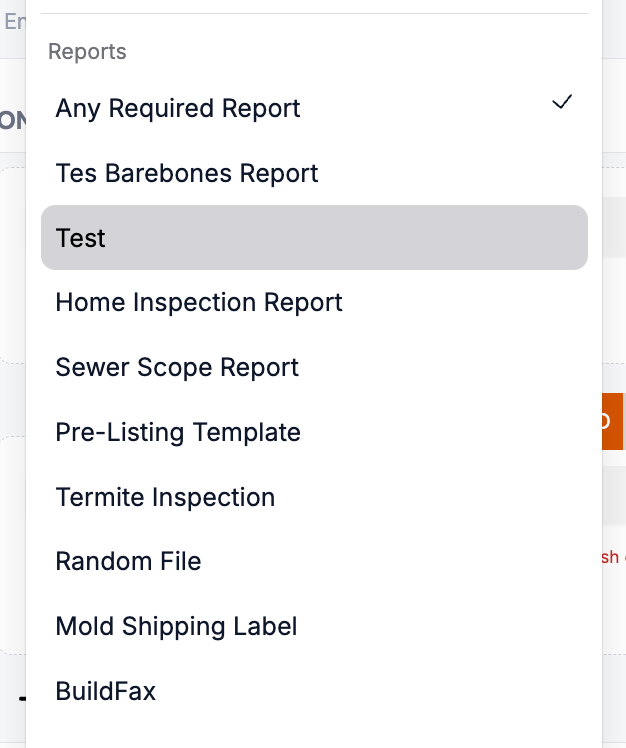
Required report slots configured as "Primary Only" now correctly appear only on the primary service charge. Previously, these slots were incorrectly showing up on add-on services added to the same inspection.

Applies to: Existing and future records


Duplicate Refunds and Double-Charges Prevented

A safeguard now prevents the same refund or card charge from being processed more than once if a request is submitted multiple times in quick succession. Payments and refunds that are already in progress will not be duplicated.

Applies to: Future records only


Inspection Totals Update More Reliably After Changes

Inspection totals now update more consistently after changes are made to charges or services on a job. Previously, totals could fall out of sync when multiple changes happened at the same time.

Applies to: Future records only


Correct Expiration Date on Report Exports

What changed — In the exports file list, the Expires column was showing the same date and time the export was created instead of the real 30-day expiration. Completed exports now show the correct expiration date, and the fix also corrects exports that were already showing the wrong date. (The date only appears for exports that finished successfully; queued, processing, or failed exports show a dash.)

Where to find it:

  1. Data Exports

  2. Run any report

  3. In the Your exports list, check the Expires column

Applies to: Existing and future records


Contact Search Now Finds Nickname and Partial-Name Matches

What changed — Searching for a contact by a partial name, common nickname or phone number now reliably surfaces the right existing profile. Previously, searches like "Sandy" wouldn't find a contact stored as "Sandra," which pushed staff to create duplicate contacts. Fuzzy matching has been loosened so these variations return the expected results — in global search, the scheduling contact picker, and the merge flow. Phone number searches do not require any specific formatting.

Where to find it: The main search bar, the contact picker when scheduling, and contact search in the merge flow.

Applies to: Existing and future records


Create Contact Companies Even When Another Brand Uses the Same Name

What changed — Adding a contact company no longer fails when a different brand/tenant already has a company with that name — company names are now unique per brand rather than across the whole system. If a create does fail, you'll now see an error message and the add form stays open instead of failing silently. This release also improved screen-reader labels on the contact form dropdowns (HubSpot, tags, inspector, and company).

Where to find it: When adding or editing a contact and creating a new contact company.

Applies to: Existing and future records


Booked Inspection Time No Longer Flips PM to AM

What changed — When scheduling an inspection for a PM time slot, the booked inspection could show up on the workorder header as the same clock time in AM (e.g. a 2:00 PM booking displaying as 2:00 AM) — a 12-hour shift that led to missed appointments. The booked time now matches the slot that was selected.

Where to find it: No new screen — takes effect when booking an inspection; the confirmed time on the inspection details header now matches the scheduler selection.

Applies to: New orders only


Email Builder Reliability Fixes

What changed — Three issues in the email builder are fixed: (1) images now upload on the first attempt instead of silently failing and requiring a second try; (2) a headline added on its own no longer forces an undeletable blank gap that showed as white space in sent emails; and (3) saving and refreshing no longer reorders your last-edited section to the bottom or drops text from sections. Emails now save and render as built, without the manual workarounds.

Where to find it: Action Flows → email builder, when creating or editing an email.

Applies to: Existing and future records


Correct Invoice Total When a Fixed Discount Is Combined With a Bundle

What changed — When a fixed-amount discount code was applied to an order that also had a bundle, the primary service line got slightly less discount than it should, leaving the invoice a few dollars higher than intended (e.g. a $30 discount only saving $27). The full discount is now distributed correctly so the invoice total reflects the complete savings.

Where to find it: No new screen — takes effect on orders that combine a fixed discount code with a bundle; the invoice total now reflects the full discount.

Applies to: New orders only


Client Portal Blocks Paying an Already-Paid Invoice

What changed — In the client portal, a stale balance could let someone reach the payment page and pay a second time on an invoice that was already settled. The portal now checks the actual payments on the invoice and shows "Invoice Already Paid" instead of allowing a duplicate payment.

Where to find it: Client portal → the invoice payment page.

Applies to: Existing and future records


App No Longer Crashes When Resuming From the Lock Screen (Mobile App)

What changed — The Attik mobile app could crash when you unlocked your phone and returned to it, due to how it checked for updates on every resume. It now only checks for updates on a fresh launch, so returning to the app after locking your phone no longer crashes it.

Where to find it: No new screen — takes effect after updating the mobile app.

Applies to: All users on the updated app version

July 8th, 2026

Summary

  • A new unified landing page brings saved views from all three admin dashboards — Client Care, Launchpad Revenue, and Post-Inspection Revenue — into one place

  • Saved views can now be created, shared, and managed on Launchpad Revenue and Post-Inspection Revenue dashboards

  • Dashboard budget totals are now consistent across all date ranges

  • The QuickFix repair quote modal handles session state more reliably, reducing the chance of lost progress mid-flow


New Features

Unified Admin Dashboard Landing Page

What changed: There's now a single landing page for all admin dashboards that shows saved views from Client Care, Launchpad Revenue, and Post-Inspection Revenue in one place. You can also save, share, and manage views directly on the Launchpad Revenue and Post-Inspection Revenue dashboards — a capability that previously only existed on Client Care.

Where to find it:

  1. Navigate to the Admin section

  2. The new landing page lists all saved views across all three dashboards, grouped by dashboard type

  3. Open any saved view to jump directly into that dashboard with your filters pre-loaded


Improvements

Online Booking Cutoff

What changed: The online scheduler now enforces a booking cutoff window, preventing clients from booking too close to the inspection date. This applies consistently across the scheduling flow regardless of how a client navigates the booking steps.

Where to find it: No new screen — takes effect automatically in the online scheduler after the update.

Setup:

  1. Go to Settings → Online Scheduler

  2. Set your desired window using the Online Booking Cutoff Time field


QuickFix Repair Quote — Session Handling

What changed: The QuickFix repair quote modal now manages session state more reliably, so progress isn't lost if you navigate away and return mid-flow. State handling has been refactored to reduce the chance of the modal getting into a broken or inconsistent state during a quote session.

Where to find it: Client portal → open a report → Repair List → Get Free Repair Quotes → Whole Report (QuickFix path).


Contact Merge — Email Normalization and Validation

What changed: When merging duplicate contacts, email addresses are now normalized and validated as part of the merge process, reducing the chance of malformed or inconsistent email addresses carrying over to the merged contact record.

Where to find it:

  1. Go to Contacts

  2. Hover over a contact row and click the Merge Contact icon

  3. Search for and select the duplicate contact to merge into


Service Area Modifiers Now Apply Correctly in Payroll

What changed: If your services have modifiers tied to service areas, those modifiers now calculate correctly when payroll is run. Previously, the service area context wasn't being resolved at payroll time, so area-based modifier amounts could be missing or incorrect on payroll line items.

Where to find it: No new screen — takes effect automatically the next time payroll is run after this update.


Bug Fixes

"Create Missing Agreements" alert no longer appears incorrectly on multi-job workorders

What changed: The "Create Missing Agreements" alert was showing on workorders even when agreements weren't actually required — or when a different template had already satisfied the obligation. The alert now only appears when a genuinely missing agreement needs attention.

Where to find it: No new screen — the fix takes effect automatically on workorders with multiple jobs where agreement templates are assigned.

Applies to: Existing and future records.


Online Scheduler — Preferred Inspector Lock

What changed: When a client selects multiple preferred inspectors during online booking, the assigned inspector is now correctly locked to one of the preferred options. Previously, the system could assign an inspector outside the preferred selection when multiple preferences were chosen.

Where to find it: No new screen — takes effect automatically in the online scheduler after the update.

Applies to: Future records only


Online Scheduler — Slot Selection Resets When Preferred Inspector Filter Changes

What changed: When a client changes their preferred inspector selection during online booking, any previously selected time slot is now automatically cleared. Previously, changing the inspector filter could leave a slot selected that was no longer valid for the updated preference.

Where to find it: No new screen — takes effect automatically in the online scheduler after the update.

Applies to: Future records only


Dashboard Forecast — Inconsistent Budget Totals

What changed: Dashboard budget totals were showing inconsistent numbers across certain date ranges, causing some months to appear significantly off from expected values. The underlying calculation has been corrected so forecast figures are now consistent regardless of which date range is selected.

Where to find it: No new screen — the corrected figures appear automatically on the dashboard after the update.

Applies to: Existing and future records


Online Scheduler — Open Quotes Sorted by Creation Date

What changed: Open quotes in the online scheduler were not consistently ordered, which could cause the wrong quote to surface during booking. Quotes are now sorted by when they were created so the order is predictable and correct.

Where to find it: No new screen — takes effect automatically in the online scheduler after the update.

Applies to: Existing and future records

June 23rd, 2026

Summary

  • Repair List Overview gives clients a post-inspection hub to review repair items, get quotes, share, and export when you enable ProPair v2 — Repair List Landing Page in Report Settings.

  • Dispatch swap suggestions (off by default) help schedulers unlock full slots by moving an existing job to another inspector, with a Review swap confirmation step.

  • Online scheduler clients can leave Notes for the Office on the summary step before booking.


New Features

Dispatch swap suggestions

Schedulers can enable Swap Suggestions to see slots that are normally full but could be opened by moving an existing job to another inspector. Selecting a swap slot opens a Review swap modal showing which job moves and which inspector takes the new booking.

Setup:

  1. Open Settings → Scheduling.

  2. Enable Swap Suggestions.

  3. Optionally keep Drive Time Conflict Alerts on to see travel warnings during swap review.

  4. Save.

Where to find it:

  1. Turn on Settings → Scheduling → Swap Suggestions (off by default).

  2. Open the scheduling form, enter the new property, and load slots.

  3. Choose a swap-enabled slot and confirm in Review swap.


Notes for the Office on the online scheduler

Clients booking through your online scheduler can now leave optional Notes for the Office on the summary step before confirming. Notes travel with the booking so your team sees special instructions (gate codes, access details, pets, and similar) as a pinned note in the activity feed when the job is created. Also, the variable ‘Scheduler Notes’ can be added into email and SMS templates.

Where to find it:

  1. Open your company's online scheduler (public booking link).

  2. Complete the booking steps until the summary step.

  3. Enter text in Notes for the Office before submitting.


Repair List Overview hub for clients (ProPair v2)

When ProPair v2 — Repair List Landing Page is selected, clients who save a repair list are taken to a branded Repair List Overview hub instead of the older quote-only path. From there they can get quotes, share the list, export, and manage addendum items in one place.

Where to find it:

  1. Open Settings → Report Settings → set Repair quote experience to ProPair v2 — Repair List Landing Page and save.

  2. In the client portal, open a report, build a repair list, and save it — you land on Repair List Overview.

Setup:

  1. Open Settings → Report Settings.

  2. Under ProPair, choose ProPair v2 — Repair List Landing Page.

  3. Configure Thumbtack / QwikFix integrations as needed for your quote partners.

  4. Save settings.


Improvements

Dispatch map shows inspector service areas more clearly

The dispatch map better highlights inspector service area boundaries, including combined areas when no inspector is selected, so schedulers can see coverage at a glance.

Where to find it: Open Dispatch — service area outlines reflect inspector boundaries and focus states automatically.


Dispatch calendar uses your saved calendar settings

The dispatch calendar now respects server-side calendar display settings (such as row height), making dense dispatch days easier to read.

Where to find it: Open Dispatch and select inspectors for calendar-oriented dispatch views — layout follows your configured calendar settings.


Inspector Balance widget shows clearer capacity at a glance

The Inspector Balance widget on the dashboard has been updated to show capacity in a cleaner, easier-to-read format. Bar colors now use a simplified scheme, the fill state caps at 100% for readability, and the over-capacity error treatment has been removed — so normal busy days no longer look like an error state. Total and Open slot count columns are retained so schedulers can still see how much capacity remains across the team at a glance.

Where to find it: Open the dashboard and locate the Inspector Balance widget. The updated layout and colors take effect automatically after the update.


Report info cards show observation location

On client reports, information observations that include a location now show a map-pin label with the location text on the info card, making it easier to see where an item applies (for example, which room or area).

Where to find it: Open a client portal report and browse Information sections — location appears on qualifying info cards automatically.


Data export previews handle large record sets more reliably

Previewing data exports that join inspections with charges or people is less likely to fail on large datasets thanks to improved timeout handling during preview queries.

Where to find it: Open Data Exports and run Preview on a report with joined inspection data.


Clearer message when a record belongs to another company

If you open a workorder, contact, service, template, or other page that belongs to a different company than your active session, Attik now shows a dedicated access message with an option to switch to the correct company when you have membership there.

Where to find it Appears automatically when you open a deep link or bookmark for a record outside your current company context.


Bug Fixes

HomeBinder sends the correct document type for specialty reports

When completed reports are sent to HomeBinder, Attik now maps specialty reports (sewer scope, radon, pest, pool, and similar) to the correct HomeBinder document type instead of sending many as generic Other documents.

Where to find it: No new screen — applies automatically when HomeBinder sends on completed reports.

Applies to: Future HomeBinder sends after the update.


Action flow inspection-time rules respect company timezone

Action flows using Inspection time conditions now evaluate against your company timezone, so time-of-day automations fire at the correct local time.

Where to find it: Open Action Flows — flows with inspection-time conditions apply the fix automatically after the update. Confirm your company timezone is set correctly under Settings.

Applies to: Existing and future inspections when flows run after the update.


Overpaid jobs no longer lock reports or send payment reminders

When a discount was applied to a job after payment was already collected — creating a slight overpayment — the report was staying locked and clients and agents were receiving payment reminder messages even though the job was paid in full. Both issues are now resolved. Overpaid jobs are treated as settled, reports unlock automatically, and payment reminders are suppressed.

Where to find it: No new screen — takes effect automatically on affected workorders after the update. Clients will regain report access and reminder automations will stop firing on overpaid jobs.

Applies to: Existing and future workorders — jobs already in an overpaid state will be corrected when totals are resynced after the update.


Service duration can be cleared in service settings

Editing a service no longer fails when duration is left empty — the settings form accepts a blank duration instead of throwing a validation error.

Where to find it Open Settings → Services, edit a service, and clear or leave duration unset, then save.

Applies to: Existing and future service records when edited after the update.


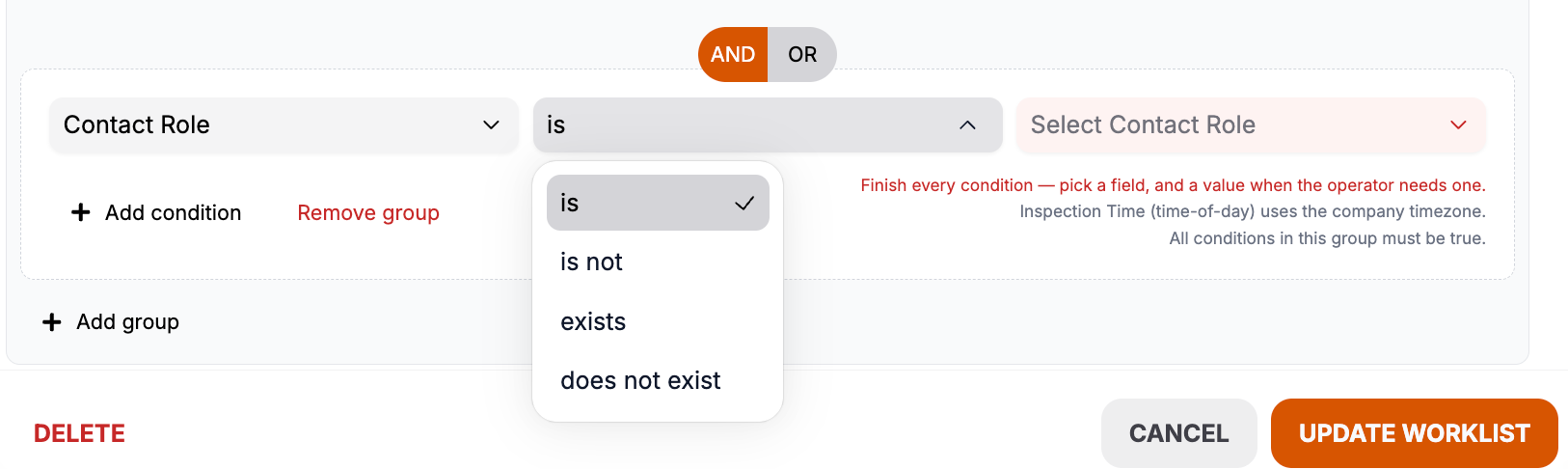
Dropdown menus in Worklist and Action Flow conditions now show full option names

When building conditions in Worklists, Action Flows, or Agreement Templates, dropdown menus for list values (such as Services, inspectors, tags, and contact roles) were cutting off long names so the full text wasn't visible. You can now read and select any option regardless of its length or the width of your browser window.

Where to find it: No new screen — takes effect automatically. The fix applies anywhere you use the Conditions builder, including creating or editing a Worklist under Work, building Action Flow conditions, and Agreement Template conditions.

Applies to: Existing and future records — any Worklist, Action Flow, or Agreement Template using list-type conditions will display correctly after the update.


Profile menu now scrolls when you belong to many companies

The profile menu in the left navigation was getting cut off for users with a large number of company memberships — items below the company list, including Attik Admin and Sign Out, were unreachable without zooming out in the browser. The menu now scrolls so every option is accessible at normal zoom on any screen size.

Where to find it: Open the profile menu at the bottom of the left navigation bar — the full menu is now scrollable when the company list is long.

Applies to: Existing and future sessions — takes effect automatically after the update.

June 17th, 2026

Summary

  • New Launchpad Revenue admin dashboard shows cross-company revenue, forecast pacing, PIR inspection mix, and payment-type fees with CSV export.

  • ISN historical import now resyncs existing orders more reliably, maps inspectors and contact roles, syncs standalone calendar blocks, and lists imported inspections.

  • Staff can waive or remove Pay at Close fees before or during an active PAC order from the workorder Charges & Payments area.

  • Invoices, refunds, and client payment screens show Pay at Close fees and refund amounts more accurately.

New Features

Launchpad Revenue admin dashboard

What changed: Attik admins with the right permission can open a new Launchpad Revenue dashboard to compare revenue performance across companies. The page includes KPI cards (total revenue, average fee per job, add-on attach rate, vs. budget), a revenue forecast chart with brand breakdown and export, a PIR Inspection Type view, and a Payment Type & Fees breakdown.

Where to find it:

  1. Open AdminLaunchpad Revenue

  2. Select companies and a date range, then click Apply

  3. Use Download on the forecast widget to export inspection-level data

Setup: Grant Launchpad Revenue view permission under AdminSettingsInstance Management → user Admin Permissions.


Remove Pay at Close fee on an active PAC order

What changed: When a Pay at Close order is already active, staff can remove the Pay at Close fee from the payment row menu on the workorder (without cancelling the whole PAC order). A confirmation step shows success when the fee is removed.

Where to find it: Inspection workorder → Charges & Payments → find the Pay at Close Fee payment row → open the row menu → remove fee option.

Setup: None — available when Pay at Close is enabled and an active PAC payment exists on the job.


Improvements

Clearer Pay at Close fee labels and payment statuses

What changed: Pay at Close fees are now labeled Pay at Close Fee instead of Technology Fee on the client payment portal, invoices, and PDFs — so clients can tell the PAC fee apart from card/ACH processing fees. Signed Pay at Close agreements also no longer show as Paid before funds are collected. They now show Due at closing (or To be paid to Guardian at closing on invoices and the client timeline) until Guardian collects at closing. Staff workorders use Pay at Close as the payment source and show clearer PAC statuses such as Signed, Awaiting Signature, and Paid when funds are actually collected.

Where to find it:

  1. Client portal → job Pay for Your Service / payment page — fee line and status chips

  2. Client portal → timeline and invoice accordion — due-at-closing wording

  3. WorkorderCharges & Payments — Pay at Close payment row, fee line, and PAC status chip

  4. Invoice PDF — fee label and payment status on Pay at Close rows

Setup: None — available after the update.


Invoice PDF reflects Pay at Close fees and waivers correctly

What changed: Invoice PDFs and the workorder invoice preview now show Pay at Close technology fees, waived fees, and totals consistently with what staff see on the workorder.

Where to find it: Workorder → Charges & PaymentsActionsView Invoice PDF.

Setup: None.


ISN historical import — resync, contacts, charges, and calendar

What changed: Companies migrating from ISN can run historical imports with improved re-sync when an order already exists in Attik, more accurate charge and contact matching, inspector mapping and contact role mapping before import, standalone calendar block import (filtered by service names and keywords), and a rollup list of imported inspections.

Where to find it:

  1. SettingsIntegrations → expand ISN

  2. Enter ISN historical import API credentials and test connectivity

  3. Complete inspector mapping and contact roles sections

  4. Choose a date range and run Run import (dry run available first)

Setup: Requires ISN historical import permission and ISN JSON API credentials stored in integration settings.


Contact and activity number formatting

What changed: Dollar amounts and numeric fields on contact inspection lists, contact merge, calendar event details, and activity change history use consistent thousand-separator formatting.

Where to find it: ToolsContacts (inspection list and merge flows), calendar events, and inspection activity feed.

Setup: None — takes effect after the update.


Bug Fixes

Pay at Close refund amounts on workorders

What changed: Refund totals and remaining refundable amounts on Pay at Close and card payments now account for fee-only refunds and settled principal correctly, so staff do not over-refund or see misleading balances.

Where to find it: Inspection workorder → Charges & Payments → payment rows and refund modal.

Applies to: Existing and future payments when viewing or refunding after the update.


Client payment portal hides waived Pay at Close fees

What changed: When staff waive the Pay at Close fee on a job, the client payment portal no longer shows a technology fee line that should not be charged.

Where to find it: Client portal → job payment page.

Applies to: Existing and future jobs where the fee is waived after the update.

June 16th, 2026

Summary

  • Client Care Dashboard now lets you switch between Booked Date and Inspection Date when viewing metrics.

  • Reports Hub gained linked collection filters, inspector columns and filters, and timezone labels on report previews.

  • Payment batch details show payer names, improved sorting, and a clearer layout.

  • Revenue dashboard labels and forecast percentage calculations are more accurate, including daily charts that handle Sundays correctly.

New Features

Client Care Dashboard date type filter

What changed: The Client Care Dashboard now includes a Date Type toggle so you can view metrics by Booked Date (when the job was scheduled) or Inspection Date (when the inspection takes place). KPI labels update to match your selection.

Where to find it:

  1. Open AdminClient Care Dashboard

  2. Use the Date Type toggle in the header — Booked Date or Inspection Date

  3. Apply your company and date range filters as usual

Setup: Requires Client Care Dashboard access.


Online scheduler row on Client Care Dashboard

What changed: The Client Care Dashboard Employee Performance table now includes an Online / Self-Booked row that shows scheduler metrics for jobs booked through the online scheduler (client self-booking), alongside individual client care reps. Use the Online Scheduler toggle above the table to show or hide the row; when visible, it is included in the Team Average calculation.

Where to find it:

  1. Open AdminClient Care Dashboard

  2. Scroll to Employee Performance

  3. Use the Online Scheduler toggle to include or exclude the Online / Self-Booked row

Setup: None — requires Client Care Dashboard access.


Filter Reports Hub exports by linked collection fields

What changed: When a Reports Hub report links multiple collections (for example inspections plus quotes or reports), you can now add filters on fields from those linked collections — such as quote status, report status, or inspection published state — grouped under each linked collection in the filter panel.

Where to find it:

  1. Reports Hub

  2. Create or edit a report and add a Link collection (for example link Quotes to an Inspections report)

  3. Open Filters — linked collection filters appear in their own sections

Setup: Requires Reports Hub permission.


Improvements

Inspector columns and filters in Reports Hub

What changed: Reports Hub exports and filters now support inspector-focused fields such as assigned inspector names, requested inspector names, and inspector-based filter options when building or running reports.

Where to find it: Reports Hub → create or edit a report (Inspections Collection) → Columns and Filters.

Setup: None.


Reports Hub preview shows dates in company timezone

What changed: Report previews in Reports Hub now label date and time columns with your company timezone, so you can confirm how exported dates will read before downloading.

Where to find it: ToolsReports Hub → open a saved report or run preview.

Setup: None.


Payment batch details show payer names and improved layout

What changed: The payment batch detail view now shows customer/payer names linked to each transaction, with improved column sorting and a clearer table layout for reviewing batch payouts.

Where to find it:

  1. PaymentsPayment Batches

  2. Open a batch to view transaction details

Setup: None.


Revenue dashboard SummaryBox labels clarified

What changed: The revenue widget Summary area now uses clearer column headings (Budget, Available, Actual) and more consistent percentage labels so capacity and forecast comparisons are easier to read at a glance.

Where to find it: Tools dashboard → Revenue widget → summary boxes at the top.

Setup: None.


Workorder people and inspector display improvements

What changed: Contact and inspector sections on workorders, worklists, and quote rows were refreshed for clearer names, avatars, phone formatting, and layout consistency.

Where to find it: Workorders, ToolsWork worklists, and open quote rows.

Setup: None.


Bug Fixes

Internal scheduler ignores next-day booking cutoff

What changed: Staff scheduling jobs through the internal scheduler can still book next-day appointments after your online next-day cutoff time. The cutoff continues to apply to the online scheduler and client self-booking only.

Where to find it: Tools → schedule or reschedule a job using the internal scheduling flow (not the client-facing online scheduler).

Setup: None — online scheduling cutoffs under Settings → Scheduling are unchanged.

Applies to: Future internal scheduling and rescheduling actions after the update.


Revenue forecast percentage calculation

What changed: The revenue widget now calculates % of budget filled and related forecast comparisons correctly when a business segment is selected or when forecast totals are partial.

Where to find it: Dashboard → Revenue widget.

Applies to: Existing and future date ranges when viewing the dashboard after the update.


Revenue daily chart handles Sundays correctly

What changed: Daily revenue charts no longer drop or mislabel Sunday data points, so custom and weekly views align with the full date range selected.

Where to find it: Dashboard → Revenue widget → daily view.

Applies to: Existing and future records when viewing historical date ranges.

June 15th, 2026

Summary

  • Worklists gained customizable columns, quick filters, drag-and-drop ordering, and richer inspector and contact details on each row.

  • Forecast Settings now supports month-first budgeting with week shaping, plus paste-from-spreadsheet entry for annual plans.

  • Staff can manually edit agreement content on individual workorders when the template allows it, and temporary availability slots can be hidden from the online scheduler.

  • Attik Mobile had no production release in this window (June 12–June 14, 2026).

New Features

Customize worklist columns

What changed: Each worklist now has a Columns control so you can show or hide optional columns — including required-info fields and contact-role columns — and save that layout for the worklist.

Where to find it:

  1. Worklists → open any worklist (inspections, quotes, or events)

  2. Click Columns above the list

  3. Check or uncheck columns, then click Apply

Setup: None — available after the update for worklists you can already access.


Worklist quick filters

What changed: Worklists now include a filter bar for narrowing the list without editing the worklist definition — by inspector, team, status, business segment, date range, and other context-aware options depending on worklist type.

Where to find it: Worklists → open a worklist → use the filter controls at the top of the list.

Setup: None.


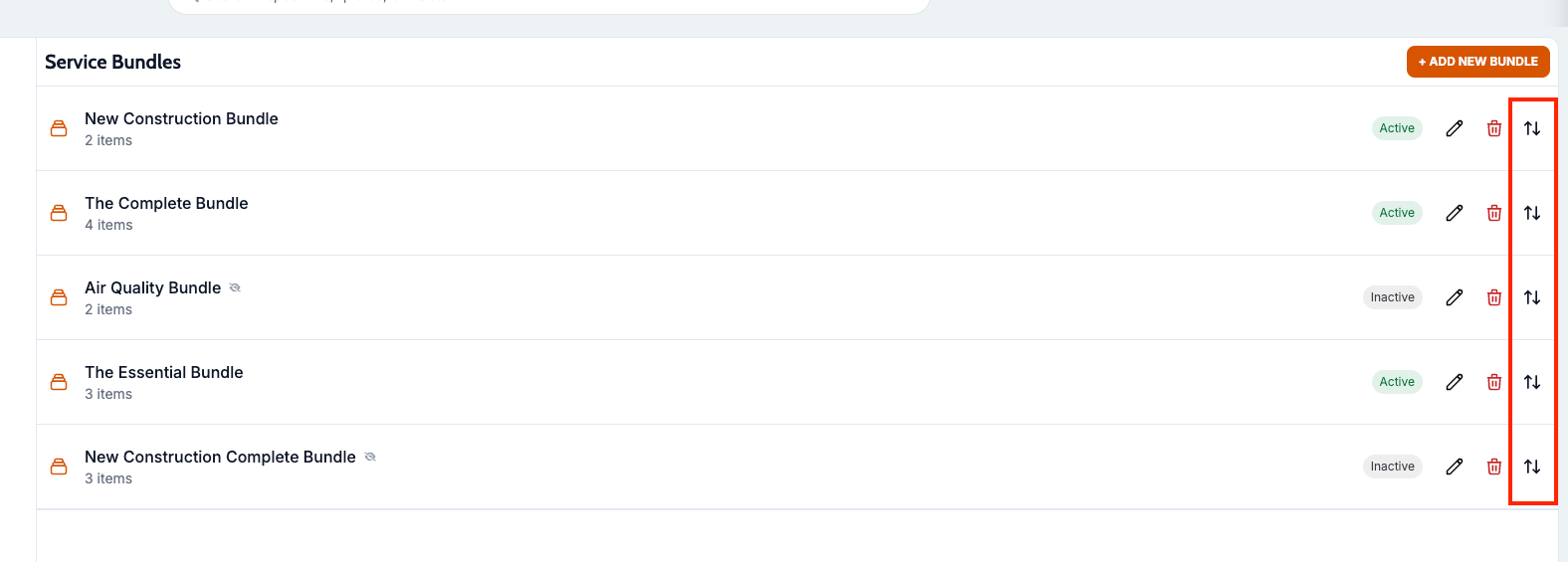
Reorder worklists by drag and drop

What changed: You can drag worklists in the Work menu to change their order. The new order is saved for your company.

Where to find it: ToolsWork → drag worklist names in the left menu to reorder.

Setup: None.


Assign worklists to specific team members

What changed: When creating or editing a worklist, you can assign it to specific team members under Members. Assigned users can click My Worklists in the Work menu to show only worklists they belong to. Leave Team Members empty to keep a worklist visible to everyone.

Where to find it:

  1. ToolsWork → create or edit a worklist

  2. In the Members section, select Team Members (optional)

  3. To view your assignments, open Work and click My Worklists above the worklist menu

Setup: None — team members must already exist as office staff or inspectors in Attik.


Richer inspector and contact details in worklists

What changed: Worklist rows now show inspector avatars and initials, locked or requested inspector status, and improved contact and service summaries so you can scan assignments without opening each row.

Where to find it: ToolsWork → any inspection, quote, or event worklist.

Setup: None.


Required info fields as worklist columns

What changed: Custom required-info fields can appear as columns in worklists, so teams can see job-specific data (dropdowns, dates, text fields) directly in the list view.

Where to find it: ToolsWork → open a worklist → Columns → enable required-info field columns.

Setup: Required-info fields must already exist under Settings → Required Info.


Month-first forecast budgeting with week shaping

What changed: Forecast planning is organized around monthly budgets first. For each month you can shape how revenue is distributed across weeks — including holiday-aware week weights — so dashboard forecasts align with how your team plans by month.

Where to find it:

  1. SettingsForecast

  2. Enter monthly totals in the budget grid

  3. Open Week shaping for a month to adjust how that month’s target spreads across weeks

Setup: Requires Settings Admin access and the Annual Forecast permission to view forecast widgets on the dashboard.


Paste forecast budgets from a spreadsheet

What changed: The monthly forecast grid accepts pasted values from Excel or Google Sheets, so you can bulk-enter monthly or segment budgets instead of typing each cell.

Where to find it: SettingsForecast → click into a budget cell and paste copied spreadsheet values.

Setup: None beyond existing Forecast Settings access.


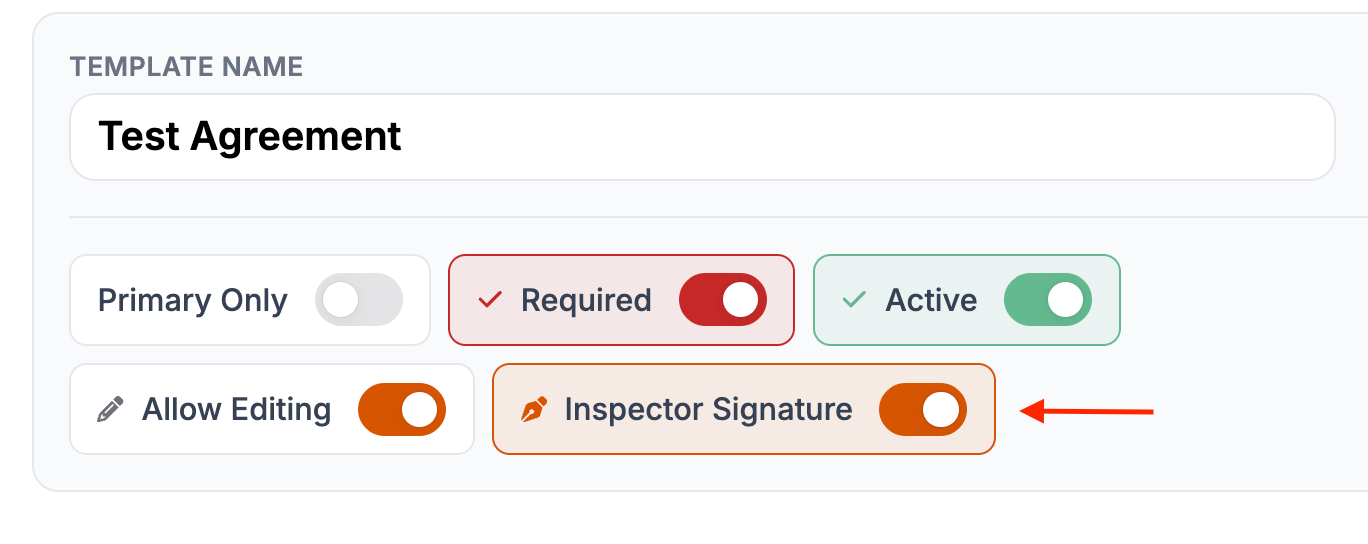
Manually edit agreement content on a workorder

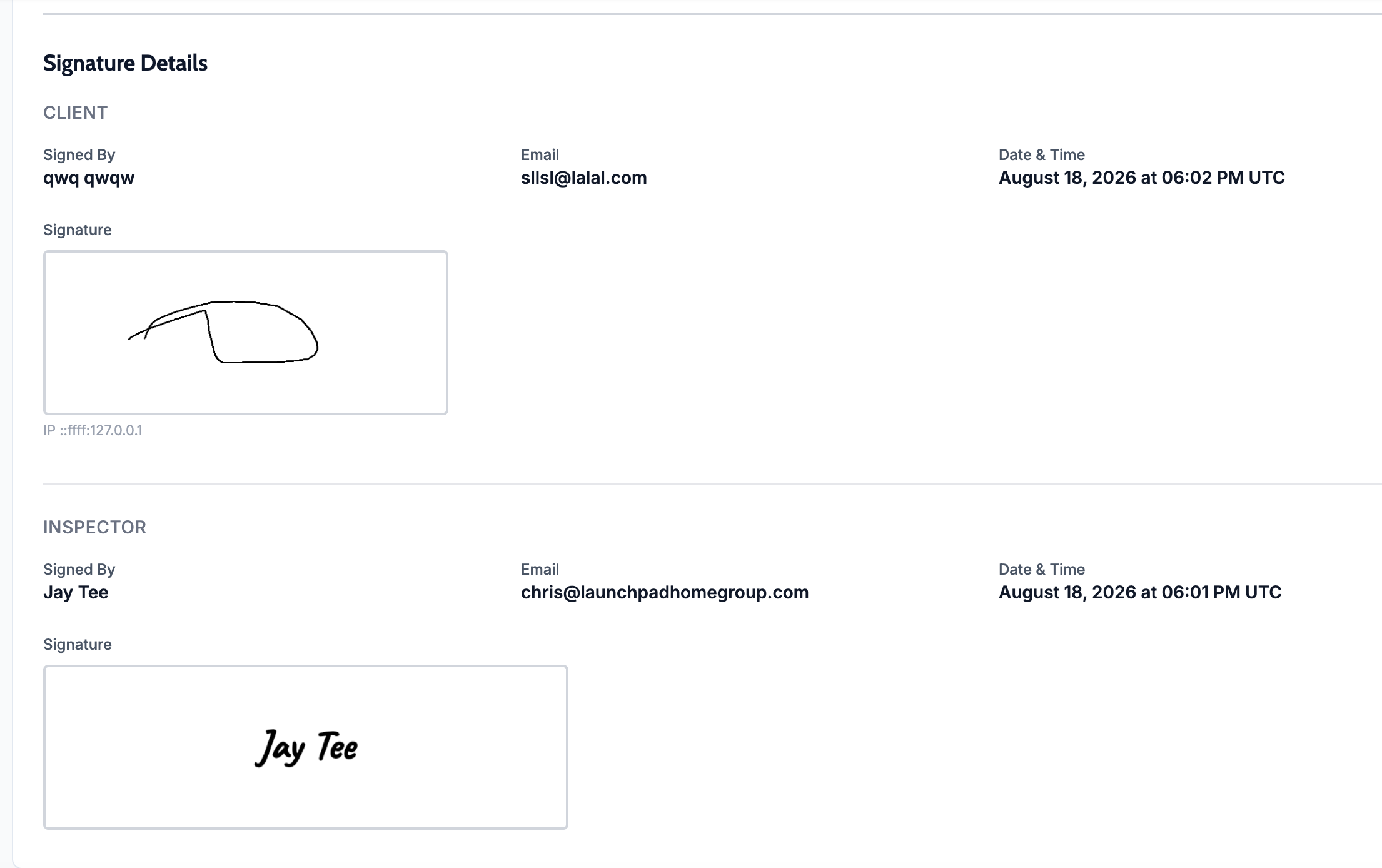
What changed: When an agreement template has Allow Editing turned on, staff can edit that agreement’s content for a single job without changing the master template. Regenerating from the template will overwrite manual edits.

Where to find it:

  1. Open a workorder → Agreements

  2. For agreements with editing enabled and not yet signed, click the pencil icon to edit content for that job only

Setup: Enable Allow Editing on the agreement template under Tools → Agreements → Templates.


Hide temporary slots from the online scheduler

What changed: When creating or editing a temporary availability slot, you can turn off Offered in online scheduler. Internal-only slots remain available for staff and dispatch scheduling but do not appear to clients booking online.

Where to find it:

  1. SettingsInspectors → select an inspector → Temporary Slots

  2. Create or edit a slot and toggle Offered in online scheduler

  3. For recurring series, choose whether the setting applies to one occurrence or all future occurrences

Setup: None.


Improvements

Show more appointment times per day in the online scheduler

What changed: When a day has many available times, the online booking calendar shows a +N more control to expand the day and reveal additional slots, then Show less to collapse.

Where to find it: Client-facing online schedulerSelect a time step → days with many slots.

Setup: None.


Clearer pricing confirmation when changing requested inspector

What changed: When staff change the requested inspector or other pricing-related fields on a workorder, Attik shows a clearer confirmation explaining whether service prices, duration, or charges may change before saving.

Where to find it: Open a workorder → edit Requested inspector, property details, or required info that affects pricing.

Setup: None.


Online booking cutoff rules enforced at confirmation

What changed: Same-day and next-day booking restrictions from your scheduling settings are now enforced when the job is actually booked, not only when slots are first displayed. This prevents stale browser sessions from booking outside your allowed window.

Where to find it: No new screen — applies automatically on the online scheduler and internal booking confirmation flows.

Setup: Configure same-day and next-day rules under Settings → Scheduling if not already set.


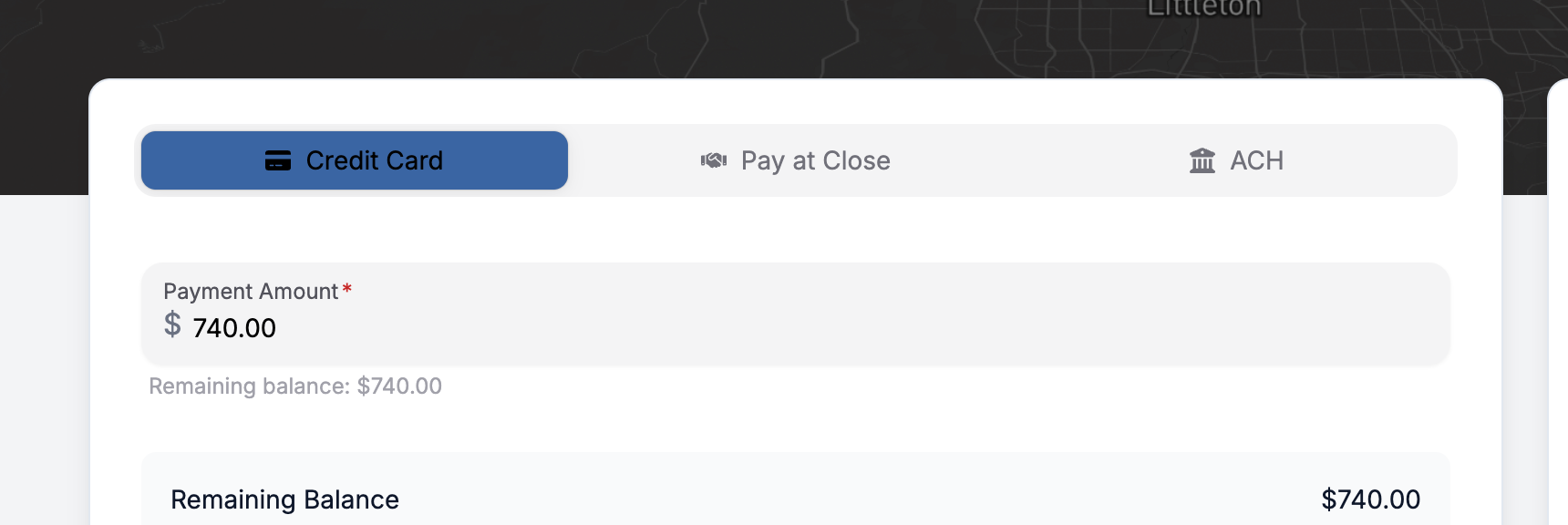
Client portal card payment form layout

What changed: The card payment area on the client portal was reorganized for clearer labels, spacing, and accessibility on smaller screens. Previously this was causing an issued that made the expiration date field appear to be greyed out or only allow 1 or 0 as entry options.

Where to find it: Client portal → pay for an inspection → Credit card tab.

Setup: None.


Clearer QwikFix repair quote button labels

What changed: Button labels in the QwikFix repair quote flow were updated for consistency so clients understand what each action does when requesting repair quotes.

Where to find it: Client portal → report → Repair listQwikFix quote flow.

Setup: QwikFix must be connected under Settings → Integrations → QwikFix.


Bug Fixes

Dashboard quarter and custom date range revenue totals

What changed: Revenue widgets now calculate quarter and custom date ranges correctly, including how “actual” revenue is counted across week boundaries.

Where to find it: Tools dashboard → Revenue and related date-range widgets.

Applies to: Existing and future records when viewing historical date ranges.


QwikFix repair quotes include report PDF and process more reliably

What changed: QwikFix quote submissions now send the report PDF link when available, and webhook handling is more tolerant when a quote reference is missing — reducing failed repair-quote requests.

Where to find it: Client portalRepair listQwikFix submissions.

Applies to: Future QwikFix quote submissions after the update.


Convenience fees respect “fees disabled” on a job

What changed: Card convenience fees are no longer charged on jobs where fees have been disabled, even when pass-through processing is enabled.

Where to find it: No new screen — applies when clients pay by card on affected jobs.

Applies to: Future card payments on jobs with fees disabled.


Pay-at-close payment status stays accurate when order status changes

What changed: Pay-at-close (PAC) payments now follow more reliable status rules when the underlying PAC order is cancelled, declined, or otherwise updated — so workorder payment status matches what actually happened.

Where to find it: Workorder Payments section and client portal payment status for PAC jobs.

Applies to: Existing and future PAC payments when status updates are received after the release.


ACH and card payment statuses display more consistently

What changed: Payment statuses from the card processor are normalized so ACH and card settlements show consistent completed, pending, or failed states across payments and refunds.

Where to find it: Workorder Payments, payment batches, and client payment history.

Applies to: Existing and future payments when settlement status updates are processed.


Client report header shows the correct inspector

What changed: Report headers on the client portal now fall back to the assigned inspector more reliably when primary inspector data is incomplete.

Where to find it: Client portal → open a report → report header.

Applies to: Existing and future reports when viewed in the client portal.


Defect photo carousel navigation cleaned up

What changed: Photo carousels on defect cards no longer show unnecessary dot indicators that could clutter the view on multi-photo observations.

Where to find it: Client portal → report → defect cards with multiple photos.

Applies to: Existing and future reports viewed in the client portal.

June 8th, 2026

Summary

  • Google Calendar sync lets companies turn on calendar export and lets inspectors connect a personal Google Calendar so confirmed inspections appear alongside their other events.

  • Admin Post-Inspection reporting now includes CSV exports for HomeBinder adoption data.

  • HubSpot deal linking is more reliable, with clearer deal IDs and sync feedback on the work order Integrations tab.

  • Dashboard charts now bucket dates using your company timezone, fixing drift for brands east of Mountain time.

  • QuickBooks invoice comparison on a work order reflects refunds correctly instead of overstating totals.


New Features

Google Calendar sync for inspector schedules

What changed: Companies can enable Google Calendar sync with a configurable look-ahead window. Inspectors can connect their own Google account, pick which calendar to use, and run Sync Now so confirmed inspections and event blocks appear on that calendar.

Where to find it:

  1. Company setup: Settings → Integrations → Google Calendar

  2. Inspector connection: Settings → Account (inspectors only) — Google Calendar section with Connect Google Calendar

Setup:

  1. Open Settings → Integrations → Google Calendar.

  2. Choose Sync Window (how far ahead to sync), then Enable Google Calendar Sync.

  3. Each inspector opens Settings → Account, connects Google, selects a Calendar, and uses Sync Now if they want an immediate refresh.


New Action Flow condition: Current Contact Duplicated On Job

What changed: Flow builders can add a condition that checks whether the current recipient contact appears more than once on the same job and prevents action from sending to that specified contact—separate from the existing Contact Already On Job check which disables the action for all contacts on the job.

Where to find it:

  1. Open Settings → Action Flows.

  2. Edit a flow’s Edit Trigger Conditions or an action’s Conditionals.

  3. In the contact attribute list, choose Current Contact Duplicated On Job.

Setup: None — available after the update for users who can edit Action Flows.


Improvements

Streamlined inspector mobile notification times

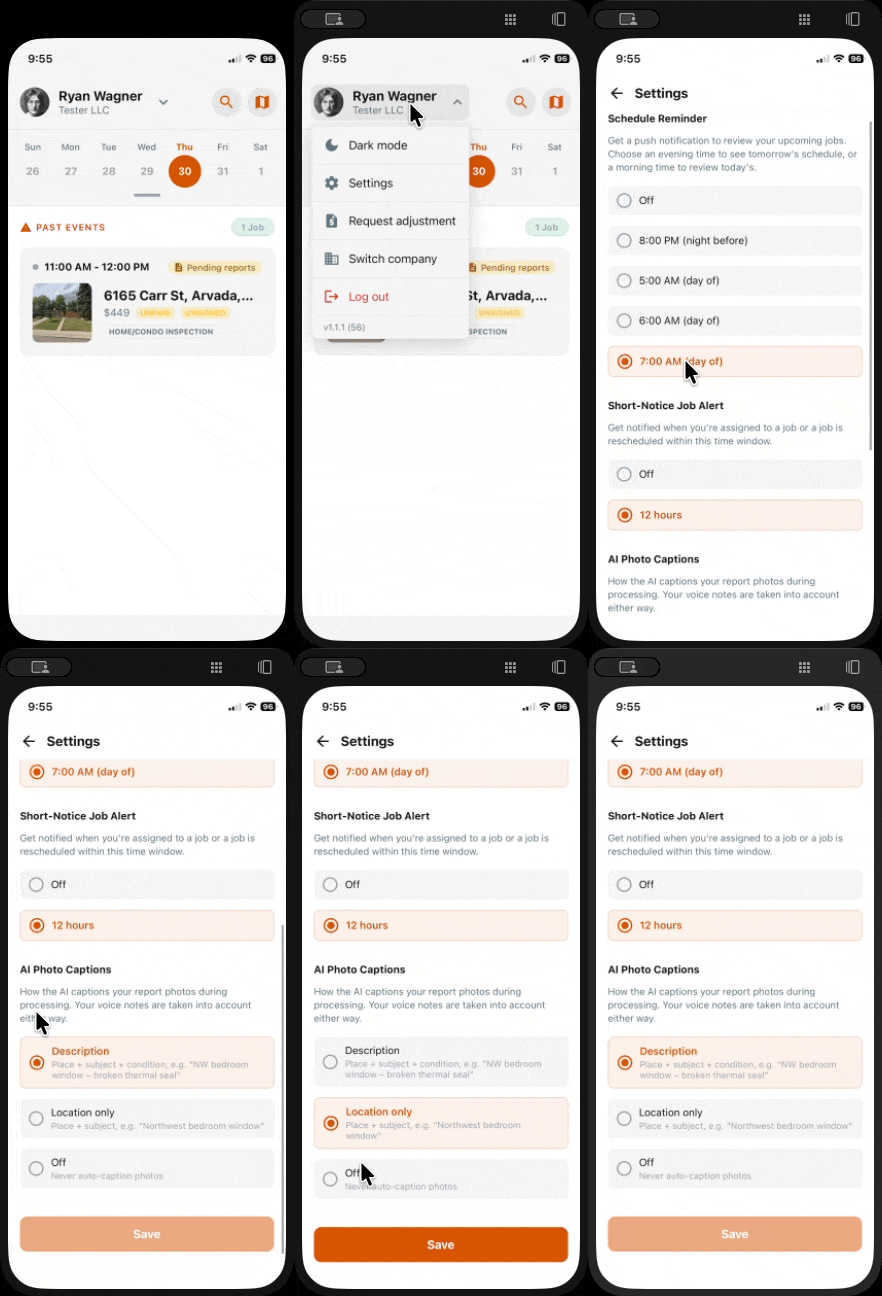
What changed: Schedule Reminder and Short-Notice Job Alert on the mobile app now offer a shorter, clearer set of times. Earlier evening reminder options were removed; anyone who had 6:00 PM or 7:00 PM selected was moved to 8:00 PM (night before), and 24 hours short-notice alerts were moved to 12 hours.

Where to find it:

  1. Open Settings → Notification Settings.

  2. Scroll to the Mobile app section.

  3. Adjust Schedule Reminder or Short-Notice Job Alert.

Setup: None — existing selections were migrated automatically where needed.


Clearer HubSpot deal display and sync messages

What changed: The HubSpot panel on a work order shows a clearer Deal ID in the accordion header, improved loading states, and more specific toast messages when you Sync to HubSpot (created, updated, skipped, or failed).

Where to find it:

  1. Open a work order.

  2. Go to the Integrations tab.

  3. Expand HubSpot — review Deal ID, Open in HubSpot, Resync, and Sync History.

Setup: Settings → Integrations → HubSpot must already be connected.


Export HomeBinder adoption data to CSV

What changed: Admins reviewing post-inspection revenue can download HomeBinder adoption data as a CSV for the companies and date range already selected on the dashboard.

Where to find it:

  1. Open Admin → Post-Inspection.

  2. In the Concierge Adoption section, use the Export menu.

  3. Choose By Inspection Date or Sent Within Date Range.

Setup: Requires Admin access with permission to view Post-Inspection reporting.


Warning when a Blipp action is configured but Blipp is inactive

What changed: If a flow includes a Blipp action but the Blipp Reviews integration is disconnected, the Action Flow builder shows Blipp integration inactive with a link to reconnect before the action runs in production.

Where to find it:

  1. Open Settings → Action Flows and edit a flow with a Blipp messaging action.

  2. Or open Settings → Integrations → Blipp Reviews to reconnect.

Setup: Reconnect Blipp Reviews under Integrations if you want the action to run.


Spectora-hosted images in Action Flow emails

What changed: Images hosted on Spectora domains (Inspector Headshots) load correctly in emails that use Attik’s image proxy, so report or marketing images from Spectora appear for recipients instead of breaking.

Where to find it: No new screen — affects Action Flow emails that include Spectora-hosted images.

Setup: None — takes effect after the update.


Bug Fixes

Dashboard charts respect company timezone

What changed: Dashboard widgets such as Revenue, Segment Rev, and Capacity now group dates using your company timezone instead of drifting for brands east of Mountain time.

Where to find it: Dashboard home — no new screen; chart date ranges and totals update automatically after the release.

Setup: None — takes effect after the update.

Applies to: Existing and future records


QuickBooks invoice totals account for refunds

What changed: After refunds on a job, the Quickbooks integration panel shows the correct Expected total and Totals Match / Totals Mismatch comparison instead of double-counting refund amounts.

Where to find it:

  1. Open a work order with QuickBooks sync enabled.

  2. Go to Integrations → Quickbooks.

  3. Review QB Total and the match status row.

Setup: None — corrected automatically for synced jobs going forward.

Applies to: Existing and future records


HubSpot duplicate deals resolved to a single deal

What changed: Attik now links each inspection to one HubSpot deal and prefers the quote-linked deal when duplicates existed, reducing mismatched deal IDs and sync confusion.

Where to find it: Workorder → Integrations → HubSpotDeal ID and sync results should reflect the single correct deal.

Setup: None — existing jobs benefit on the next sync or when the deal panel loads.

Applies to: Existing and future records


More accurate Action Flow tag conditions and filtered sends

What changed: Tag-based conditions now evaluate tags across contacts on the job more reliably, and actions no longer report a successful send when every recipient was filtered out by conditions.

Where to find it: Settings → Action Flows — existing Conditionals using tags; behavior improves automatically on the next run.

Setup: None — takes effect after the update.

Applies to: Future records only

June 8th, 2026

Summary

  • Attik Mobile gained a report queue with AI comment ingest, inspector lists on jobs, payroll-from-inspection, past-job search, and stronger sign-in reliability in the latest app release.


New Features

Job-linked payroll adjustments from an inspection (Mobile App)

What changed: Users with payroll permission can start payroll adjustments tied to a job from inspection details on mobile instead of only from separate payroll screens.

Where to find it:

  1. Open the Attik Mobile app.

  2. Open Inspection details for a job.

  3. Use the payroll adjustment entry point on that screen.

Setup: The user’s account needs payroll permissions.


Search past inspections on mobile (Mobile App)

What changed: The mobile Schedule experience supports searching and scrolling through older inspections with improved handling for long lists.

Where to find it:

  1. Open the Attik Mobile app.

  2. Click magnifying glass icon

  3. Search or scroll to find past jobs.

Setup: None


Improvements

Inspectors listed on mobile inspection details (Mobile App)

What changed: The inspection details screen on mobile shows an inspectors list for who is assigned on the job.

Where to find it: Attik Mobile app → Inspection details.

Setup: None — available after the app update.


Mobile sign-in and company selection more reliable (Mobile App)

What changed: Fixes for company selection after sign-in and unauthorized session edge cases; mobile sessions also last longer (90-day cookie) so inspectors stay signed in across normal field use.

Where to find it: Attik Mobile app → Sign in and Select company screens.

Setup: None — available after the app update.


Next-day job push notifications (Mobile App)

What changed: Inspectors can receive push notifications for next-day jobs when notification settings are enabled.

Where to find it:

  1. Open the Attik Mobile app.

  2. Open Settings (or notification settings in the app).

  3. Enable notifications; allow device notification permissions when prompted.

Setup: Enable notifications on the device and in the app.


Schedule week selector layout on small phones (Mobile App)

What changed: The day/week selector on the schedule adapts better on narrow screens (button sizing and week width).

Where to find it: Attik Mobile app → Schedule.

Setup: None — available after the app update.


June 2nd, 2026

Summary

  • Temporary inspection slots let schedulers add one-off or recurring extra availability without changing the permanent weekly grid.

  • Signed agreements that go out of date after job changes can archive and refresh automatically so clients are not stuck on outdated paperwork.

  • Payments, HomeBinder, scheduling, action flows, and dashboards received targeted fixes for bank deposits, moving-plan access, invalid map coordinates, and metric alignment.


New Features

Temporary inspection slots

What changed: Schedulers can add temporary availability for an inspector—single openings or recurring series (daily, weekly, or monthly)—without editing the permanent weekly slot grid.

Where to find it:

Inspection Calendar

  1. Click any open tile on the calendar that does not have an existing slot or hover over the black ‘+’ button and select the ‘Add Temporary Slot’ option.

  2. Select the Temporary Slot option from the pop up

Settings

  1. Go to Inspectors and open an inspector’s profile.

  2. In the Temporary Slots section, add, edit, or remove temporary openings that appear in scheduling alongside the normal weekly pattern.


Improvements

Automatic refresh for outdated signed agreements

What changed: When job details change enough that a signed agreement would no longer match what a client should sign, Attik will archive the outdated version and create a fresh pending agreement for the client to sign.

Setup: None — automatic handling runs after relevant job changes; staff may use manual recreate as needed


QwikFix status visible on repair quote submissions

What changed: Repair list quote submission rows that used QwikFix show current QwikFix status and when it last changed, so staff do not need to open QwikFix for a quick check.

Where to find it: Client portal → Repair list on a report that has QwikFix submissions.

Setup: QwikFix integration must be connected.


Calendar view remembers your span and fits narrow screens

What changed: The main calendar restores how many days you prefer to view (saved per browser when a persisted view key is used) and adjusts the forward day span when the calendar layout is narrow.

Setup: None — your preferred forward range persists automatically when the calendar uses a saved view key.


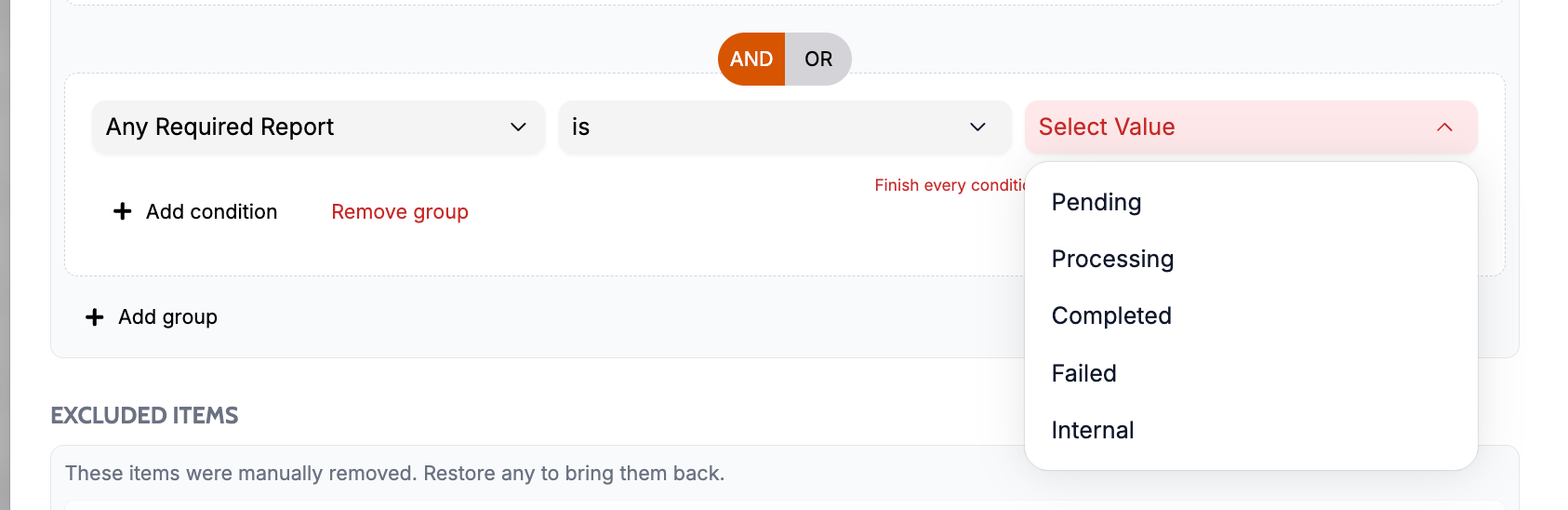
Action flow conditions support date-time fields

What changed: When building action flow conditions, exists and does not exist checks can apply to date-time fields where that comparison makes sense.

Where to find it:

  1. Open Tools → Action flows.

  2. Edit or create a flow.

  3. Add a condition and choose exists or does not exist — date-time fields are available where supported.
Setup: None — available after the update.


Faster sign-in for users on many companies

What changed: Users who belong to many companies should see faster login and company selection after sign-in.

Where to find it: Signing in to Attik on the web; no new screen.

Setup: None — available after the update.


Schedule shows fewer slots when coordinates are invalid

What changed: Online scheduler, dispatch, and related slot ranking handle unusable map coordinates more safely so bad geocodes are less likely to produce misleading “available” slots.

Where to find it:

  1. Online scheduler (client-facing booking).

  2. Dispatch and internal schedule flows that rank optimal slots.

Setup: None — available after the update.


Bank deposit batches easier to reconcile

What changed: Payments batch screens group funded rows by bank deposit date and show expected bank deposit amounts more clearly on batch detail views.

Where to find it:

  1. Open Settings → Payment Batches

  2. Open batch detail views for funded rows.

Setup: None — available after the update.


HomeBinder moving-plan access when reports are partially complete

What changed: HomeBinder / moving-plan eligibility in the client portal aligns better when some required reports are done but not all—completion is evaluated when any required report in the set is done, where your rules support that.

Where to find it: Client portal → Jobmoving plan section (when HomeBinder is enabled for your company).

Setup: HomeBinder integration and moving-plan portal feature must be enabled.


Action flows stay valid when a referenced service is removed

What changed: Action flow conditions that reference specific services no longer break silently when those services are deleted from Settings → Services.

Where to find it: Settings → Action flows (conditions that reference services); removing services happens under Settings → Services.

Setup: None — available after the update.


Bug Fixes

AI assist no longer blocks “Add to Repair List”

What changed: The AI assist bar on report views no longer covers the Add to Repair List control.

Where to find it: Client portal → Report (or internal report views that show AI assist and repair list actions).

Setup: None — available after the update.


Clearer inspector context on jobs and agreements

What changed: Workorder and client agreement screens handle inspector data more reliably when multiple inspectors or partial data are involved.

Where to find it:

  1. Workorder (job pages).

  2. Client portal → Agreement flows linked to those jobs.

Setup: None — available after the update.


Discounted jobs no longer block reports with confusing “amount due”

What changed: Jobs with a discount that results in no remaining or a negative balance no longer show misleading payment messaging that can block client portal report access.

Where to find it: Client portal → Reports will now be accessible on discounted jobs that have paid and signed statuses.

Setup: None — available after the update.


HomeBinder buyer and agent payload fixes

What changed: HomeBinder sends use improved buyer versus agent selection and avoid stale “filtered out” state blocking valid sends after job updates.

Where to find it: Client portal → Job → moving plan / HomeBinder flows when HomeBinder is enabled.

Setup: HomeBinder integration must already be connected.


Payment funding sync and ACH settlement reconciliation

What changed: Sync for expected-to-fund and ACH settlement data is more reliable; payment batch lists present funding details more consistently for reconciliation.

Where to find it: Settings → Payments → payment batches and batch detail views.

Setup: None — available after the update.


QuickBooks invoice resync rebuilds charge lines

What changed: When you resync an invoice to QuickBooks from a workorder, charge lines on the invoice are rebuilt from the job’s current charges.

Where to find it: Workorder → invoice / QuickBooks resync actions (where your company triggers QuickBooks sync today).

Setup: QuickBooks integration must already be connected.


Buyer selection favors the actual client on jobs

What changed: When a job has both an agent and a client, buyer-related choices prioritize the non-agent client where appropriate across scheduling, portal, and messaging flows.

Where to find it: No new screen — affects scheduling, client portal, and automated communications that pick a buyer automatically.

Setup: None — available after the update.

April 3rd, 2026


Summary

  • Sign-in and accounts: Inspectors can use Google sign-in on the Mobile App, and the system more consistently blocks sign-in for inactive users or accounts without an active company membership—on the web tools, backend, and the inspector mobile app.

  • Files and uploads: Report and workorder uploads now follow a more reliable upload path with support for larger files (up to about 25 megabytes where applied), which reduces failed uploads and aligns limits across tools.

  • Agreements and contacts: You can archive agreements, see clearer handling of signed agreement snapshots, and benefit from fixes to contact tags and merge fields used in agreements and emails.

  • Money and accounting: Card payments through Guardian now ask for billing postal code when required for verification, and QuickBooks-related screens better reflect who is treated as the payer on invoices plus job status sync options.

  • Radon, scheduling, and the workorder: Radon tooling improves equipment transfer flows (including clearer labeling), ties radon-related calendar events to equipment, and adds shortcuts from radon data to the related workorder. Scheduling respects inspector-requested assignments better when jobs move, quote scheduling logic is refined, and editing charges can automatically suggest event end times based on duration.

  • Client reports and the portal: Client-facing report viewing got layout and readability improvements—including defect captions, summary sections, and media counts—with several targeted fixes; the online quote experience was tightened so client-side auth only applies where it should.

  • Attik Mobile: The field app shows sub-item descriptions and whether agreements are signed on the schedule, improves how required dates and times read on inspections, lets you add photos from the device into attachments, shows equipment details on events, supports selecting and copying text more easily, uses over-the-air update infrastructure for future app updates, and uses clearer error titles on login and verification screens.

New Features

Sign in with Google for inspectors (Mobile App)

  • What changed: Inspectors can sign in with Google on the mobile app, aligned with updated authentication on the web and server.

  • Before: Sign-in relied on the previous email and one-time-code flow only.

  • Now: Google is available as a sign-in option where your organization uses it.

  • Why it matters: Faster, familiar sign-in in the field with fewer typing errors.


Over-the-air update support for the mobile app (Mobile App)

  • What changed: The mobile app is set up to receive over-the-air updates.

  • Before: Most changes required a full app store release to reach devices.

  • Now: Certain updates can be delivered to the app without waiting for a store release.

  • Why it matters: Bug fixes and small improvements can reach inspectors sooner when used.


Agreement signed status on the schedule (Mobile App)

  • What changed: The mobile schedule surfaces whether an agreement is signed.

  • Before: That context was harder to see while routing the day.

  • Now: Signed status is visible on the schedule card flow.

  • Why it matters: Inspectors and leads can see paperwork status at a glance before the job.


Agreement archive and signed agreement snapshot

  • What changed: Agreements can be archived on the workorder, and the experience around signed agreement snapshots and related UI was improved.

  • Before: Limited or no archive workflow and rougher handling of signed views.

  • Now: Clearer lifecycle for agreements and how signed copies appear in the product.

  • Why it matters: Easier housekeeping and a clearer record of what clients signed.


Radon: equipment transfer experience and workorder links

  • What changed: Radon calibration and transfer flows were reworked; labels now emphasize equipment transfers, validation and state handling improved, and workorder links and actions appear in the right places from radon event data.

  • Before: Older transfer model and weaker navigation back to the job.

  • Now: A clearer transfer workflow and quicker jumps to the related workorder.

  • Why it matters: Less confusion when moving equipment between inspectors or events and faster access to the job record.


Radon equipment tied to calendar events

  • What changed: Calendar and event handling integrates radon equipment events so scheduling reflects equipment-aware context.

  • Before: Events did not fully reflect radon equipment behavior.

  • Now: Radon equipment is represented more consistently on the calendar side.

  • Why it matters: Office staff can align equipment and appointments with fewer mistakes.


QuickBooks: role-based payer on invoices and job status sync

  • What changed: Invoice contact selection respects role-based rules, and the interface reflects QuickBooks job status sync more clearly, with related backend fixes for display names and automations.

  • Before: Payer contact behavior and sync controls were less aligned with how roles work in Attik.

  • Now: Invoicing and sync setup better match your staff structure and QuickBooks expectations.

Quickbooks Invoice Settings Section in the Attik Integration Settings
  • Why it matters: Cleaner books and fewer wrong contacts on QuickBooks invoices.


Improvements

Larger, more consistent file size limits for inspection attachments

  • What changed: Attachment size limits were raised and aligned (including about 25 megabytes where specified).

  • Before: Smaller or inconsistent limits caused unexpected rejections.

  • Now: Reasonable headroom for typical photos and PDFs.

  • Why it matters: Less frustration when uploading evidence from the field.


Presigned uploads for reports and workorder files

  • What changed: Uploads increasingly use direct-to-storage presigned URLs with follow-up finalization for a smoother path that avoids common browser and session issues.

  • Before: Uploads were more sensitive to cross-origin and session edge cases.

  • Now: More reliable uploads for reports and workorder file areas.

  • Why it matters: Fewer “upload failed” moments during busy report and documentation work.


Client report reading experience

  • What changed: Layout and styling improvements on report info cards, measured sections and collapsibles, text wrapping, photo modal captions, summary expansion behavior, and media count presentation; report “skin” refinements continue from prior work.

  • Before: Tighter layout, occasional clipping, and harder-to-scan summaries and media.

  • Now: Reports read more cleanly on desktop and small screens.

  • Why it matters: Clients and agents see a more professional, readable report.


Booking and quote detail presentation

  • What changed: Booking detail panels were streamlined for clearer display of key fields.

  • Before: Some details were harder to scan or inconsistently shown.

  • Now: A more consistent, readable layout.

  • Why it matters: Schedulers spend less time hunting for the same facts on every job.


Preserve inspector-requested assignments when rescheduling

  • What changed: When jobs move on the calendar, inspector-requested assignments are kept rather than dropped.

  • Before: Reschedules could clear or ignore those requests.

  • Now: Requested staffing survives the move.

  • Why it matters: Honors commitments made to inspectors and reduces rework.


Event duration and end time when editing charges

  • What changed: Editing charges can automatically derive end times from duration for events.

  • Before: End times had to be managed more manually.

  • Now: Duration-based suggestions reduce manual clock math.

  • Why it matters: Faster, more consistent calendar blocks tied to billed work.


Equipment quantities on new inspections

  • What changed: When inspections are created, equipment quantities use safer defaults and validation so only sensible positive numbers are stored.

  • Before: Missing or invalid quantities could propagate into bad data.

  • Now: Fallbacks and validation keep equipment counts trustworthy.

  • Why it matters: Reporting and scheduling that depend on equipment counts stay accurate.


Report preview and attachment cleanup

  • What changed: Report preview and attachment finalization behavior was cleaned up alongside the new upload approach.

  • Before: Stray or confusing preview and attachment states in some flows.

  • Now: Cleaner handoff from upload to finished attachment or preview.

  • Why it matters: Less confusion before publishing or sending a report.


Agent Assist guidance for general report questions

  • What changed: The knowledge behind report chat was tuned so general questions get gentler, more appropriate guidance.

  • Before: The assistant could feel overly rigid or off-topic for broad questions.

  • Now: More helpful tone and relevance for everyday “how do I…” questions.

  • Why it matters: Inspectors get unstuck without feeling scolded by the helper.


Timezone handling in jobs and agreements

  • What changed: Time zones are handled more consistently across job and agreement experiences.

  • Before: Occasional confusion near zone boundaries.

  • Now: Clearer alignment between displayed times and stored values.

  • Why it matters: Fewer “wrong time” surprises for clients and staff.


Data Exports, quotes, and permissions

  • What changed: Inspectors can access Data exports when their role and permissions allow. Quote-related copy and permission types used in the product were updated.

  • Before: Inspectors were blocked from data exports in the same way as before this change; quote wording and permission labeling may have been unclear or too narrow.

  • Now: Permitted inspectors can use data exports; quotes and permissions read more clearly for everyday use.

  • Why it matters: Trusted field staff can pull exports they are allowed to run; less confusion in quotes and access labels.


Sub-item descriptions on the mobile schedule (Mobile App)

  • What changed: Schedule cards can show descriptions for sub-items where available.
  • Before: Only top-level context was obvious on the card.

  • Now: Line-item detail is visible at a glance.

  • Why it matters: Inspectors see scope detail before arriving on site.


Equipment details on inspection events (Mobile App)

  • What changed: Events can show equipment details in the inspection view.

  • Before: Equipment context was thinner on mobile.

  • Now: Field staff see what equipment applies to the event.

  • Why it matters: Better preparation and fewer “wrong gear” moments.


Add photos from the device to attachments (Mobile App)

  • What changed: Attachments integrate with the device photo picker for adding images.

  • Before: Adding photos was less integrated with native picking.

  • Now: Familiar camera-roll style selection for inspection attachments.

  • Why it matters: Faster documentation from photos already on the phone.


Selectable text in inspection views (Mobile App)

  • What changed: Text in inspection areas supports selection for copy and accessibility-style use.

  • Before: Some blocks were hard to select.

  • Now: Easier to copy addresses, notes, or codes.

  • Why it matters: Less retyping when sharing details into messages or maps.


Bug Fixes

Guardian card payments: billing postal code required

  • What changed: Card payments through Guardian now collect billing ZIP or postal code when needed for address verification.

  • Before: Missing postal data could cause declines or processor errors.

  • Now: The form prompts for what the processor expects.

  • Why it matters: Smoother checkout and fewer mystery payment failures.


Pay at Close: order totals and client details

  • What changed: Logic that updates Pay at Close order totals and resolves client information was refined.

  • Before: Edge cases could produce inconsistent totals or buyer or client context.

  • Now: Totals and client-related data align more reliably with how the job and payer are set up.

  • Why it matters: Fewer surprises on invoices and payment-at-close flows.


Contact tags and merge fields for agreements and messaging
  • What changed: Validation and behavior around contact tags and merge fields were corrected alongside agreement work.

  • Before: Tags or fields could fail or insert incorrectly.

  • Now: More reliable personalization and tagging.

  • Why it matters: Client-facing emails and agreements show the right names and labels.


Web auth: magic links, session, and user status

  • What changed: Web authentication was tightened for user status, magic-link error handling, and session membership behavior.

  • Before: Some magic-link or session edge cases failed or showed inconsistent status.

  • Now: Sign-in flows and active-session behavior are more reliable.

  • Why it matters: People spend less time fighting the login experience.


Company switching, archived reports, payroll filters, and settings navigation

  • What changed: Fixes for switching companies, how archived reports appear, payroll filtering, and which settings navigation options show for a user’s permissions.

  • Before: Wrong company context, missing or wrong lists, or incorrect menu visibility.

  • Now: Expected behavior across those areas.

  • Why it matters: Daily work in multi-company or payroll-heavy offices is less error-prone.


Client portal and quote routes: authentication scope

  • What changed: Client edge authentication is limited to quote-related paths so other experiences are not unintentionally gated.

  • Before: Auth could leak into areas where it did not belong.

  • Now: Quotes stay protected without breaking unrelated pages.

  • Why it matters: Clients see fewer odd login prompts on public-style pages.


Reports: indicated items, sewer scope signature line, and related layout fixes

  • What changed: Corrections to how certain report indicators render and removal of an inappropriate sewer scope signature line where it did not belong, plus related layout fixes.

  • Before: Misleading indicators or extra signature noise.

  • Now: Report sections match the intended template behavior.

  • Why it matters: Clearer deliverables for clients and fewer template arguments.


Mobile: required info date and time display (Mobile App)

  • What changed: Required information date and time values are formatted consistently on inspection.

  • Before: Some values were hard to read or oddly formatted.

  • Now: Human-readable dates and times.

  • Why it matters: Inspectors confirm required details faster on site.


Mobile: login and verification error titles (Mobile App)

  • What changed: Error alerts on login and OTP verification use consistent, clear titles.

  • Before: Titles were inconsistent or vague.

  • Now: Users immediately know which step failed.

  • Why it matters: Faster recovery from typos or expired codes.