Attik Update - Report intro, finding titles & report editor polish
Summary
Templates can now carry Report intro text on every report, Photo groups, and company-specific grid labels.
Comments support rich text in the web editor, and findings show a real title in the client report and PDF.
Spectora and template imports keep every comment placement, including ones that used to look like duplicates.
Payments, contacts, and report completion picked up several correctness fixes.
New Features
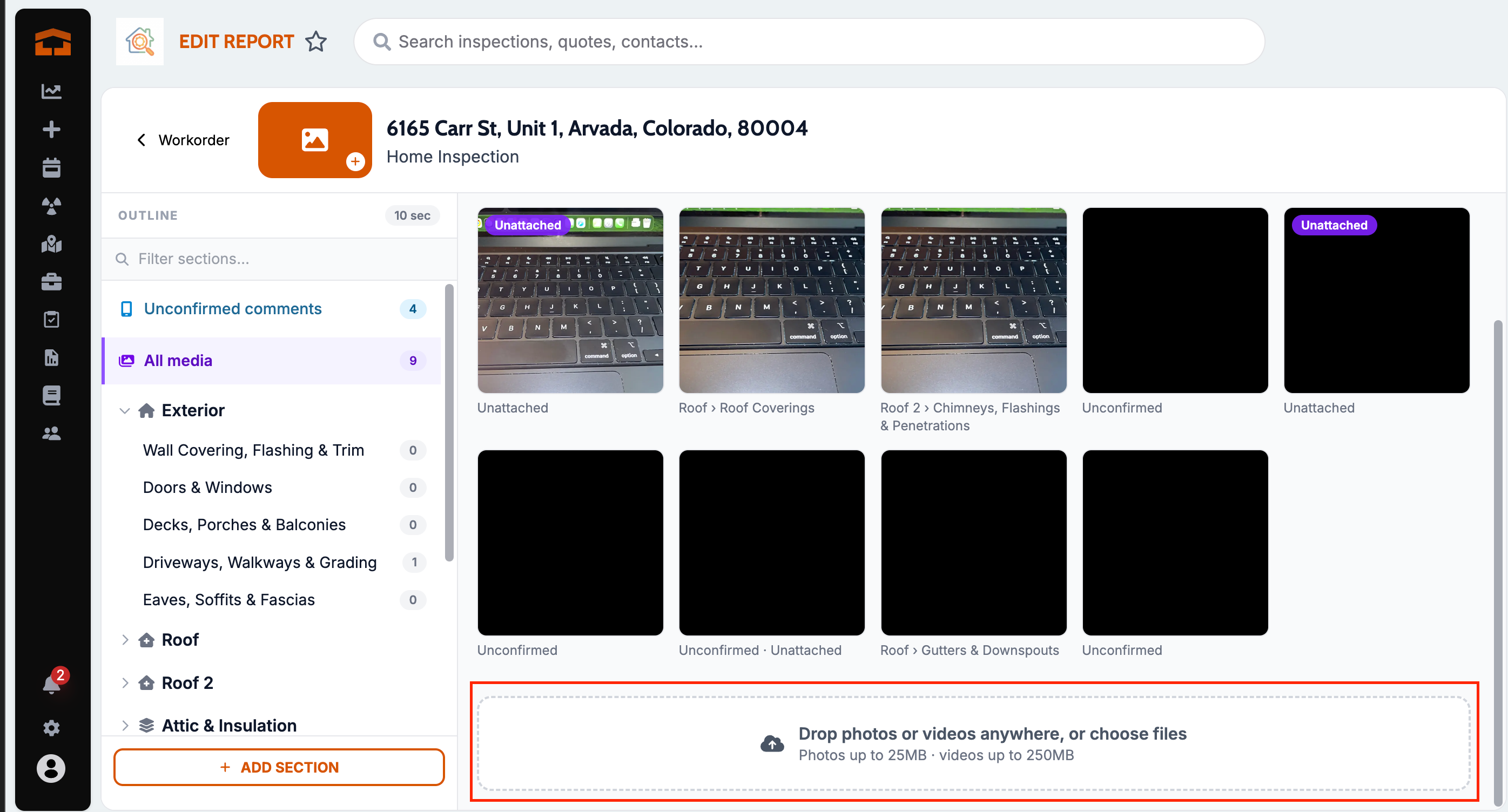
Drag files into All Media
What changed — You can drag photos and videos from a computer directly into a report’s All Media area. Once uploaded, those files behave like captured media and can be attached to comments.
Where to find it:
Open a report.
Go to All Media.
Drag files into the media area.
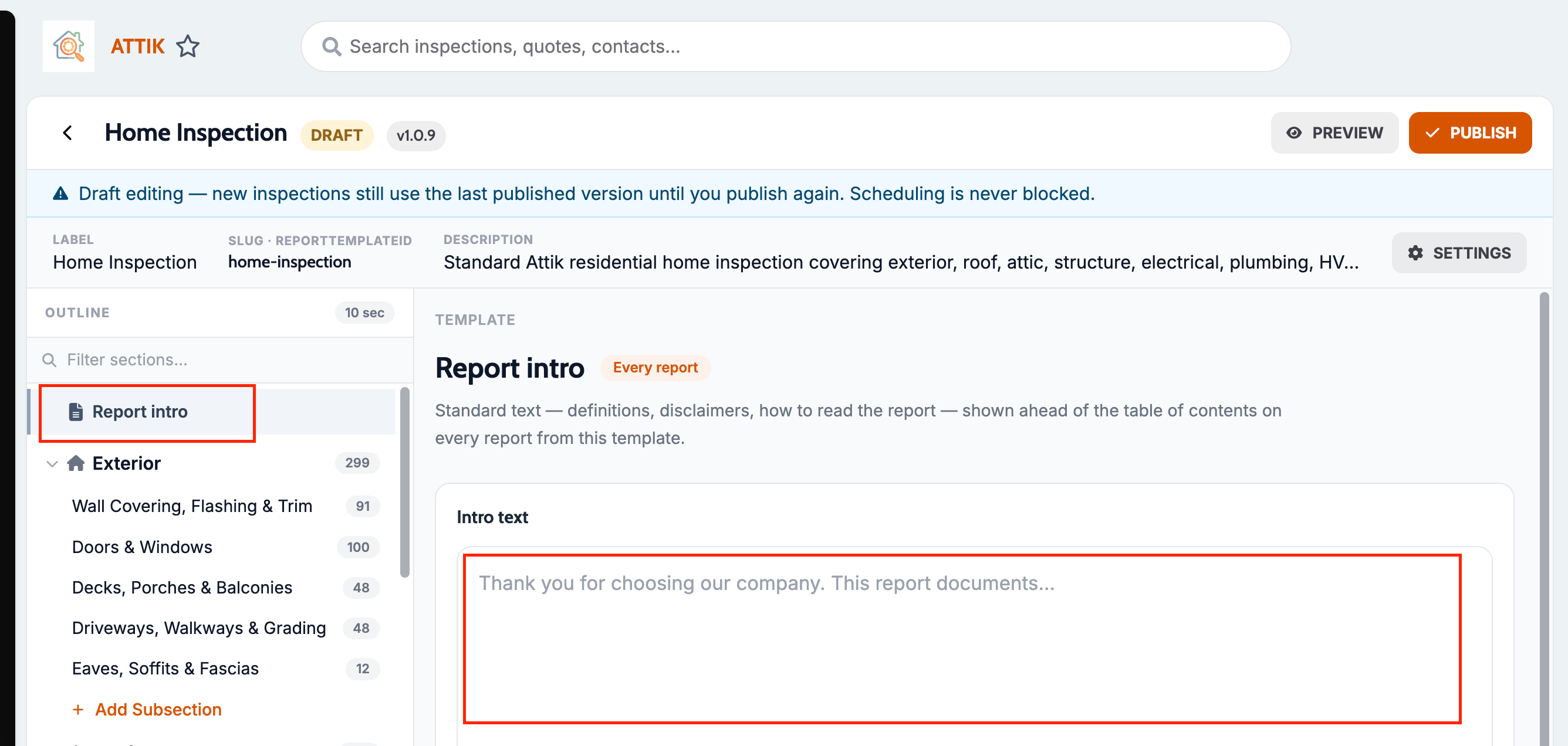
Report intro on every report
What changed — Templates can now include standard text that appears on every report, such as definitions, disclaimers, and an explanation of how to read the grid. Inspectors no longer need to paste that content by hand.
Where to find it:
Open a report template.
In the Outline, click Report intro.
Add the intro text.
Setup:
Enter the intro text in Report intro before using the template on new reports.
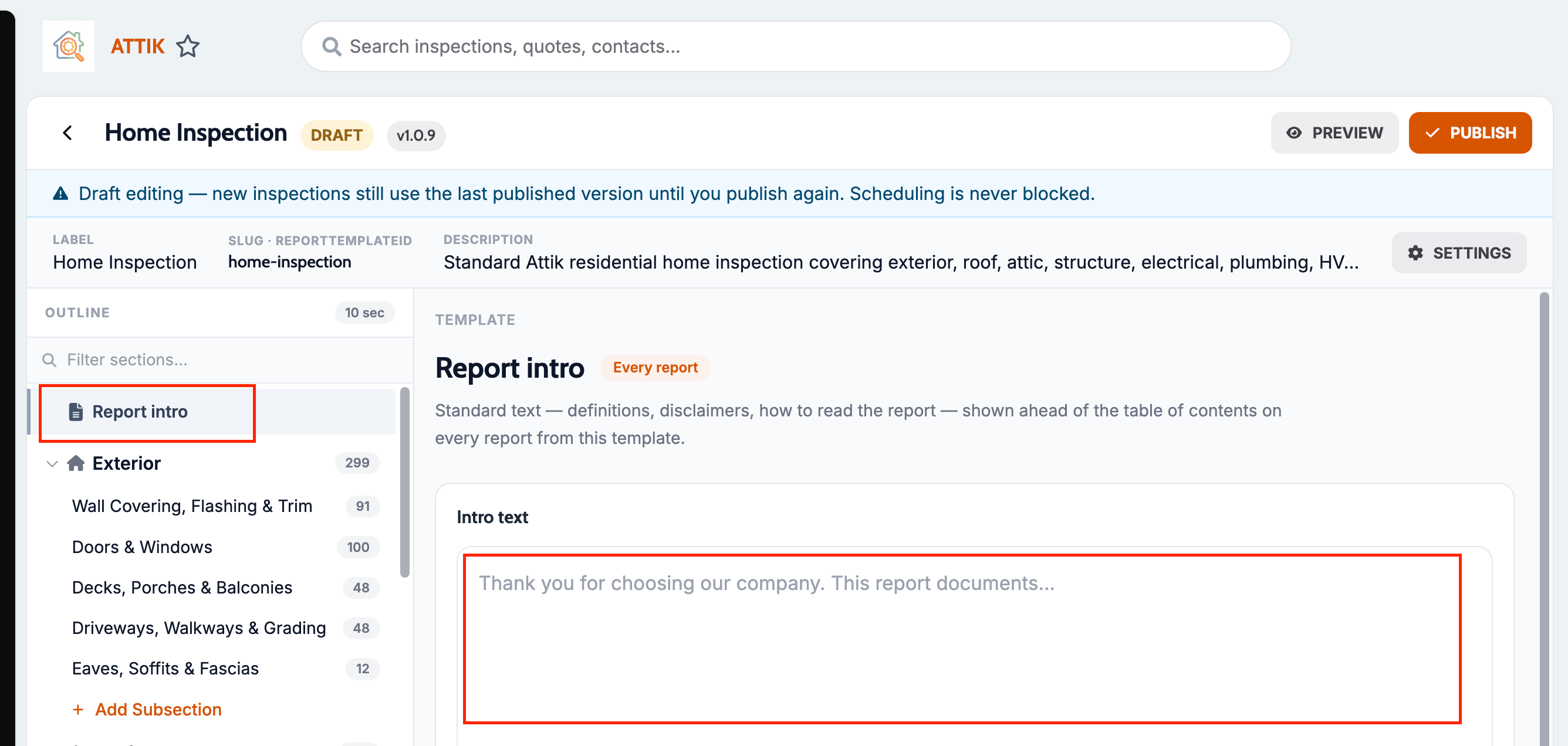
Photo groups
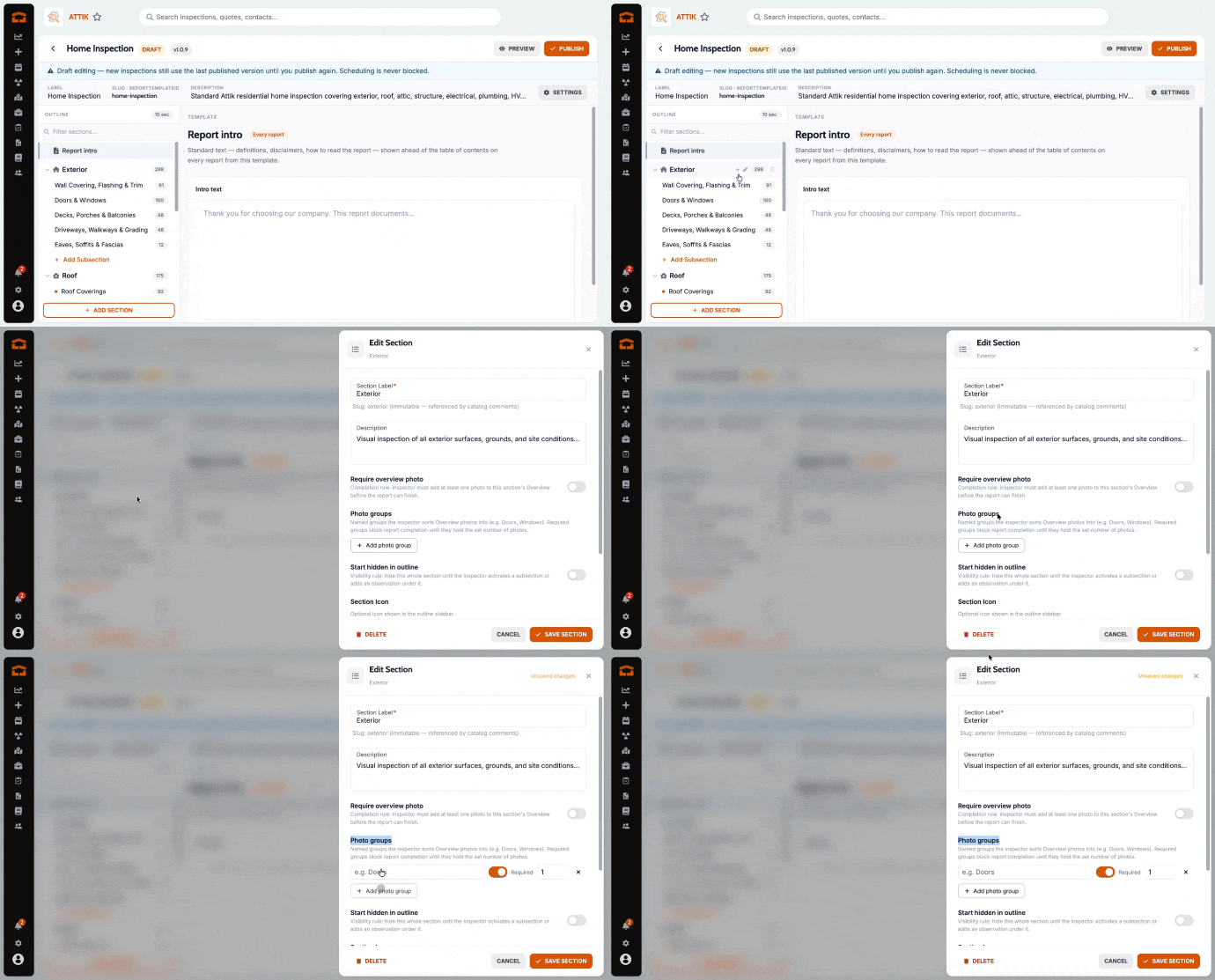
What changed — Templates can now require specific Photo groups for a section, instead of only requiring any overview photo. Report completion waits until each Required group is present.
Where to find it:
Open a report template.
In the Outline, click the pencil on a section (Edit section).
Under Photo groups, click Add photo group.
Name the group and turn on Required if completion should wait for those photos.
Setup:
Add Photo groups on each section that needs them, and turn on Required for the ones that must be present.
Rich text comments
What changed — Report comments now support formatted text, including bold, underline, highlight, hyperlinks, and text color.
Where to find it:
Open a report comment in the web editor.
Use the formatting controls while you edit.
Per-company overview grid labels
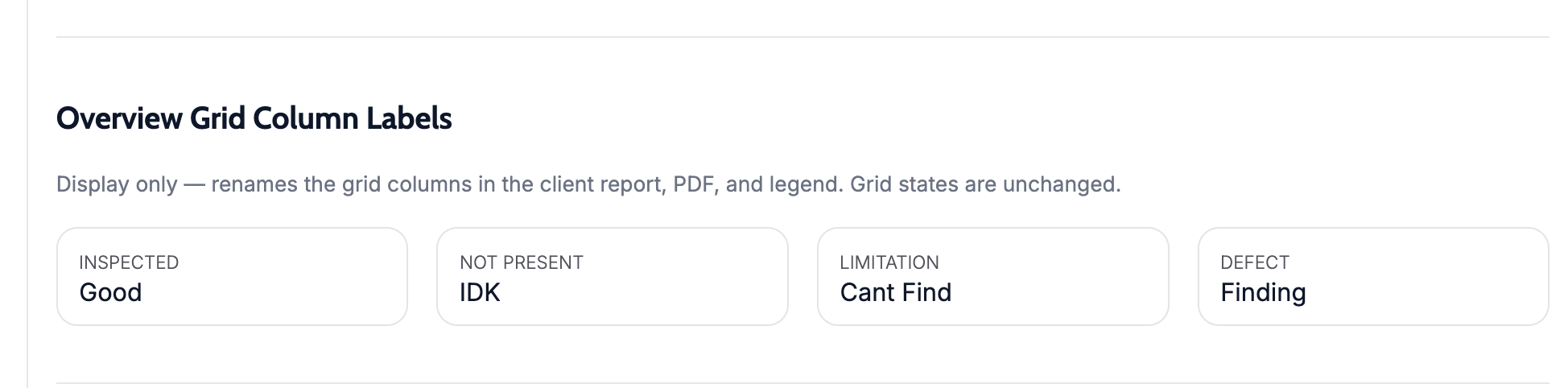
What changed — Each company can set its own wording for report grid column labels, so the grid does not have to say “defect” if that is not your reporting language. The underlying grid states are unchanged.
Where to find it:
Open Report Settings for your company.
Edit the grid column labels.
Setup:
Set the labels you want your company to use.
Service-level default attachments
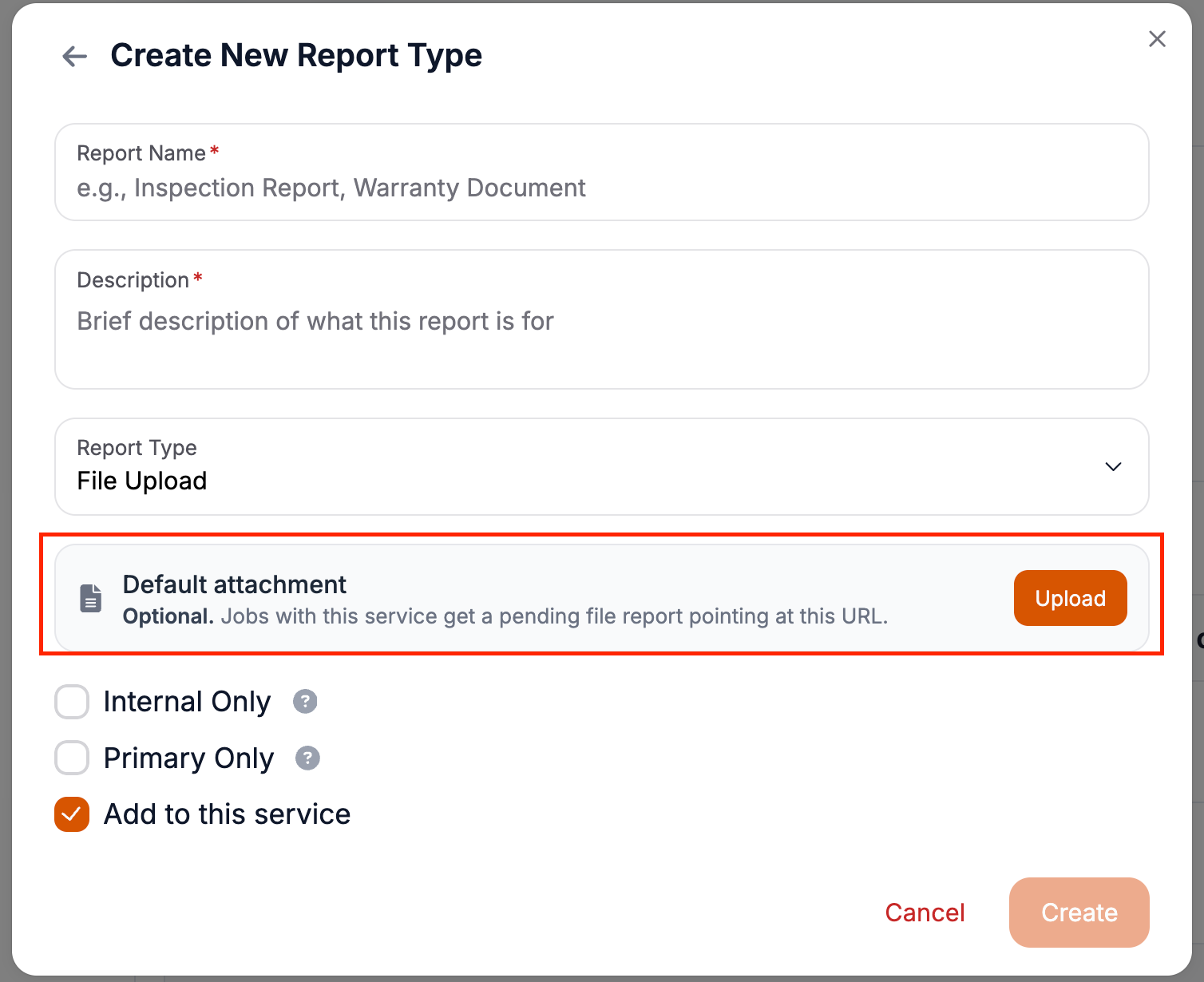
What changed — A service can now carry default files that are included automatically on the relevant reports, such as a standard diagram or certification attachment.
Where to find it:
Open Settings → Services.
Open the service.
Add default attachments in the required reports configuration by selecting the ‘File Upload’ Report Type.
Setup:
Upload the files you want included automatically on that service’s reports.
County on inspection exports
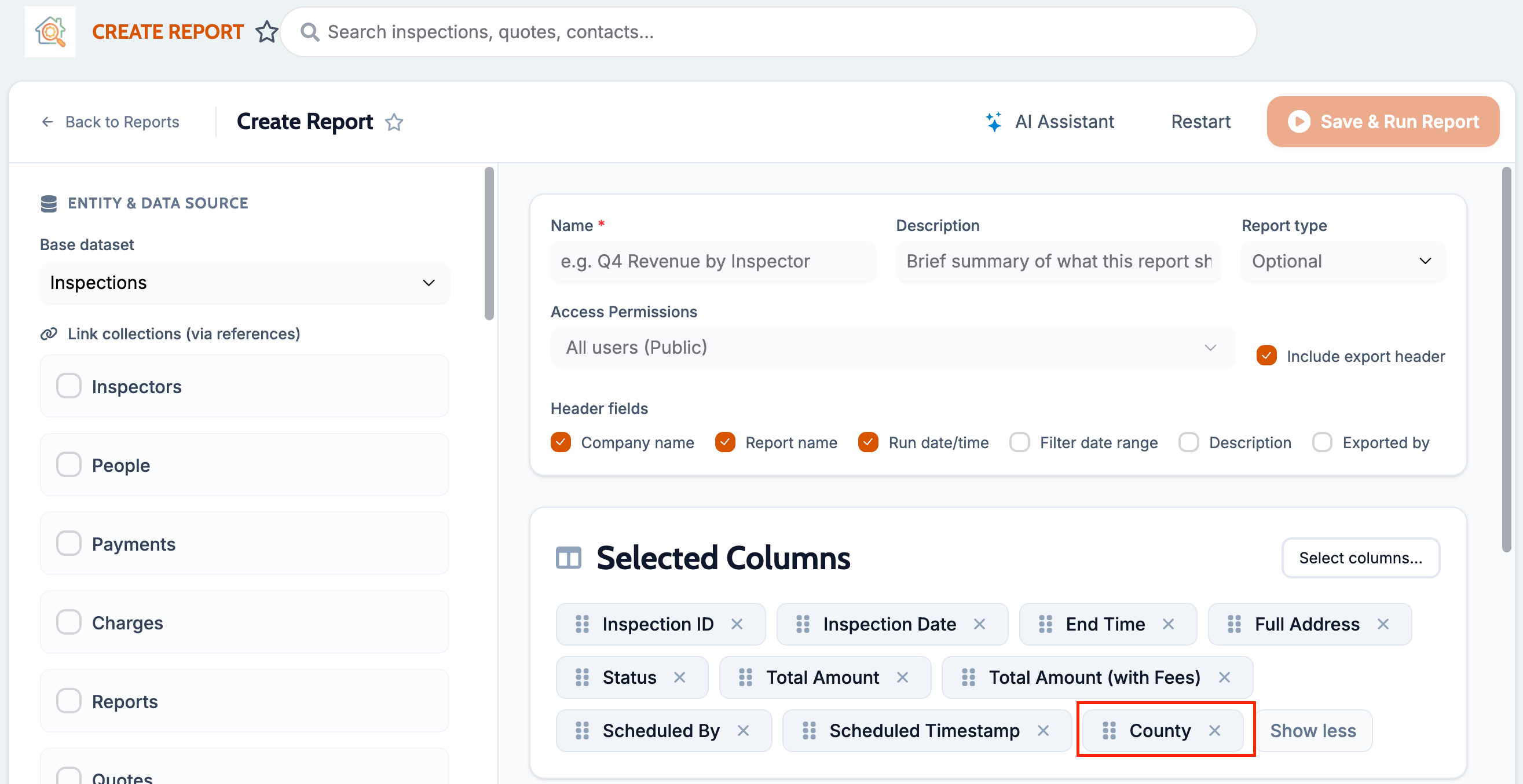
What changed — Property county is now stored on the job and available in Reports Hub, so inspection exports can include County alongside the rest of the address.
Where to find it:
Open Reports Hub.
Create or edit an Inspections report.
Add County from the column picker.
Preview or export.
Improvements
Sticky subsection headers stay in view
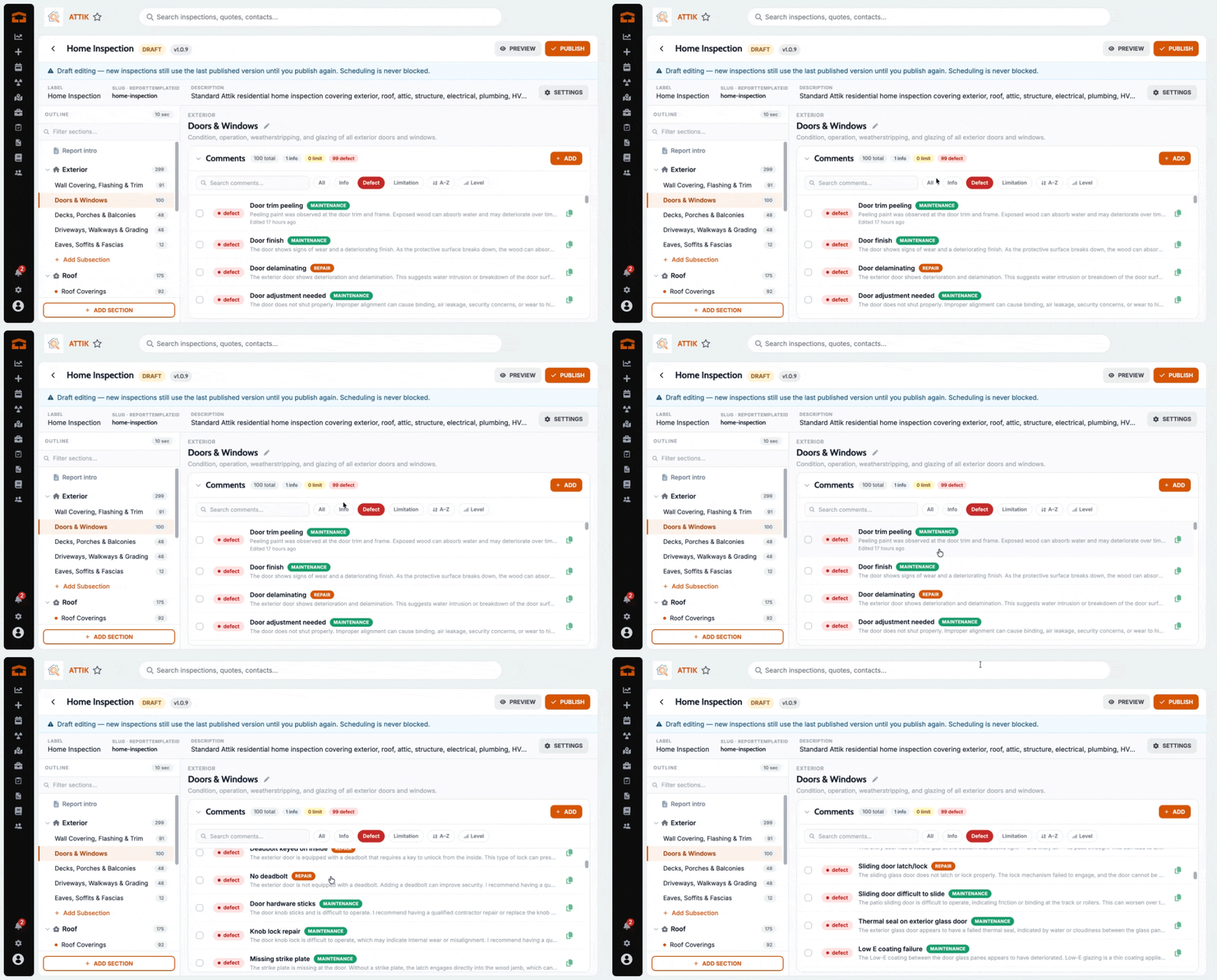
What changed — While you scroll a long comment list in a template subsection, the subsection header stays pinned so you can always see which subsection you are editing.
Where to find it:
Open a template subsection with a long comment list.
Scroll through the comments.
Confirm the subsection title stays visible.
Quick-add comment form scrolls into view
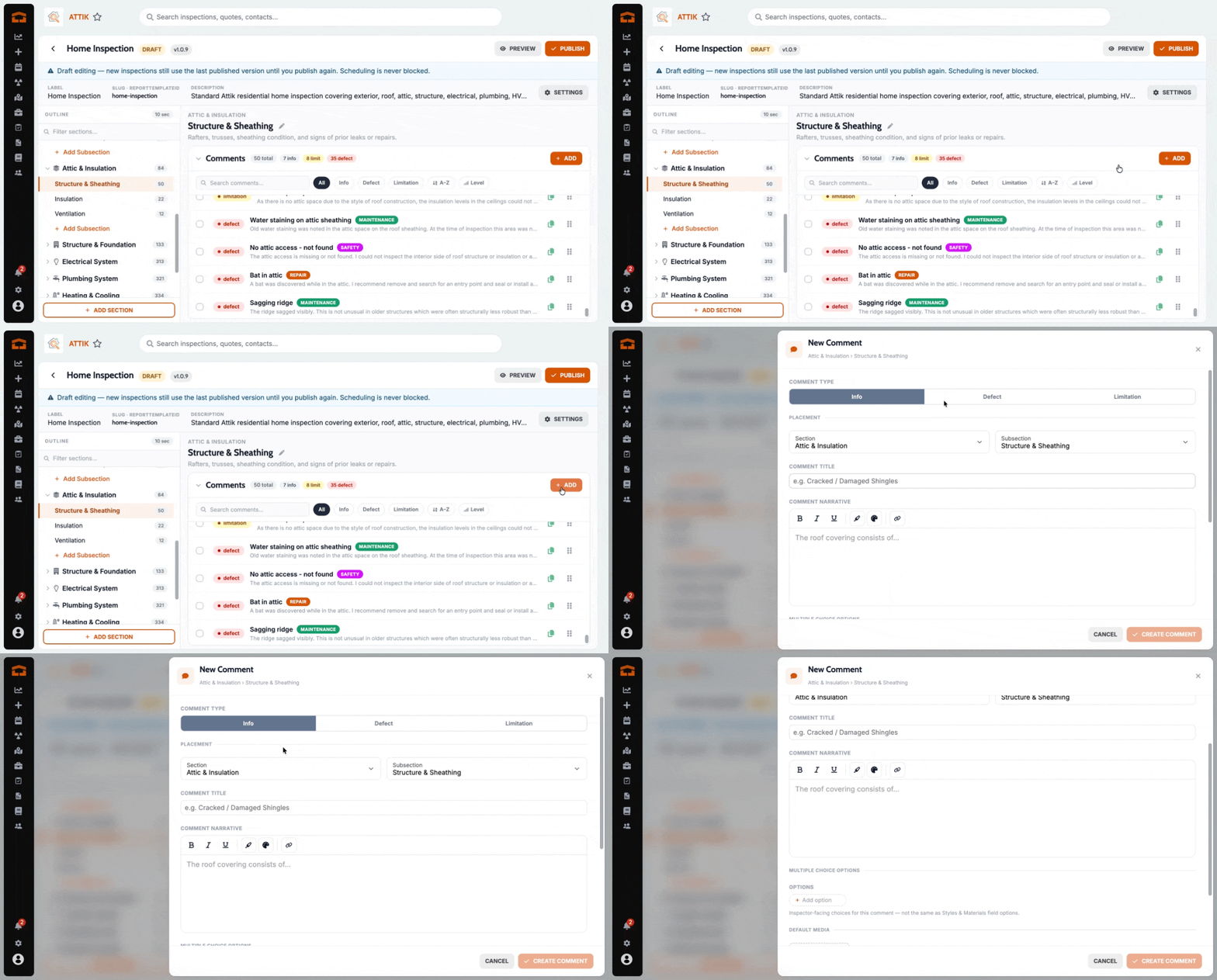
What changed — Opening the quick-add comment form now scrolls that form into view, so you are not left looking at the place you tapped with no sign that the form opened.
Where to find it:
Open a report in the report writer.
Scroll down inside a section.
Tap add and confirm the form scrolls into view.
Template editor keeps the selected section in sync
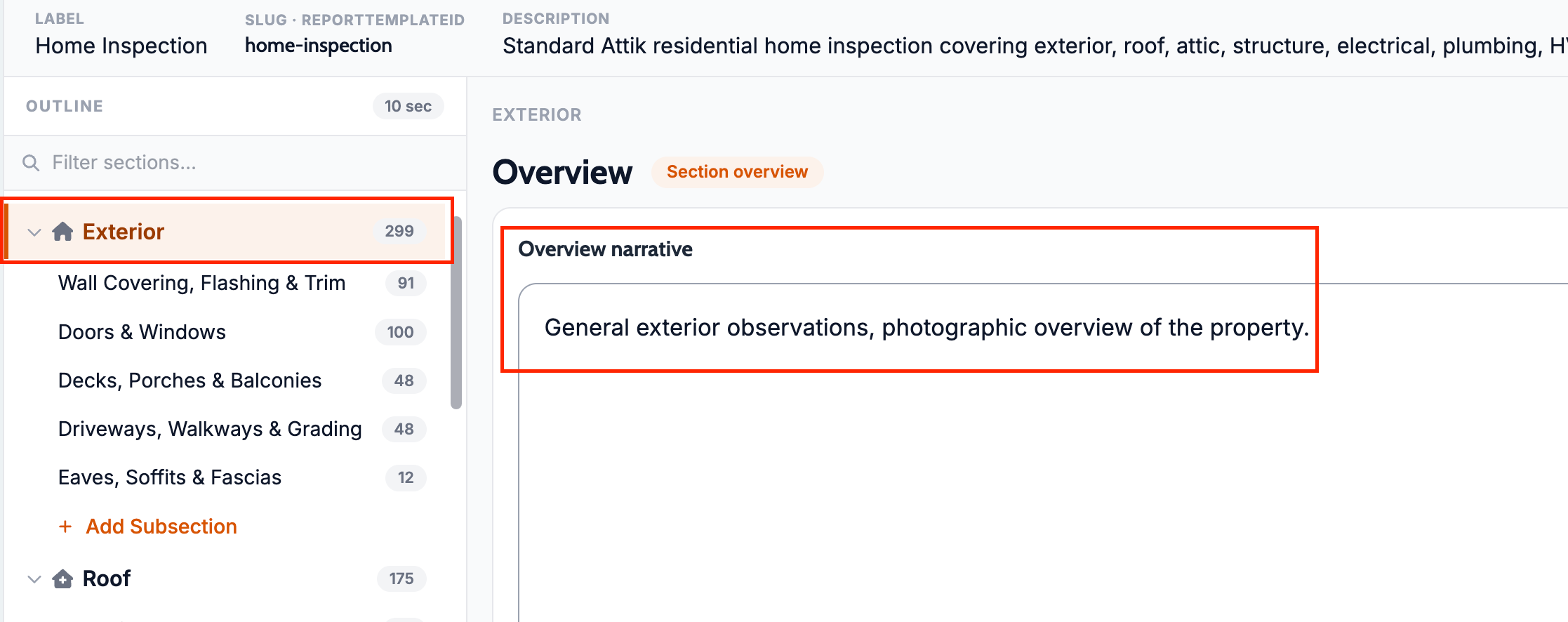
What changed — Switching sections now shows the overview text for the section you actually selected, so edits land on the right section instead of overwriting the previous one.
Where to find it:
Open a report template.
Switch between sections in the editor.
Edit the overview text for the selected section.
Template editor preserves unsaved work
What changed — Closing template settings or comment editors no longer silently throws away unsaved changes. You get a chance to keep the work you already typed.
Where to find it:
Open a template settings or comment drawer.
Make edits.
Close the drawer with X, Cancel, the backdrop, or Esc.
New comments inherit the active type
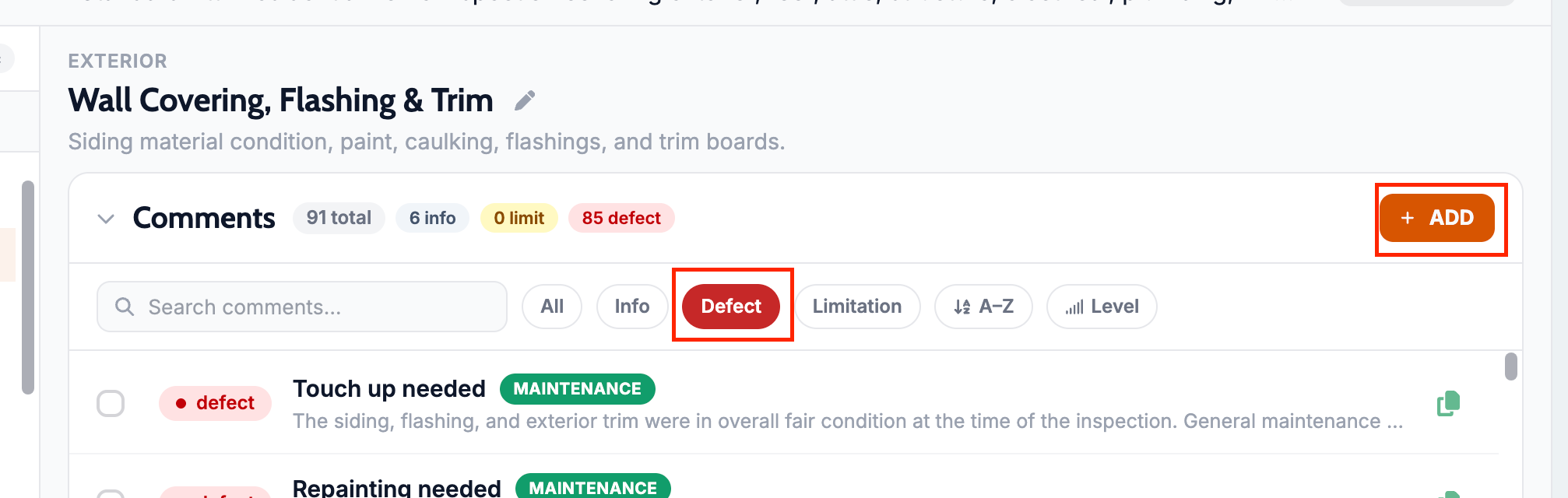
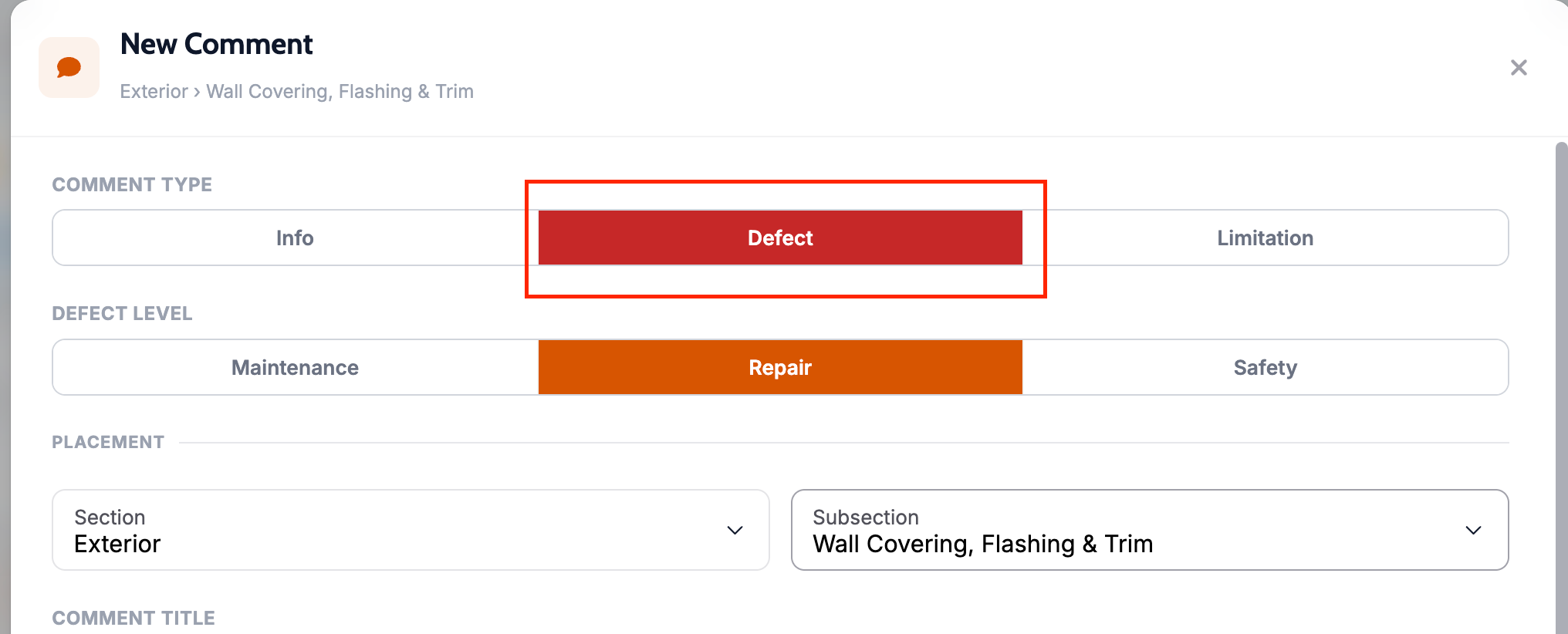
What changed — When a type filter is active, a new comment now starts as that type instead of always defaulting to Info. That removes a correction step when you are building a template filtered to Defect or Limitation.
Where to find it:
Open a template subsection.
Filter to Defect, Limitation, or Info.
Tap Add.
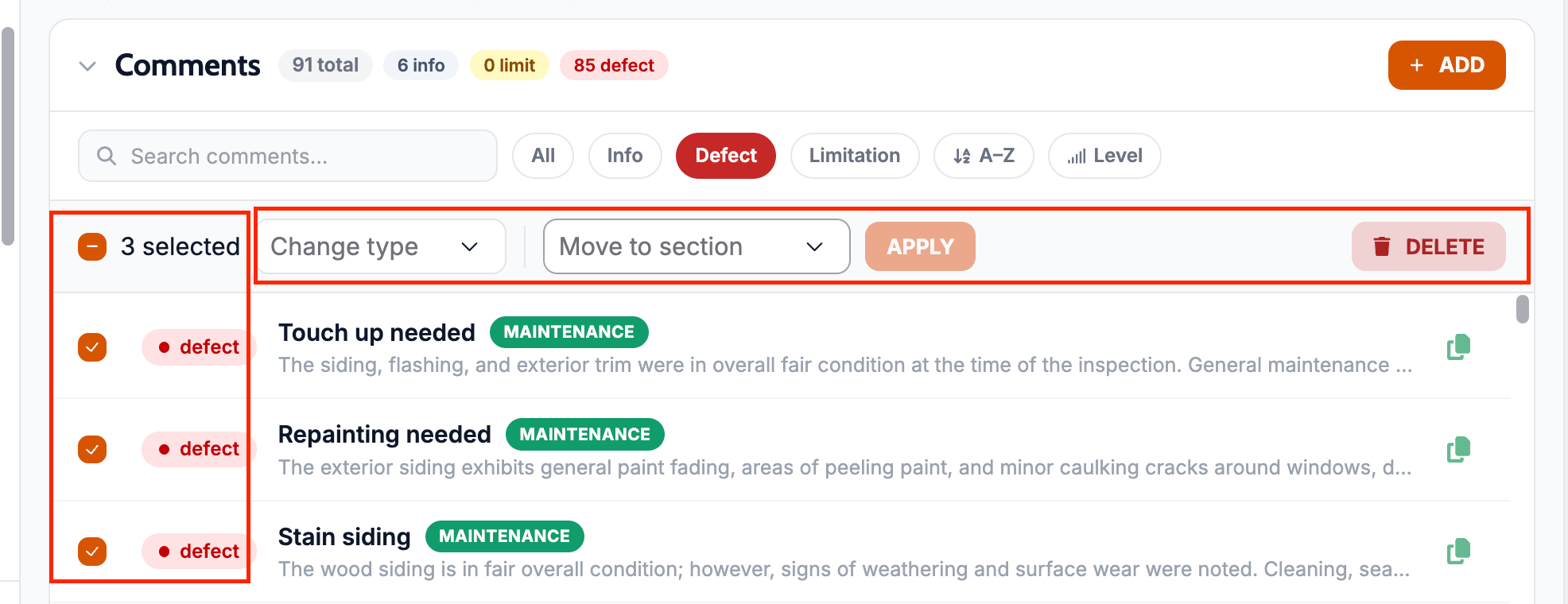
Bulk comment retype and move
What changed — Template comments can now be corrected in bulk instead of one at a time, including changing type or moving imported comments out of Styles & Materials.
Where to find it:
Open a template subsection.
Select multiple comments.
Apply a shared type or placement change.
Tab indentation for overviews and SOP text
What changed — Pasted standards-of-practice text can keep its indentation in section overviews. Tab and Shift-Tab now work in those fields.
Where to find it:
Open a section overview or SOP field in a template.
Place the cursor in a list.
Use Tab or Shift-Tab to adjust indentation.
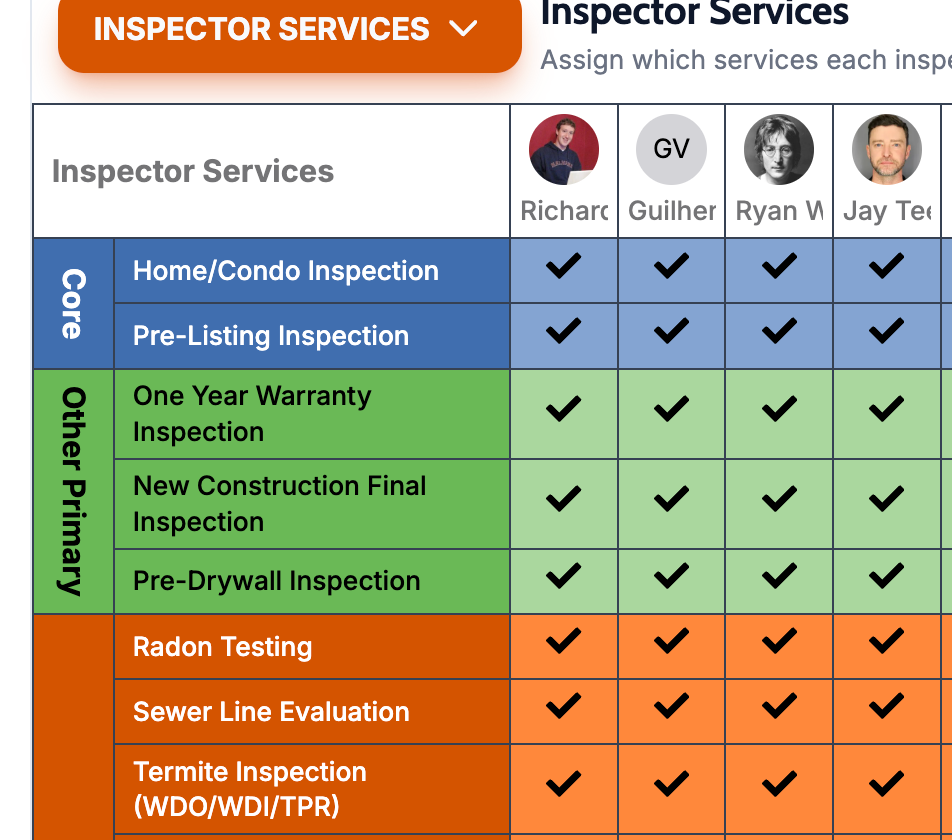
Service names wrap in the Service Matrix
What changed — Long service names now wrap in the Service Matrix, so the full name stays visible without cutting off.
Where to find it:
Open Settings → Services.
Open the Service Matrix.
Confirm long service names wrap onto a second line.
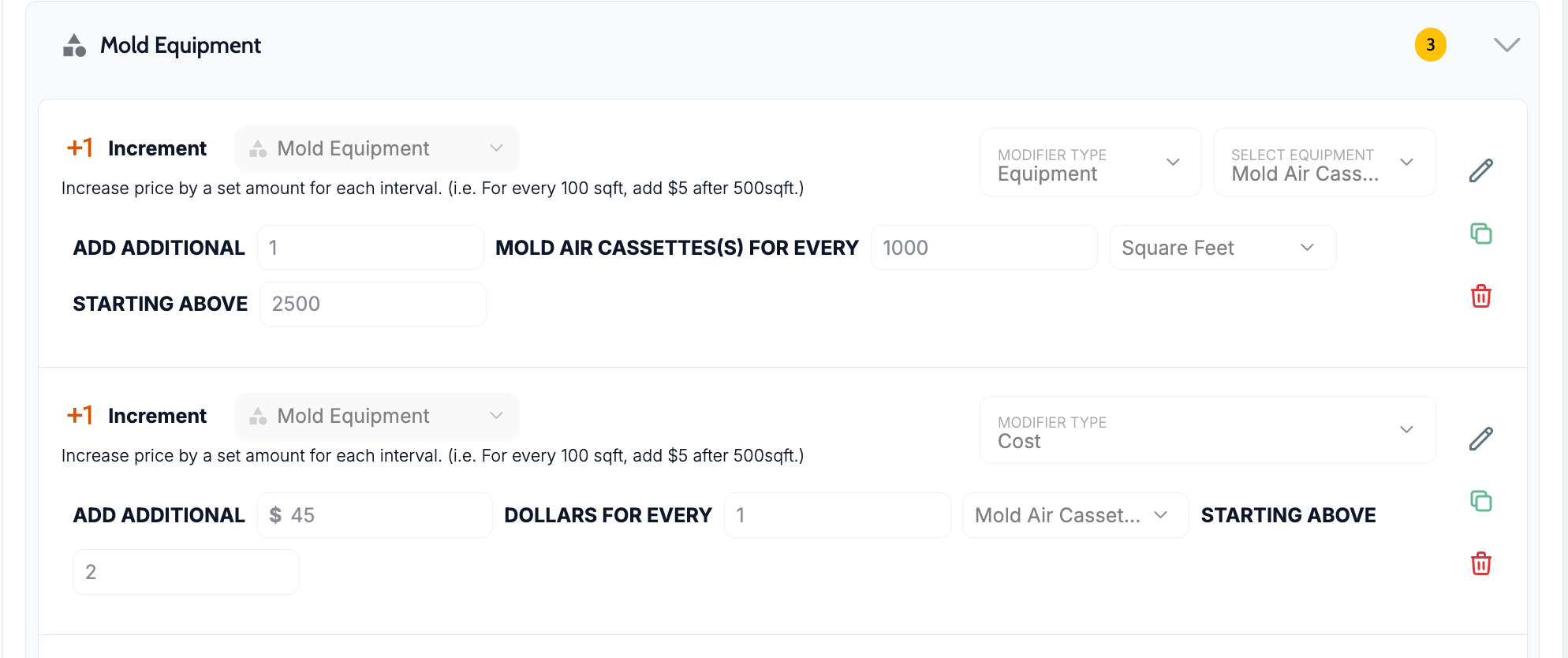
Bracket labels show the right unit
What changed — Modifier bracket labels now match the modifier type, so duration shows minutes, cost and admin show dollars, and equipment shows a plain number — not a dollar sign on every bar.
Where to find it:
Open a service modifier.
View the bracket bar.
Confirm the unit matches the modifier type.
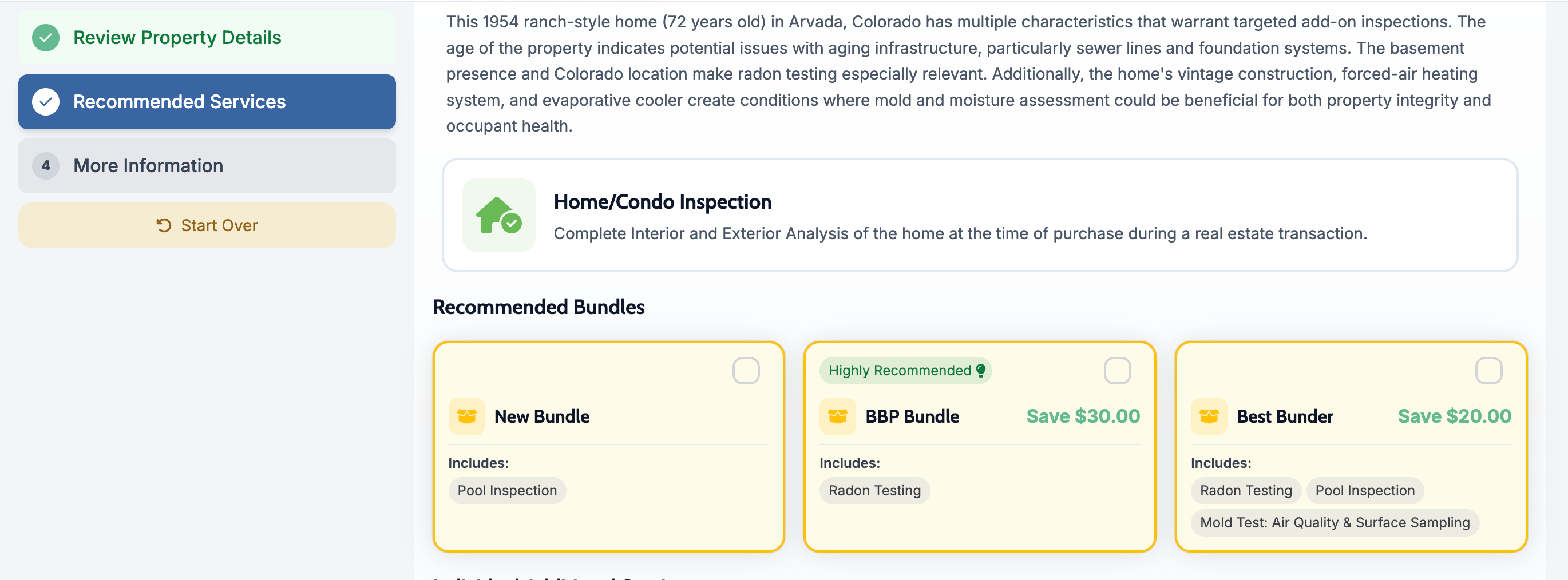
Three-up bundle cards
What changed — A service with three bundles now shows those cards three across on desktop, so a good / better / best set can sit on one row.
Where to find it:
Open Scheduler or the quote accept flow.
View a service with three bundles.
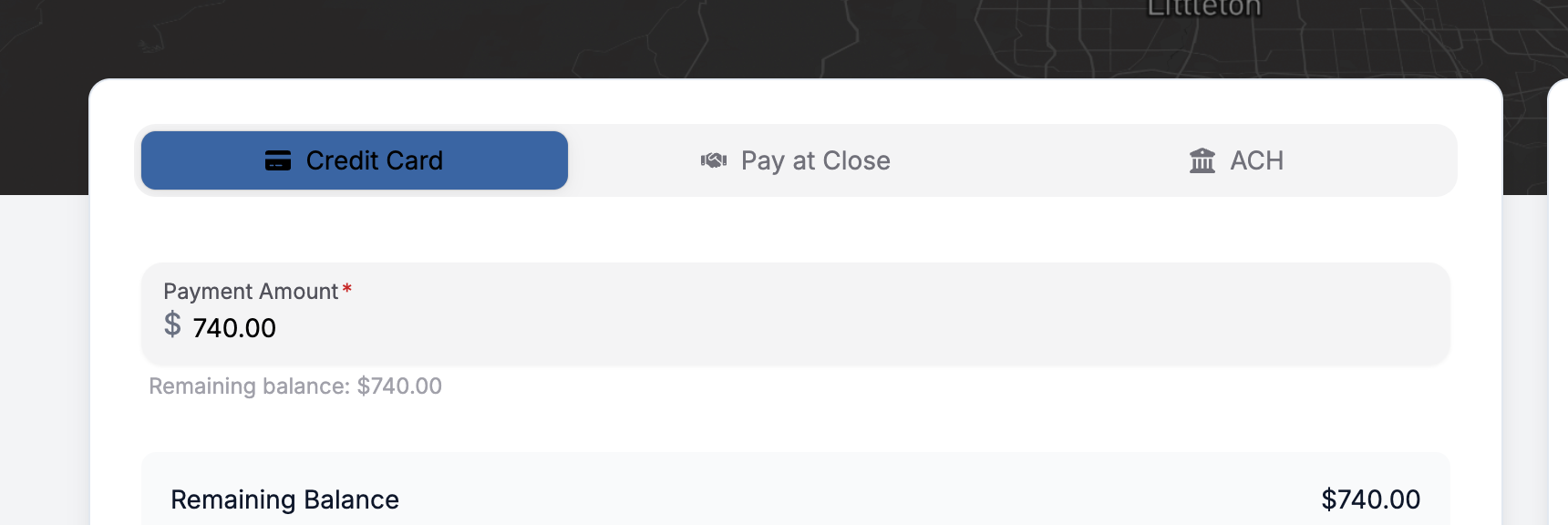
Payment methods show as card, PAC, then ACH
What changed — On the payment screen, payment methods now appear in this order: credit card, PAC, then ACH.
Where to find it:
Open a job.
Open the payment screen.
Confirm the method order is credit card, PAC, ACH.
Bug Fixes
Radon chart stays current after inspector reassignment
What changed — The radon chart should now refresh after events are reassigned, and it should work across companies instead of only one tenant.
Where to find it:
Open the radon chart.
Reassign a radon event to another inspector.
Confirm the chart updates after save.
Applies to: Existing and future records
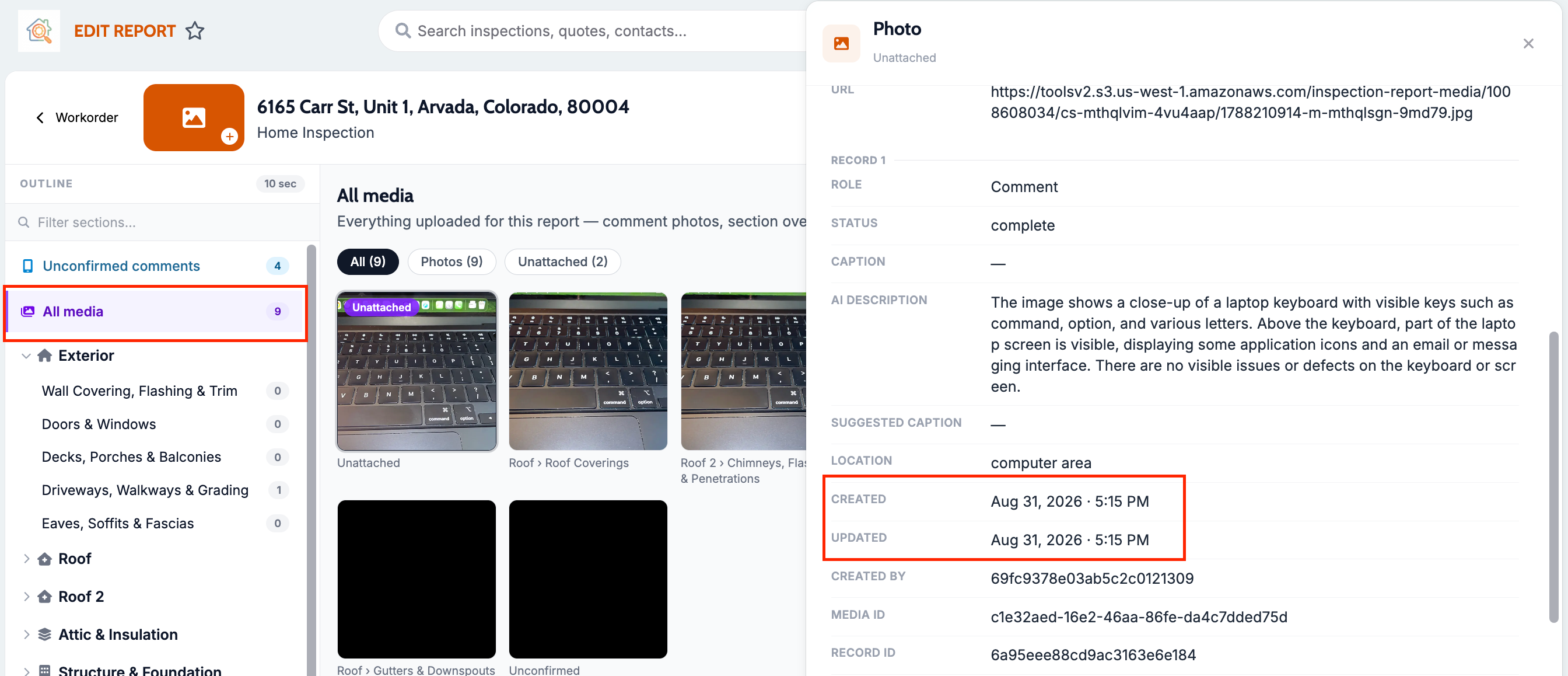
All Media photos now show Created time
What changed — Opening a photo in All Media now shows Created time and other details, so you can show when a condition was photographed. This is on Attik reports only.
Where to find it:
Open an Attik report.
Go to All Media.
Open a photo.
Applies to: Existing and future records
Imported multi-choice comments stay in the template
What changed — Spectora imports no longer delete multi-choice comments from the wrong parts of a template. The import summary now reports removed rows.
Where to find it:
Import a Spectora template.
Review the imported comments and the import summary.
Applies to: Existing and future records
Styles & Materials completion honors each field’s required flag
What changed — Report completion now uses each Styles & Materials field’s own required setting, instead of treating every field as mandatory.
Where to find it:
Open report completion.
Review Styles & Materials requirements.
Applies to: Existing and future records
Not-present sections stay visible in reports and PDFs
What changed — Sections marked not present now remain in the client report and PDF, labeled not present, instead of disappearing.
Where to find it:
Mark a section not present in the mobile app.
Open the client report or PDF.
Applies to: Existing and future records
Comment order is now consistent
What changed — Report comments now appear in the intended order: info, then limitations, then defects.
Where to find it:
Open a report section with multiple comment types.
View the comment list.
Applies to: Existing and future records
Contacts keep tag filters while searching
What changed — A tag filter on the Contacts list now still applies when you type a search term. Results must match both the search and the selected tag.
Where to find it:
Open Contacts.
Apply a tag filter.
Search for a contact.
Applies to: Existing and future records
Refund modals now default to zero
What changed — Editable partial refund fields now open at $0.00 instead of pre-filling the full payment amount.
Where to find it:
Open a refundable payment.
Start a refund.
Applies to: Future records only
Requested-inspector fees stay when adding a service
What changed — Adding a service no longer strips the requested-inspector fee from existing charges. Review the breakdown after the add to confirm the fee is still there.
Where to find it:
Open a job with a requested-inspector fee.
Add a service.
Review the charge breakdown.
Applies to: Existing and future records
Jobs with payments can’t be deleted
What changed — Jobs with a recorded payment can no longer be permanently deleted. Cancel is still allowed.
Where to find it:
Open a paid job.
Try to delete it.
Applies to: Existing and future records
Contact profile pagination is restored after Back
What changed — Returning to a contact profile now keeps you on the inspections or quotes page you were viewing, instead of jumping back to page one.
Where to find it:
Open a contact profile.
Browse inspections or quotes past the first page.
Open a record and go Back.
Applies to: Existing and future records
Capacity widget no longer fails on dropped financial days
What changed — The dashboard Capacity widget no longer dies when a daily financials day is missing from cache. When something still fails, the actual server message is shown instead of a generic error.
Where to find it:
Open the Dashboard.
View the Capacity widget.
Applies to: Existing and future records
Findings get a real title in the client report and PDF
What changed — Findings now show a concise title in the client report and PDF, instead of a truncated first line of the narrative. Clients and agents can scan a long report by heading.
Where to find it:
Open a completed report in the client report view or PDF.
Scan the finding headings in a section.
Applies to: Existing and future records
Template import keeps every comment placement
What changed — Spectora and template imports no longer skip comments that look like duplicates. Every exported placement is imported, even when the same title and narrative appear in more than one subsection.
Where to find it:
Import a Spectora or report template.
Review the imported comments and confirm repeated placements all came through.
Applies to: Future records only