Attik Update - Past Jobs on the Job Screen, Safer Photo Annotating & Reinspection Photo Rounds (Mobile App)

Summary
New Past jobs section on the job screen shows earlier jobs at the same address
Find inspection only finds your own jobs unless you can see every calendar, with cleaner, fresher results
Required equipment on each service, and photos grouped by inspection round on reinspections and the report summary
Annotate, banner, black comment photo and unresponsive section fixes, mostly on Android
Comment editor and media buttons behave better with long comments and many photos
This was an OTA Update, make sure to click the ‘Refresh’ button that appears when you open the app
New Features
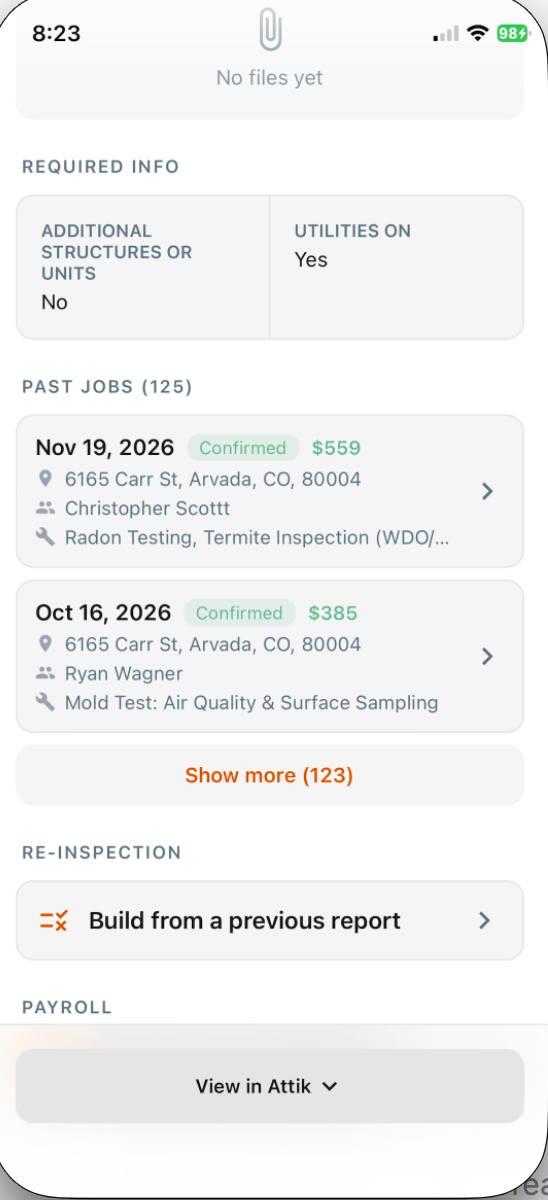
Past jobs on the job screen
What changed: The job screen now shows the most recent jobs at the same address, so you can see a property's history before you arrive. Each row shows the date, the status (Confirmed, Unconfirmed or Cancelled), the total, the address, up to three contacts and the services. Tap a row to open that job, even if it is assigned to another inspector. The section only appears when the job's property has a street, city and zip.
Where to find it:
Open a job from your schedule.
Scroll to Past jobs (N), after Required Info and before Re-Inspection and Payroll. It shows the two most recent jobs.
Tap Show more (N) to load 5 more at a time.
Improvements
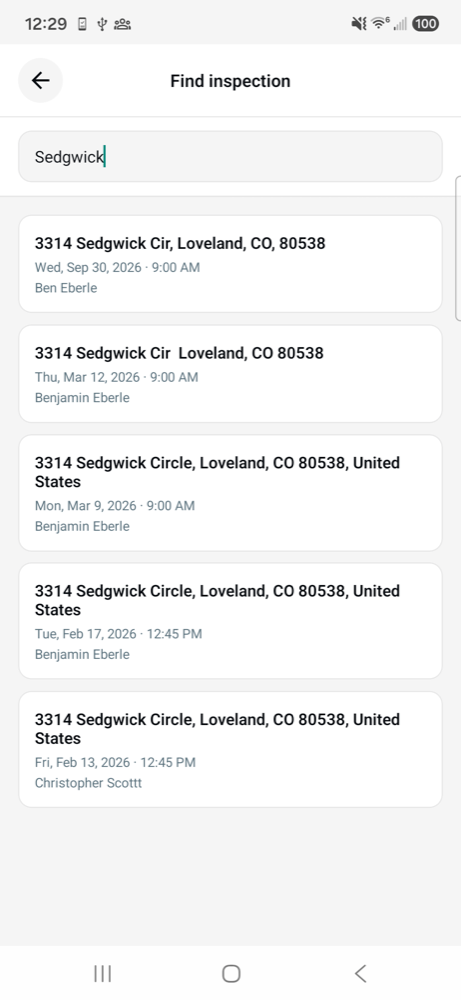
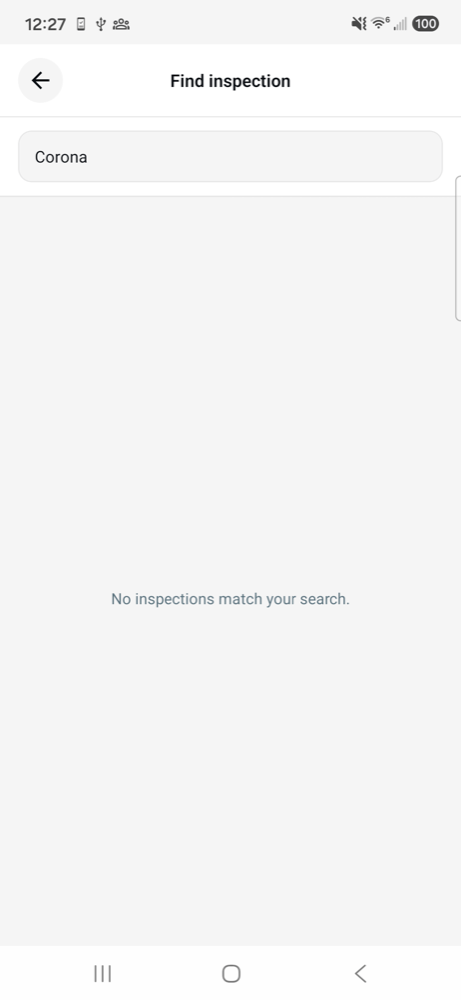
Find inspection results are fresher and easier to read
What changed: Results are no longer saved on the phone, so a repeat search doesn't flash an old list first, and offline you see an error instead of outdated results. Results are also plain rows with dividers instead of bordered cards.
Where to find it: Find inspection (the search icon in the schedule header).
Required equipment on each service
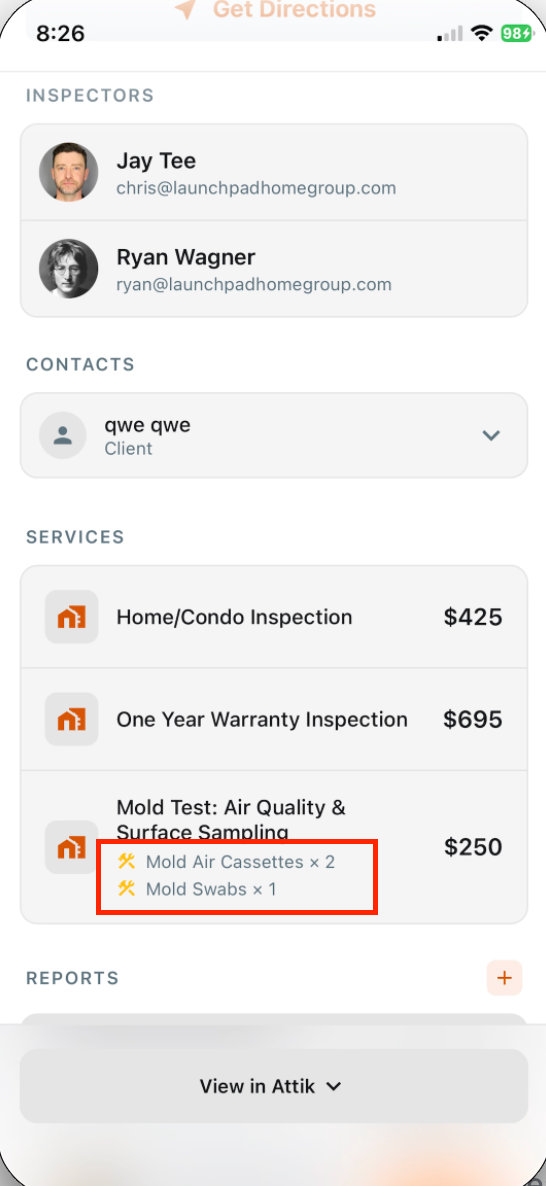
What changed: Each service now lists its required equipment as "Category × N", for example "Mold Cassette × 2". Zero quantities are hidden.
Where to find it: Job screen, Services section.
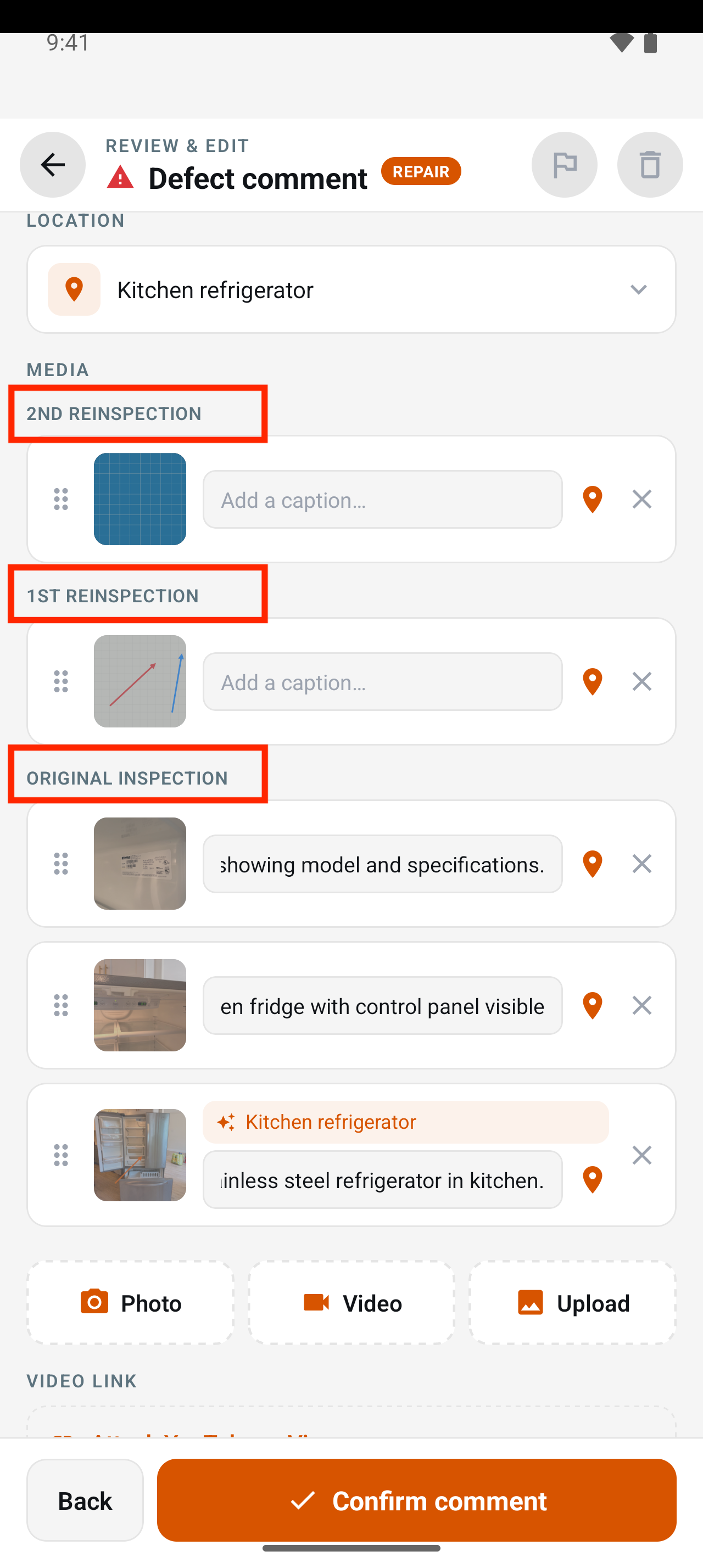
Photos grouped by inspection round in an opened comment
What changed: On a reinspection, a carried-over finding's photos are grouped under round headings, newest first: 2nd reinspection, 1st reinspection and Original inspection. Earlier rounds are dimmed, and photos can't be dragged between rounds. Comments with photos from only one round show no labels.
Where to find it: Open a comment on a reinspection to see the round headings.
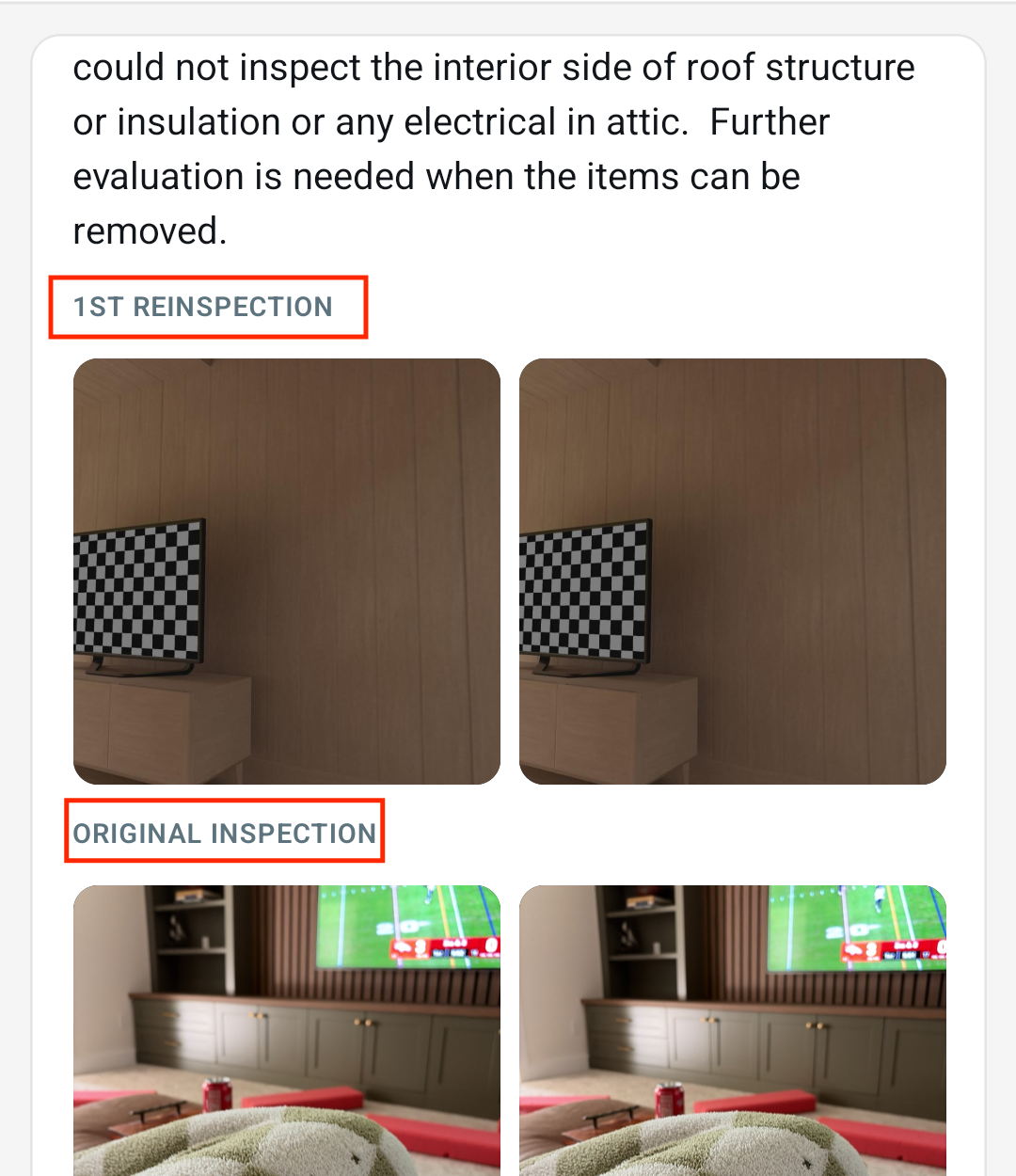
Photos grouped by inspection round on the report summary
What changed: On the finish summary, a carried-over comment's photos are grouped by round with the same labels, newest first, and reordering stays within a round.
Where to find it: REPORT SUMMARY (the finish summary).
Find inspection only finds your own jobs unless you can see every calendar
What changed: Searching with Find inspection now only finds jobs where you are on the roster or assigned to one of the job's events. People with All Inspector Calendar or Admin Calendar, and super admins, still search every job in the company. Office, admin, leader and executive leader roles have access by default, so inspector roles are limited to their own jobs.
Where to find it: Find inspection (the search icon in the schedule header).
Setup:
Open the user's permissions (most likely under Settings → Users).
In the Calendar group, turn on All Inspector Calendar or Admin Calendar for anyone who needs to search every job.
Bug Fixes
Finished reinspection subsections keep the reinspection layout
What changed: A subsection with carried-over findings opens its findings list by default, and tapping the row shows or hides that list instead of opening the comment catalog. Adding a comment stays on the Add another comment row.
Where to find it: A subsection with carried-over findings on a reinspection, in the report outline.
Applies to: Existing and future records.
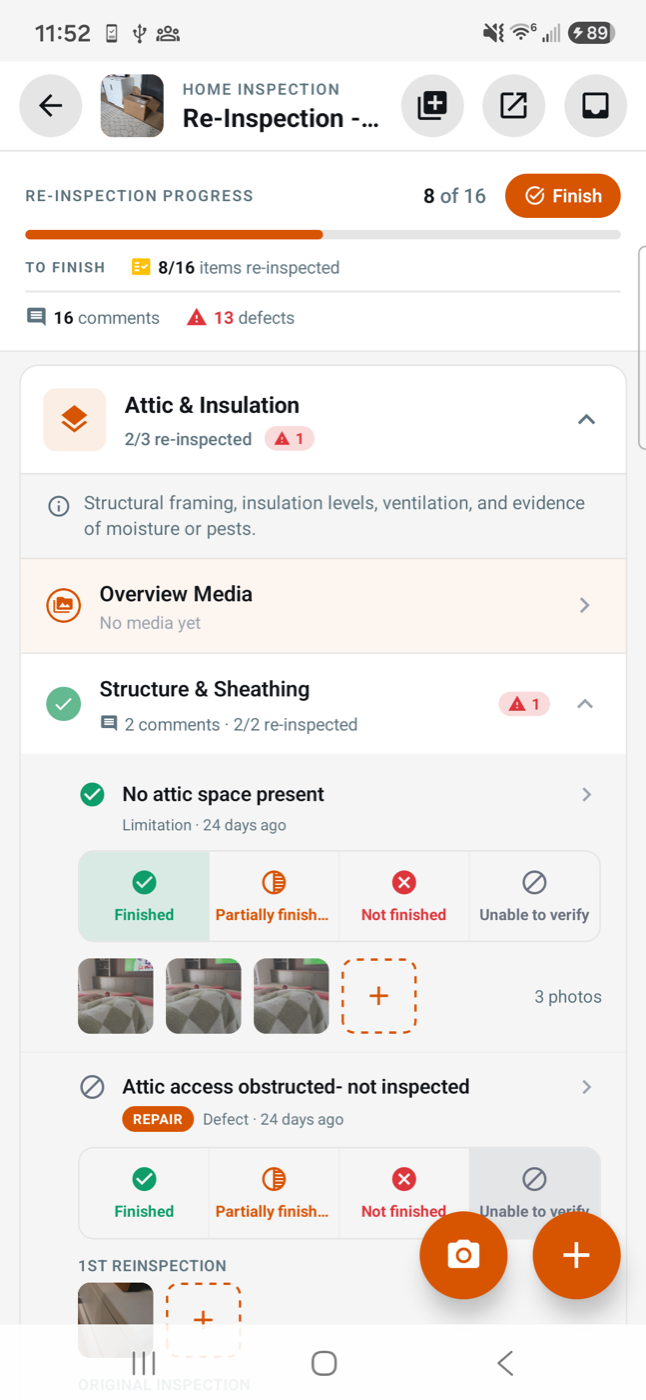
Media buttons stay visible on comments with many photos
What changed: In a comment's media row, photos now scroll sideways on their own row, and the camera, gallery, location and flag buttons stay on a fixed row below. The flag button reads Flag for review or Clear review flag.
Where to find it: The media row of a comment in the report outline.
Applies to: Existing and future records.
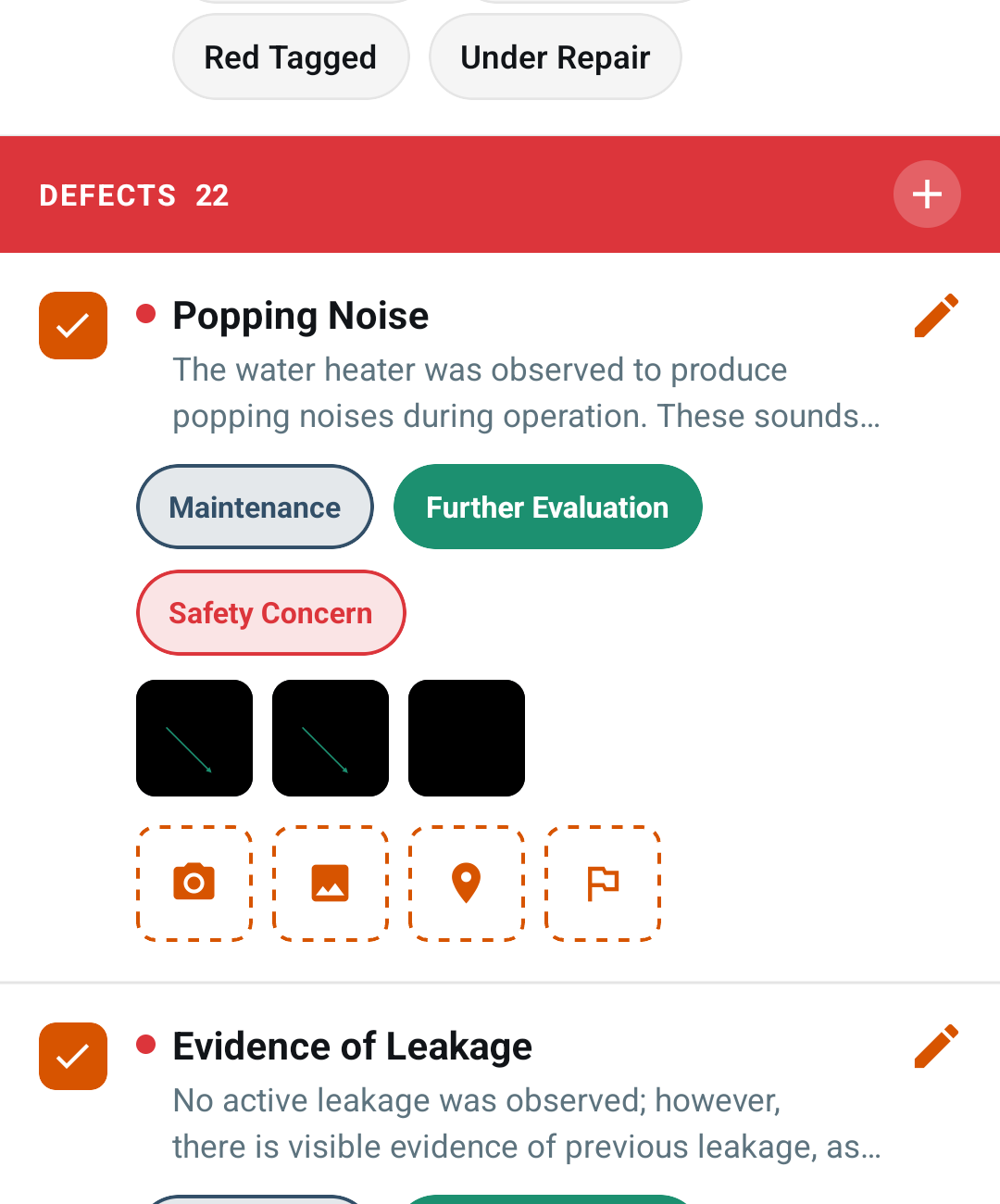
Long comments stay in view while editing
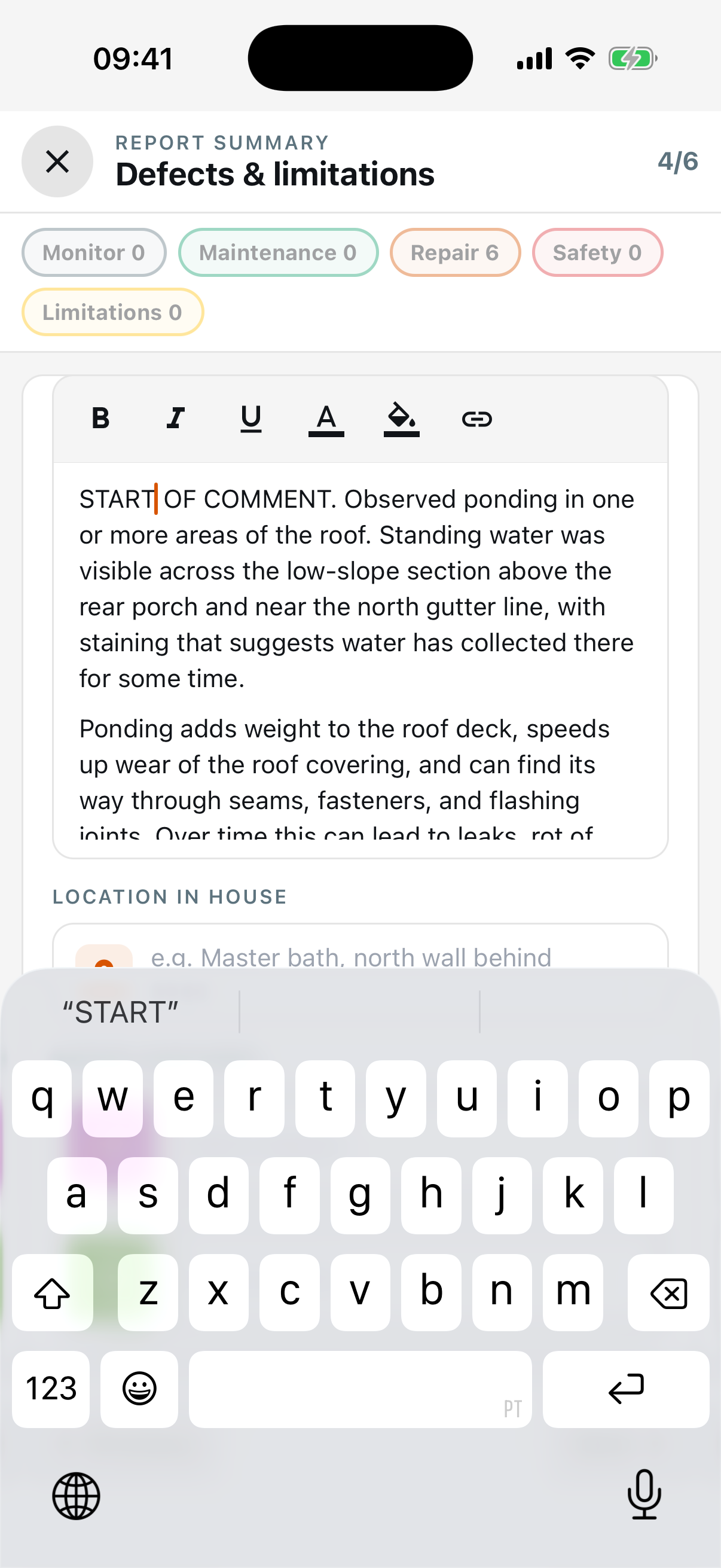
What changed: The comment editor stops growing at about 10 lines and scrolls inside itself, so the page no longer jumps to the bottom when the keyboard opens.
Where to find it: Comment edit screen.
Applies to: Existing and future records.
Annotate screen no longer stuck on "Couldn't save annotations"
What changed: Large photos (over about 26 megapixels) no longer crash the annotate screen on Android. A photo that can't load now shows This photo couldn't load with Try again (and Remove markup when capturing) instead of a stuck save error.
Where to find it: Open any photo to mark it up (the annotate screen).
Applies to: Existing and future records.
Banners no longer block taps on Android
What changed: While a toast or banner is showing, taps now reach what's underneath, including the header back button.
Where to find it: No new screen — takes effect after the update.
Applies to: Existing and future records.
Comment photos no longer stay black after an interrupted download
What changed: Photos that came down empty or cut off after an interrupted download now reload instead of staying black.
Where to find it: No new screen — takes effect after the update. Photos in comments.
Applies to: Existing and future records.
Report sections no longer stop responding on Android
What changed: Section, subsection, Overview and S&M headers in the report outline no longer stop responding after rapid taps, so you don't have to restart the app.
Where to find it: Report outline.
Applies to: Existing and future records.
Re-marked-up photos no longer show twice
What changed: When you mark up a web-added photo again on the phone, the new version replaces the original instead of showing twice, and it keeps the earliest inspection round.
Where to find it: No new screen — takes effect after the update. Photos on a comment.
Applies to: Future records only.
Services with no category no longer leave a blank line
What changed: A blank line under services that have no category is gone.
Where to find it: Services section of the job screen.
Applies to: Existing and future records.