Attik Update - Day-of-Week & Seasonal Pricing, Service Area Limits & Jobs Booked Today

Summary
Price modifiers can now change by day of week, apply only during yearly date windows, and use percent amounts
Services and required reports can be limited to chosen service areas
New Jobs Booked Today widget, plus a deeper Client Care dashboard with per-brand comparisons, loss reasons and Cancel Rate
A new Work Orders permission controls who can mark an inspector as requested
Videos play in the web report editor, and bubble choices sit under comment titles
Fixes for radon event lengths, payroll date ranges, official form signatures and agreement signing
New Features
Day-of-week, seasonal and percent price modifiers
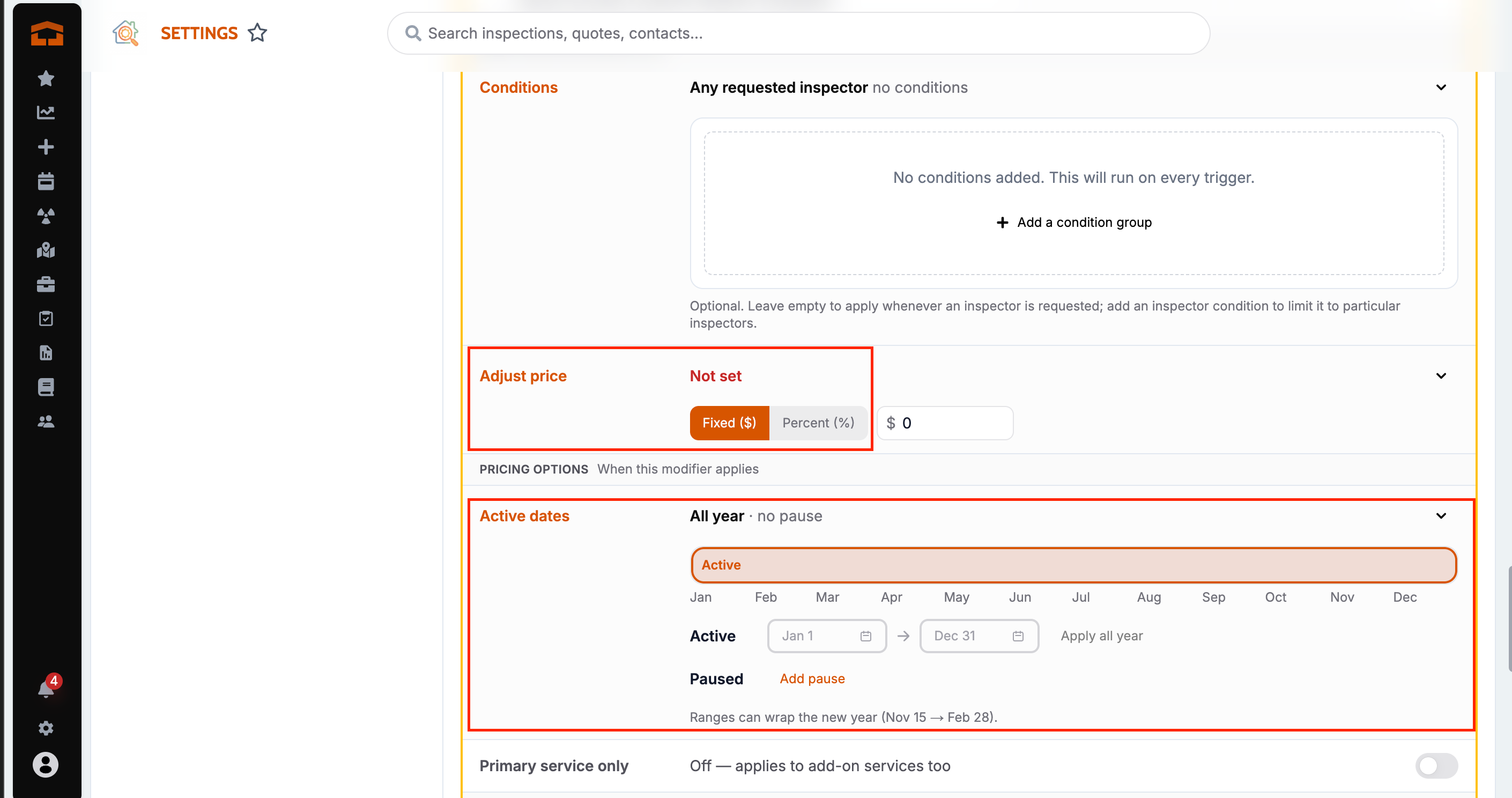
What changed: Service modifiers can now add a fixed amount or a percent, apply only on chosen days of the week, and be active or paused during yearly date windows (for example, active every year Apr 1 to May 20). The modifier cards were also redesigned, with a plain-English summary on each card and a live example while you edit. When a job is rescheduled to a day with a different price, the Keep/Update prompt shows only that price difference.
Where to find it:
Go to Settings → Services.
Open a service and go to Modifiers.
Edit or add a modifier and use the day chips, Fixed/Percent, and the active dates under PRICING OPTIONS.
Price by primary service and where the order started
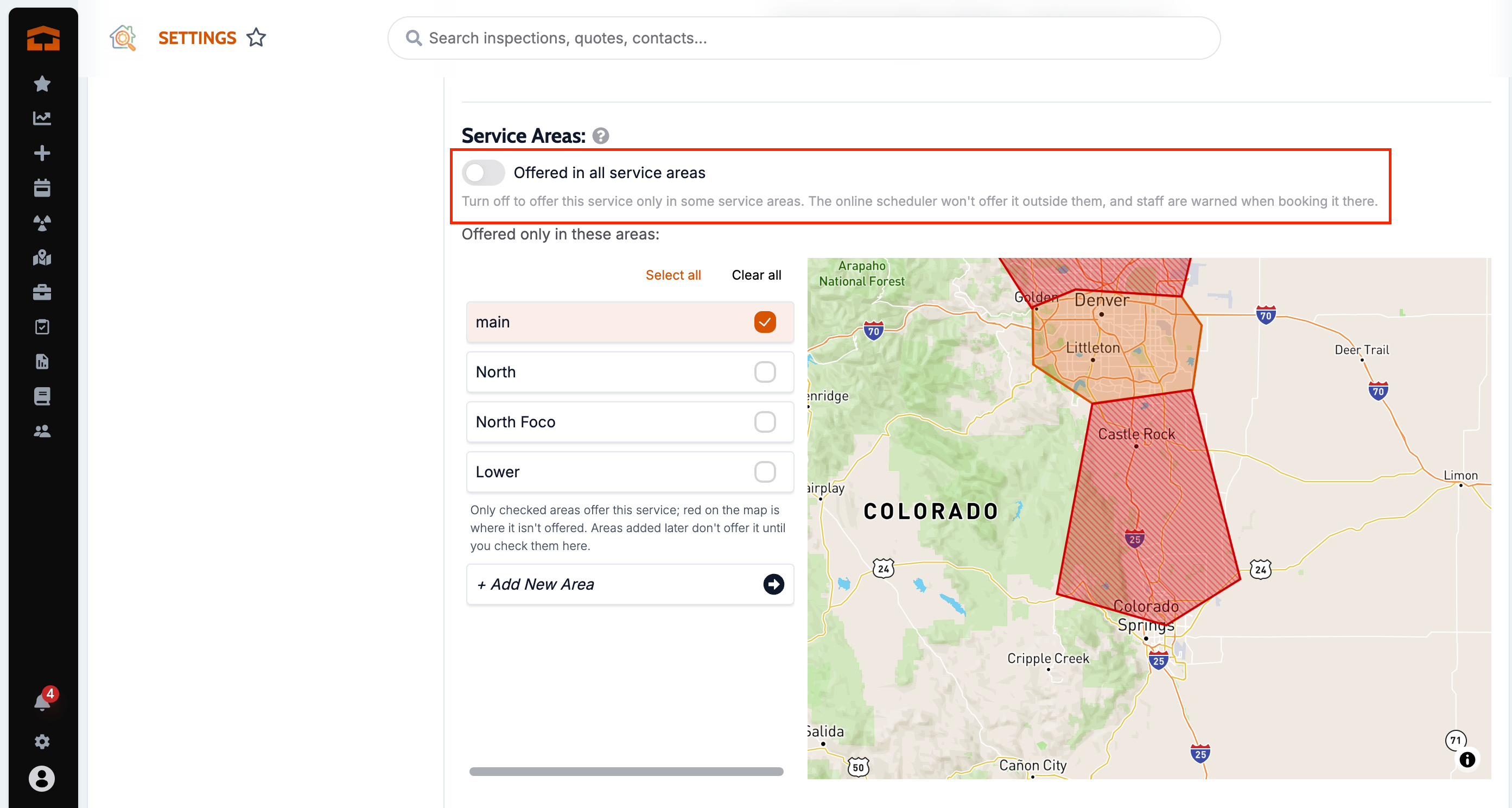
What changed: Modifiers, action flows and worklists can use two new conditions: whether a service is the primary service on the order, and Order Started Location (online by the client, or internal by staff). A job keeps the order started location of the quote it was booked from. Primary service only is now offered on every modifier type.
Where to find it:
Go to Settings → Services → Modifiers, or open an action flow or worklist.
Add a condition and pick Order Started Location, or turn on Primary service only on a modifier.
Conditions on the requested-inspector fee
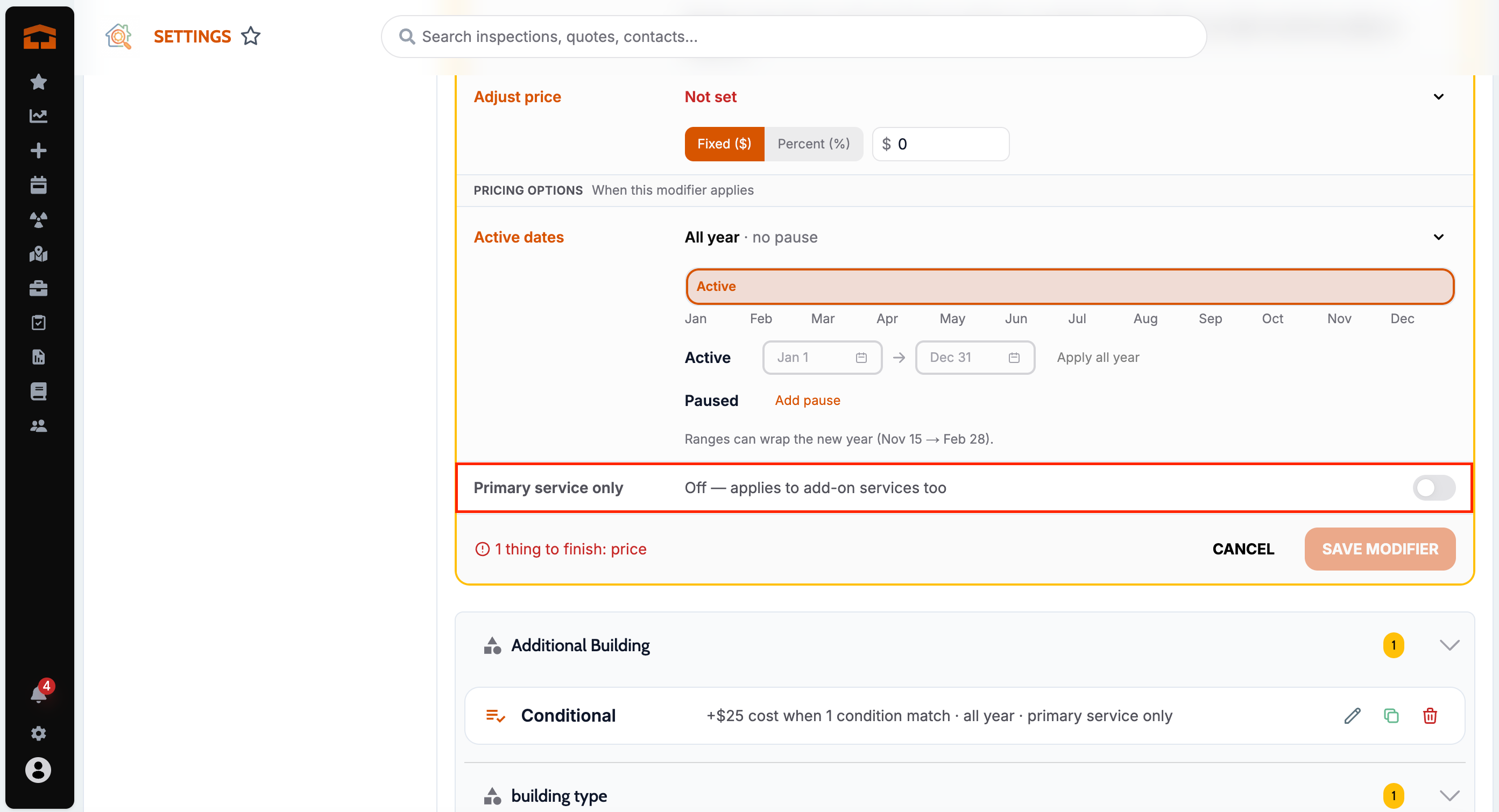
What changed: The requested-inspector fee now has the same conditions block as other modifiers, so you can limit it to certain services instead of charging it on everything. With no conditions, it works as it did before.
Where to find it:
Go to Settings → Services → Modifiers.
Edit the requested-inspector modifier and add conditions.
Offer a service only in chosen service areas
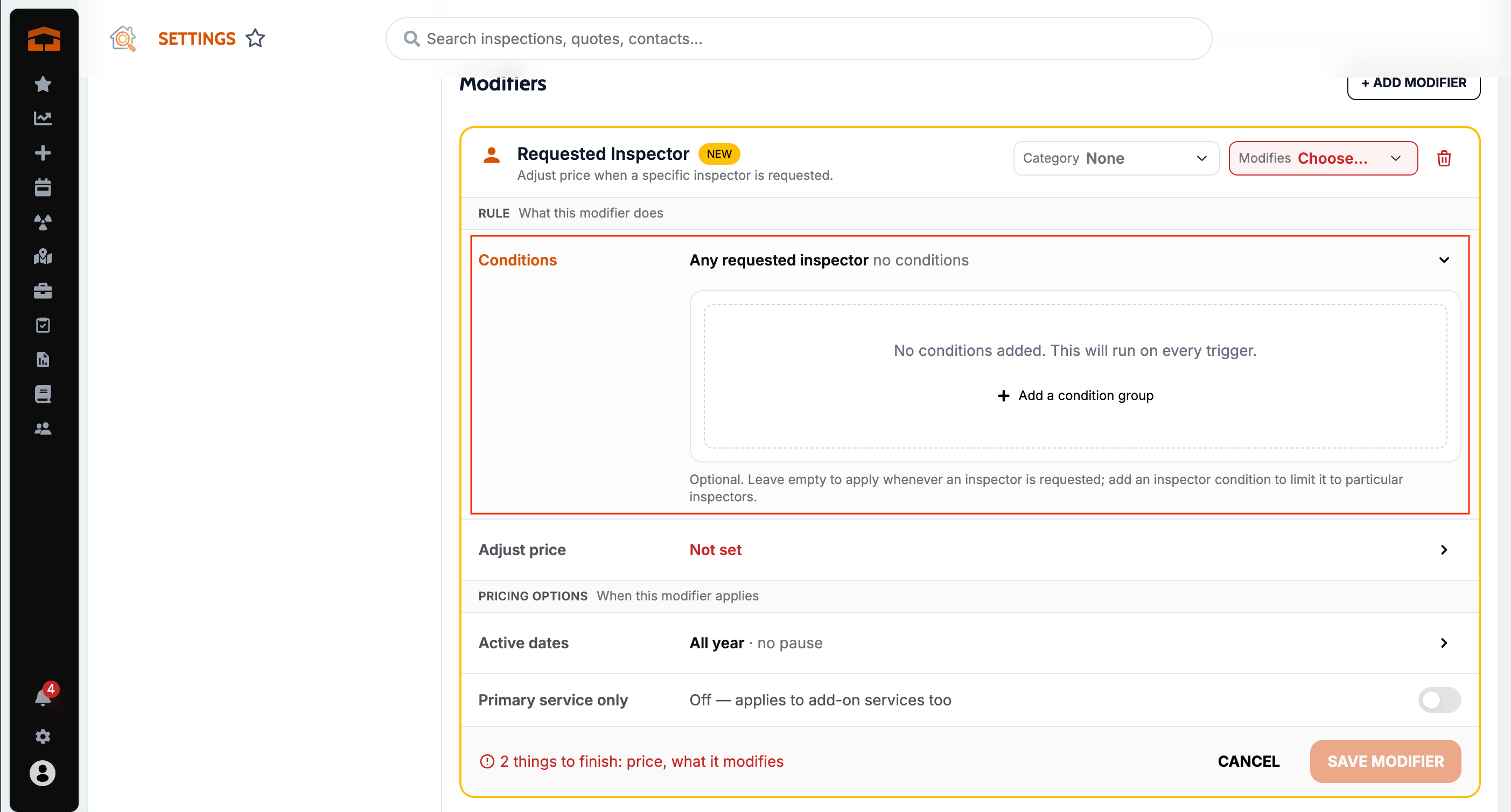
What changed: A service can now be offered only in the service areas you pick. The online scheduler, add-on suggestions, quote portal and booking checks all follow it, and deleting a service area shows which services it affects first.
Where to find it:
Go to Settings → Services and open a service.
In Service Areas, turn off Offered in all service areas.
Tick the areas where the service is offered (or use Select all) and save.
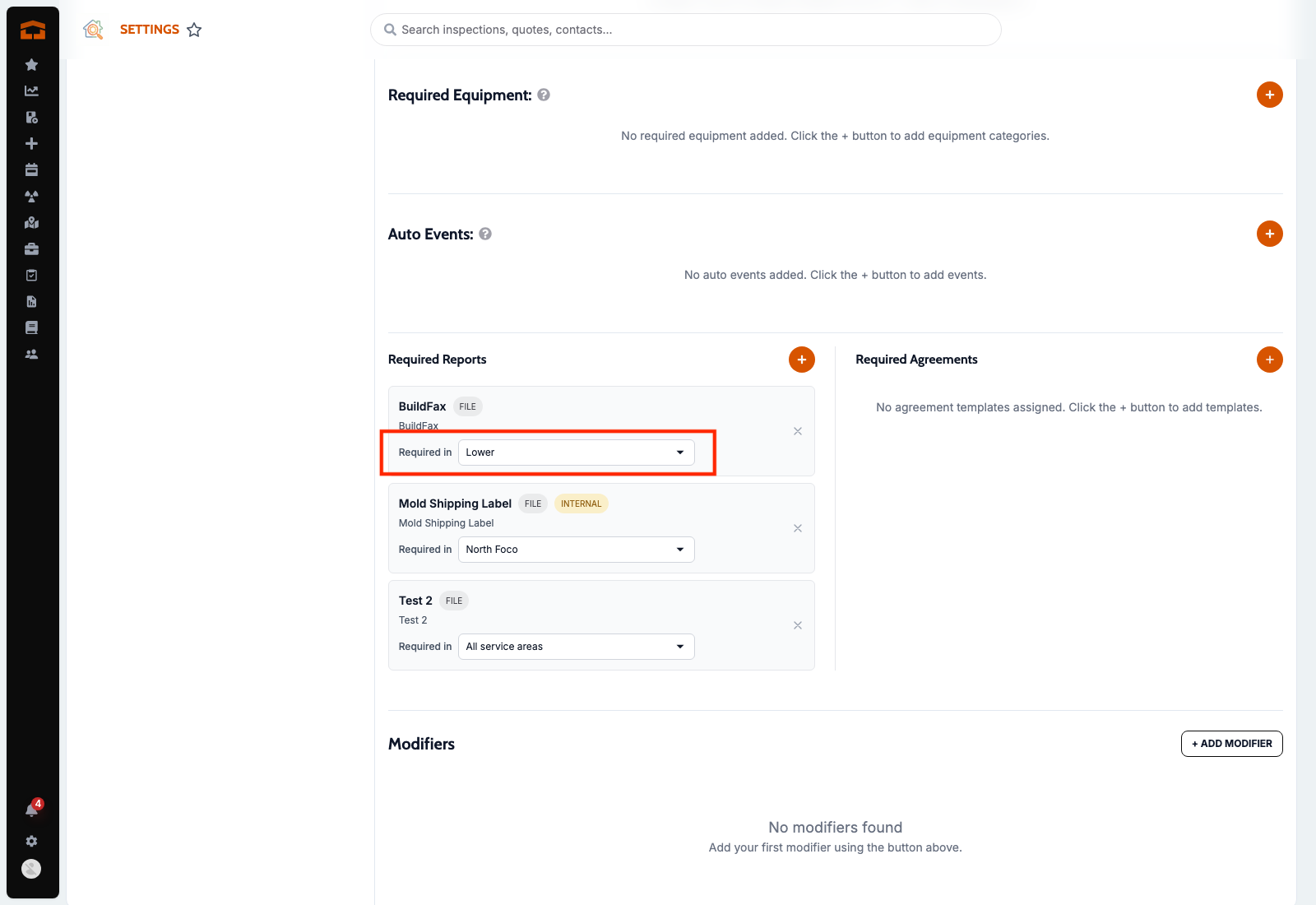
Require a report only in chosen service areas
What changed: Each required report on a service can now be limited to certain service areas, so one service can carry several required reports that apply only where they belong. Jobs outside every service area still get all required reports, and moving a job's address adds or archives untouched reports to match.
Where to find it:
Go to Settings → Services and open a service.
On a required report, open the … menu and choose Limit to service areas….
Turn off Required in all service areas, pick the areas, and save.
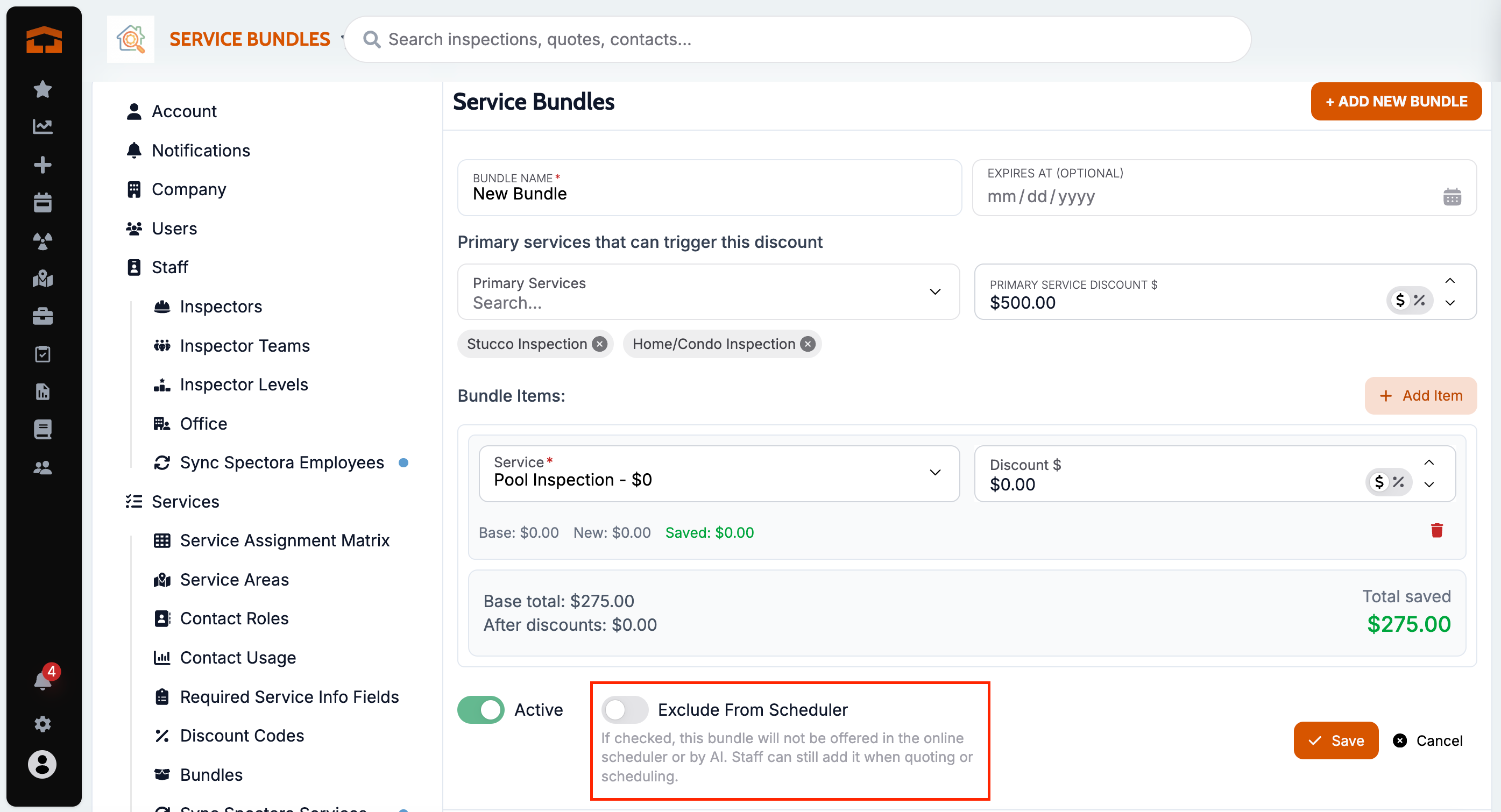
Hide a bundle from the online scheduler
What changed: A bundle can now be hidden from the online scheduler and the client quote portal while staying active for staff booking. Existing bundles stay visible online until you change the setting.
Where to find it:
Go to Settings → Services and open the bundle.
Turn on the setting to hide it from the online scheduler and save.
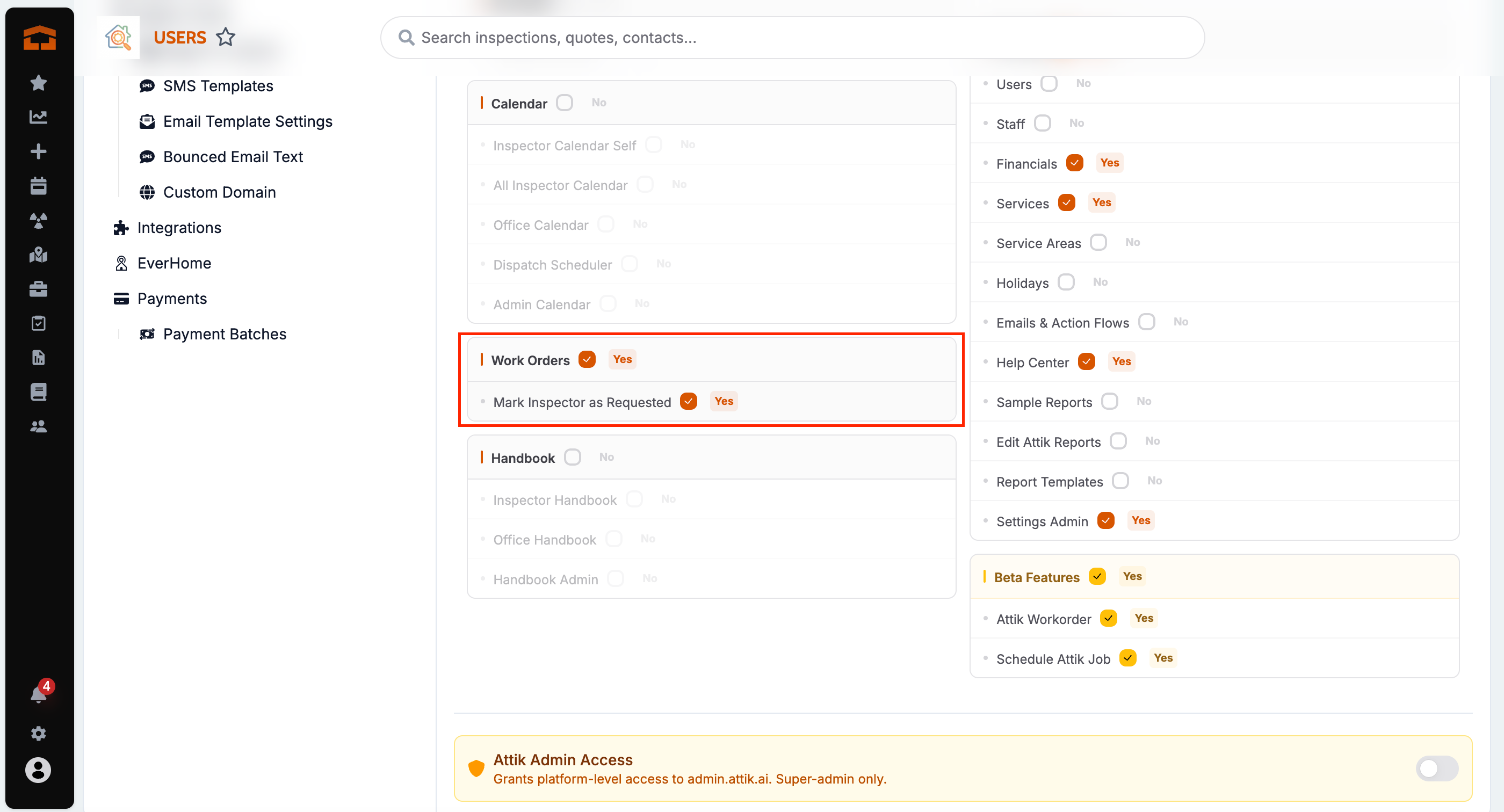
Control who can mark an inspector as requested
What changed: User permissions now have a Work Orders group with Mark Inspector as Requested. Office, leader and admin roles have it by default and inspectors don't, so inspectors can no longer mark themselves requested to collect the requested-inspector fee.
Where to find it: Role permissions, Work Orders → Mark Inspector as Requested.
Setup:
Review which roles should have Mark Inspector as Requested and adjust if needed.
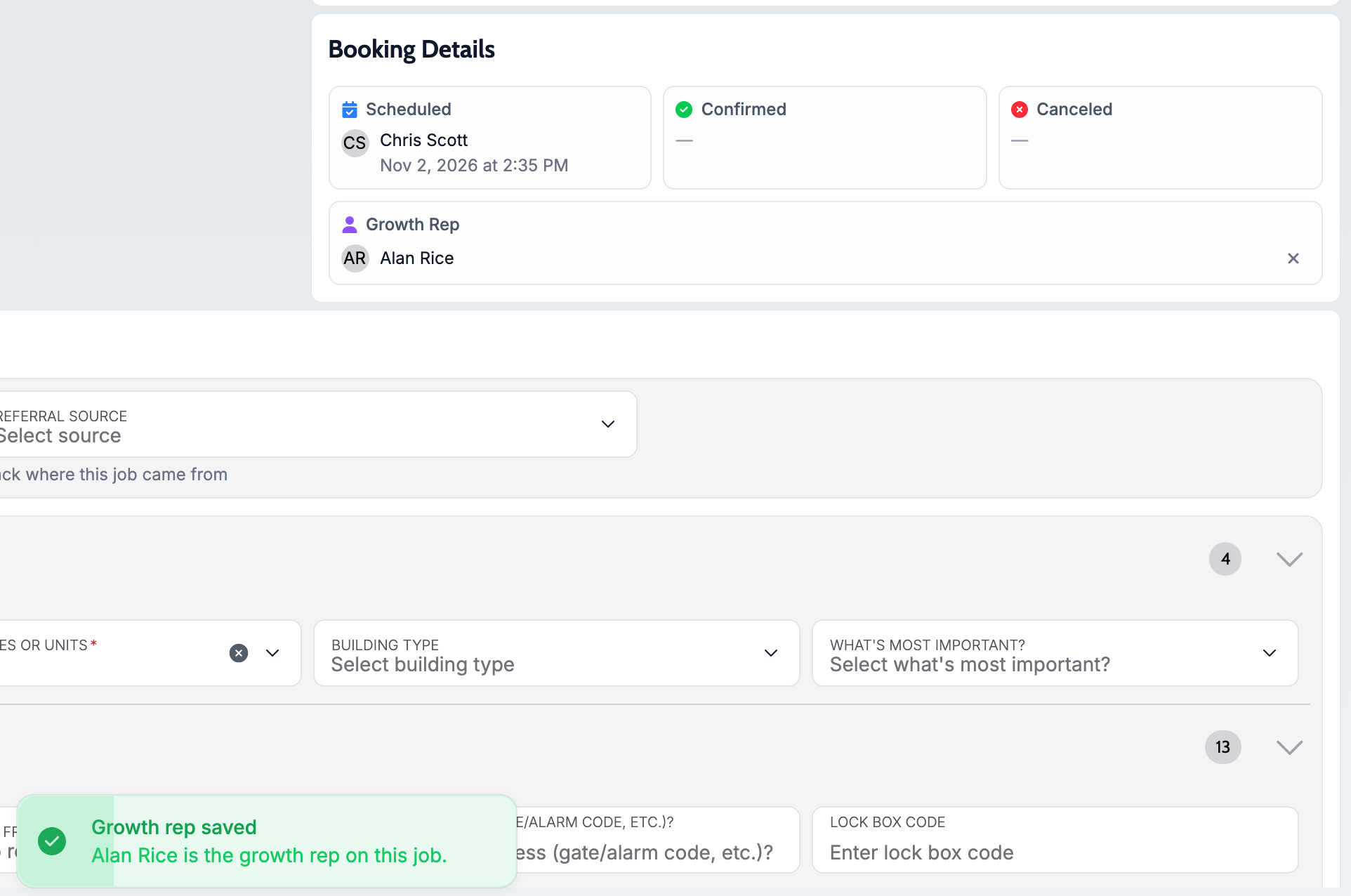
Add a growth rep to a job
What changed: A work order can now carry a growth rep, separate from Scheduled By. The growth rep tile shows the rep's photo and name like the other Booking Details tiles, and changes show up in the job's activity.
Where to find it: Work order, Booking Details, growth rep tile.
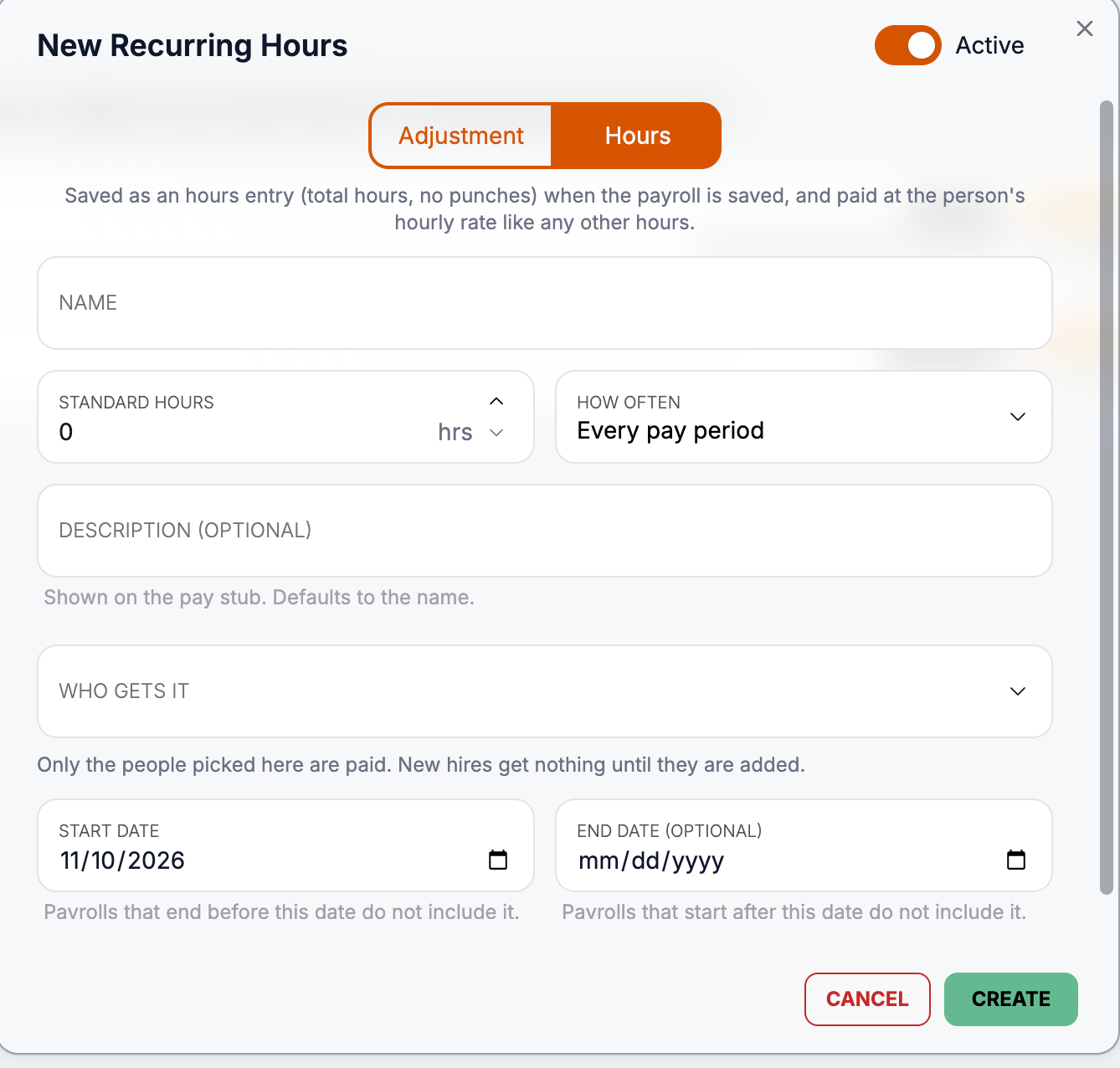
Recurring hours in payroll
What changed: Recurring payroll adjustments can now add hours on a schedule, such as 4 hours every week, not just a dollar amount.
Where to find it:
Go to HR → Recurring Adjustments.
Click New Recurring Adjustment and choose Recurring hours.
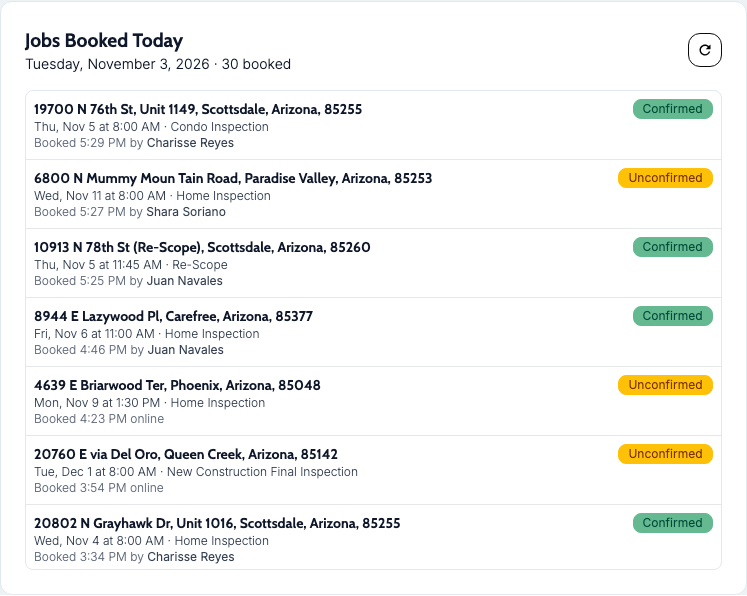
Jobs Booked Today widget
What changed: A new dashboard widget lists every inspection booked today for your company, with who booked it, the inspection date (with year), each job's revenue and the day's total.
Where to find it: Dashboard, Jobs Booked Today widget.
Setup:
Give the Jobs Booked Today permission to the roles that should see it.
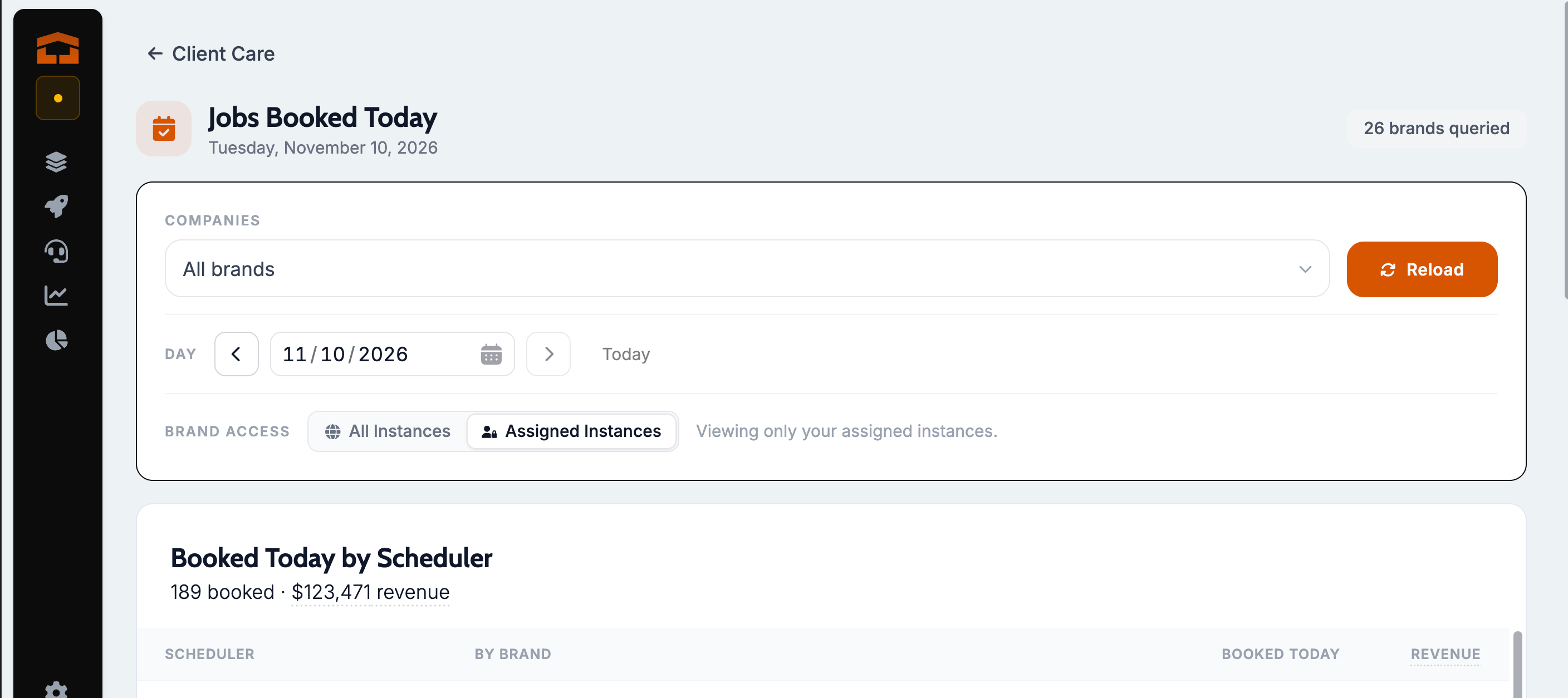
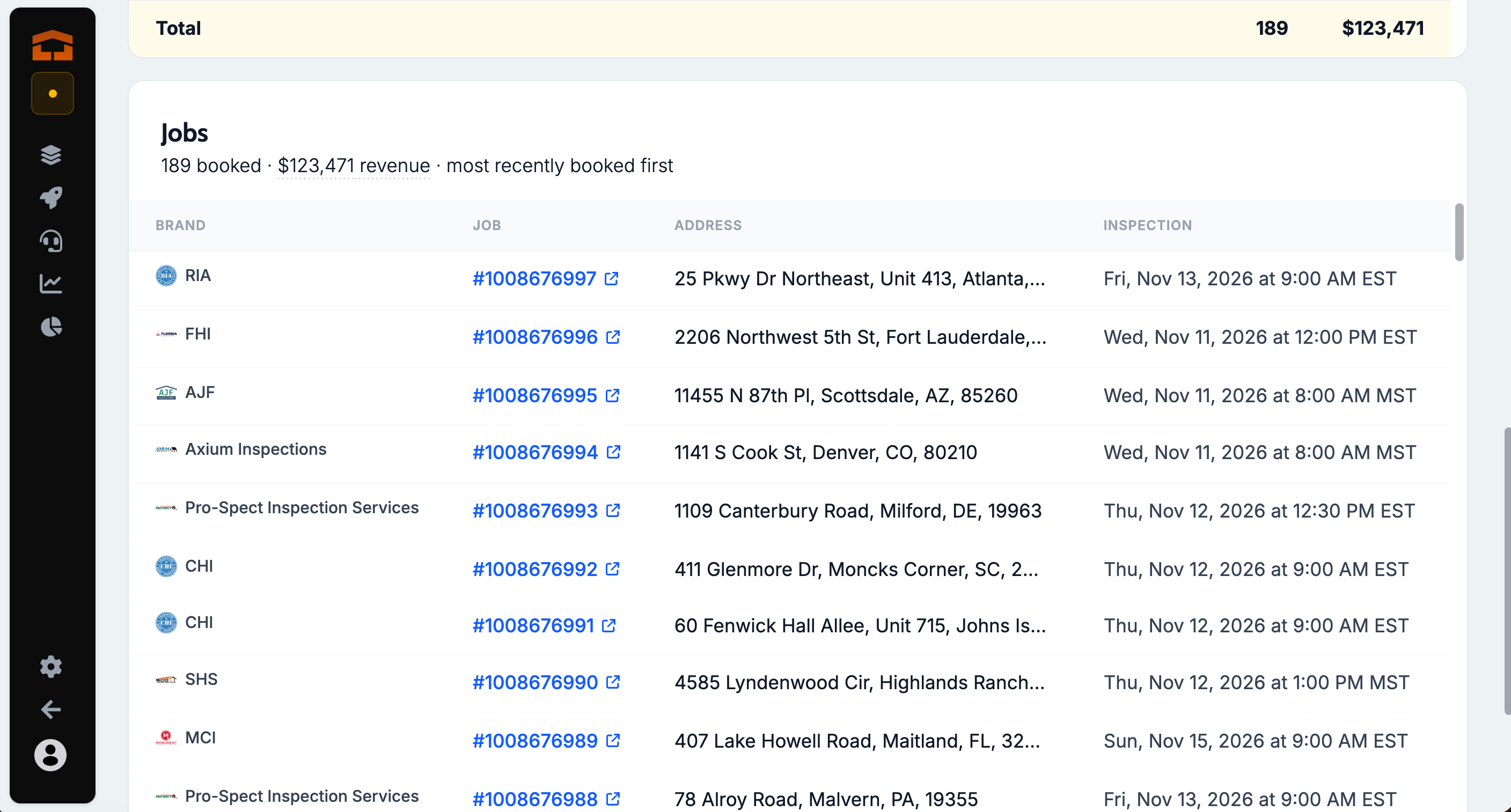
Jobs Booked Today across brands in Admin Attik
What changed: Client Care leaders can see today's bookings for several brands at once, with a Booked by Scheduler summary, revenue, a day picker for earlier days, and links to each work order.
Where to find it: Admin Attik, Client Care → Jobs Booked Today.
Compare brands, primary services and loss reasons on the Client Care dashboard
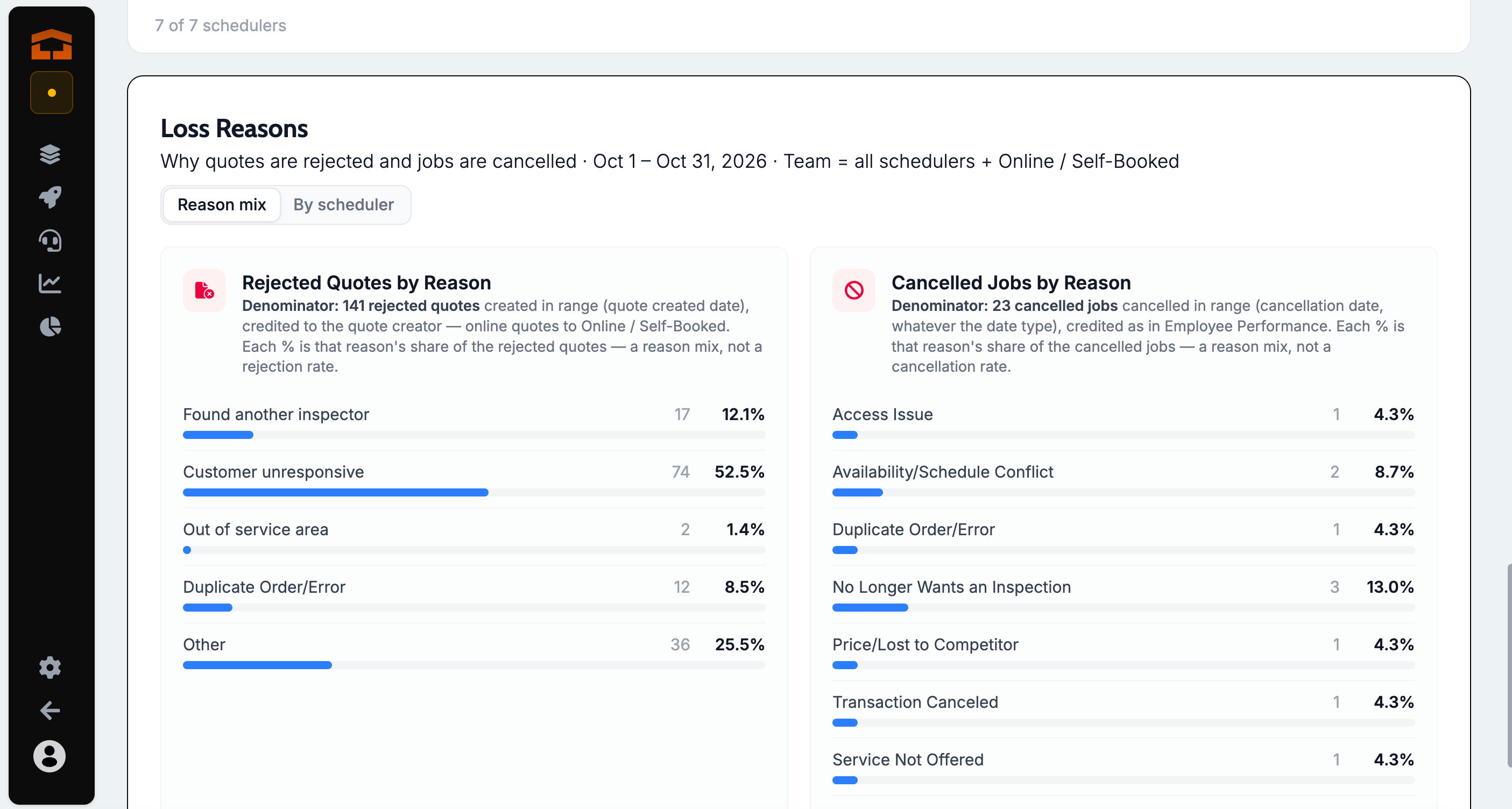
What changed: The Client Care dashboard now shows results per brand, filters by primary service, breaks out why quotes were rejected and jobs cancelled, and adds a Cancel Rate card. With a comparison range on, every card and brand cell shows an up or down arrow. Weeks now run Monday to Sunday.
Where to find it: Client Care Dashboard.
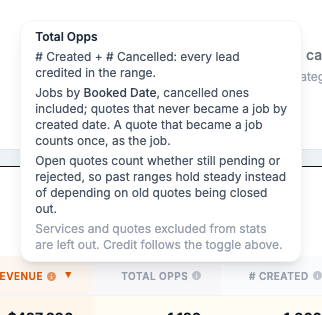
Total opportunities and forecasting columns on the Client Care dashboard
What changed: Employee Performance adds forecasting columns, including Online Quotes Booked and Online Quotes Confirmed, and clearer cancel columns (+ All Cancels) with tooltips explaining each. A Count online in Team Avg checkbox lets you keep the Online row out of the team average.
Where to find it: Client Care Dashboard, Employee Performance.
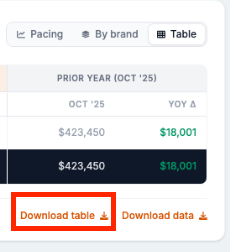
Download the Launchpad Revenue table
What changed: Table view now has a Download table action that saves the on-screen company rollup, including the All brands total, as a file that matches your filters and sort. Download data still gives the inspection-level file.
Where to find it: Launchpad Revenue, Table view, Download table.
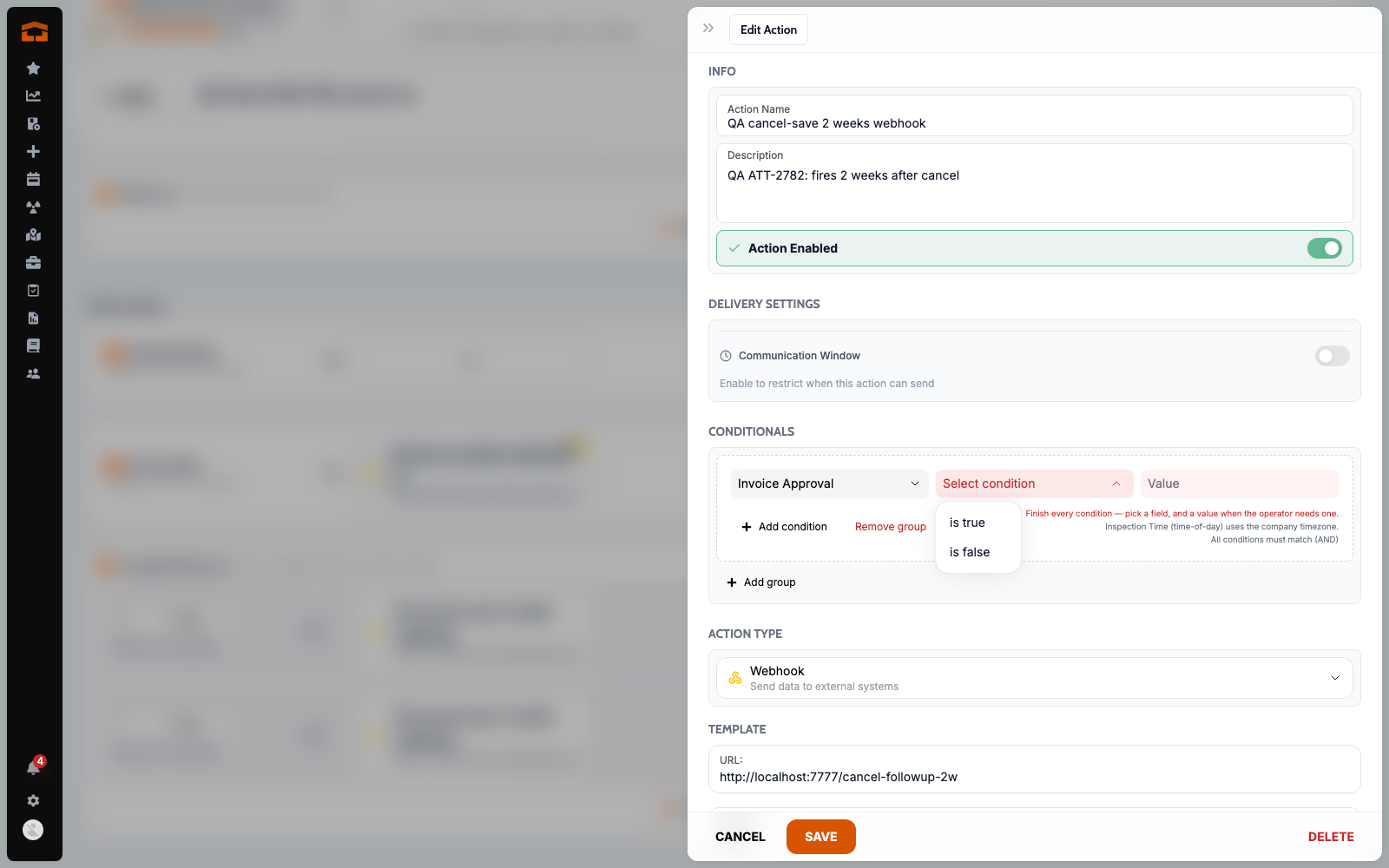
Skip payment reminders for Invoice Approval contacts
What changed: Email and SMS actions can now use an Invoice Approval condition, so contacts marked for invoice approval stop getting unpaid reminders.
Where to find it: Action flows, email or SMS action, Conditions → Invoice Approval.
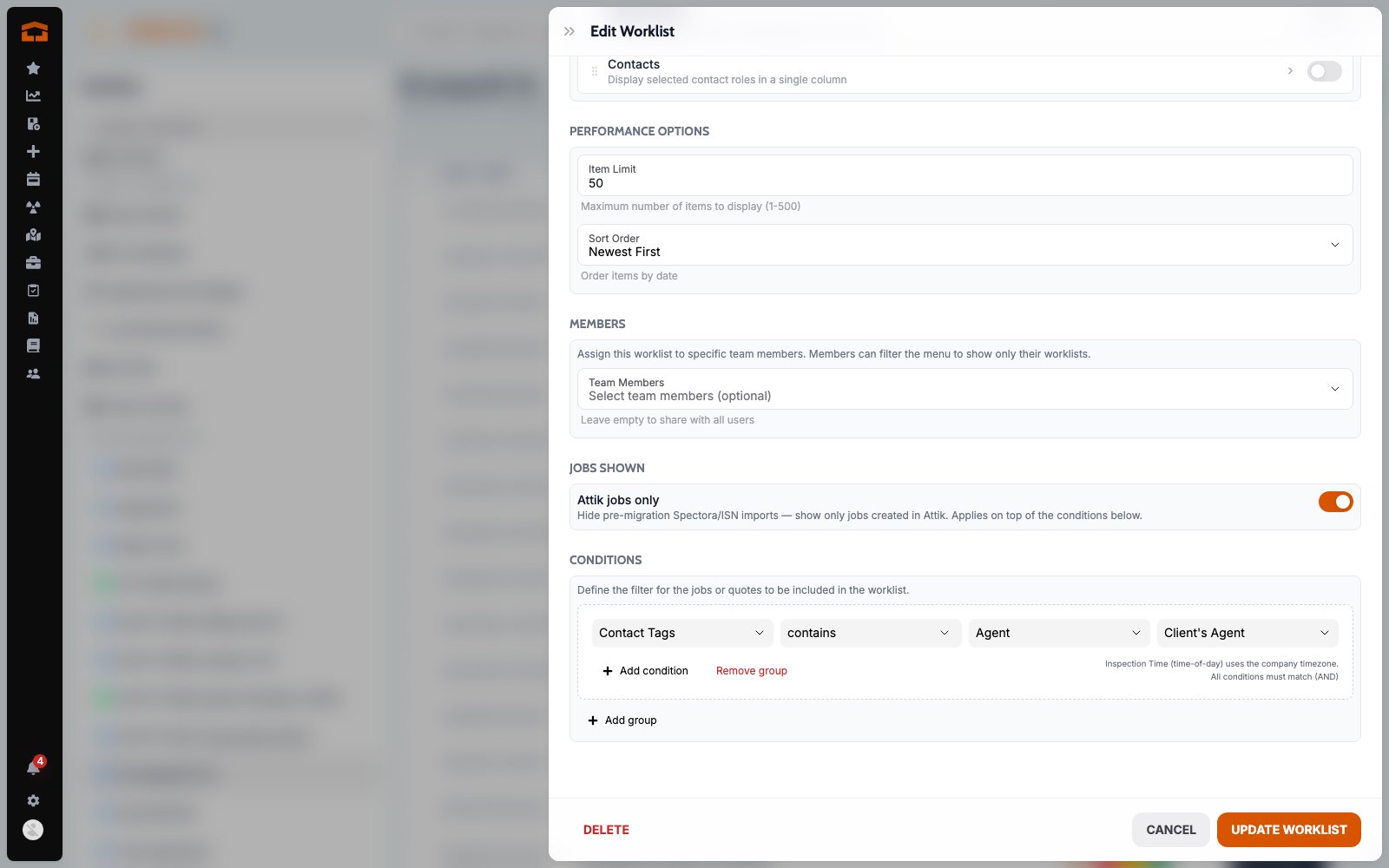
Filter worklists by contact tags
What changed: Worklists can now filter by Contact Tags, so staff can queue work for tagged agent groups such as VIP.
Where to find it: Worklist builder, Contact Tags condition.
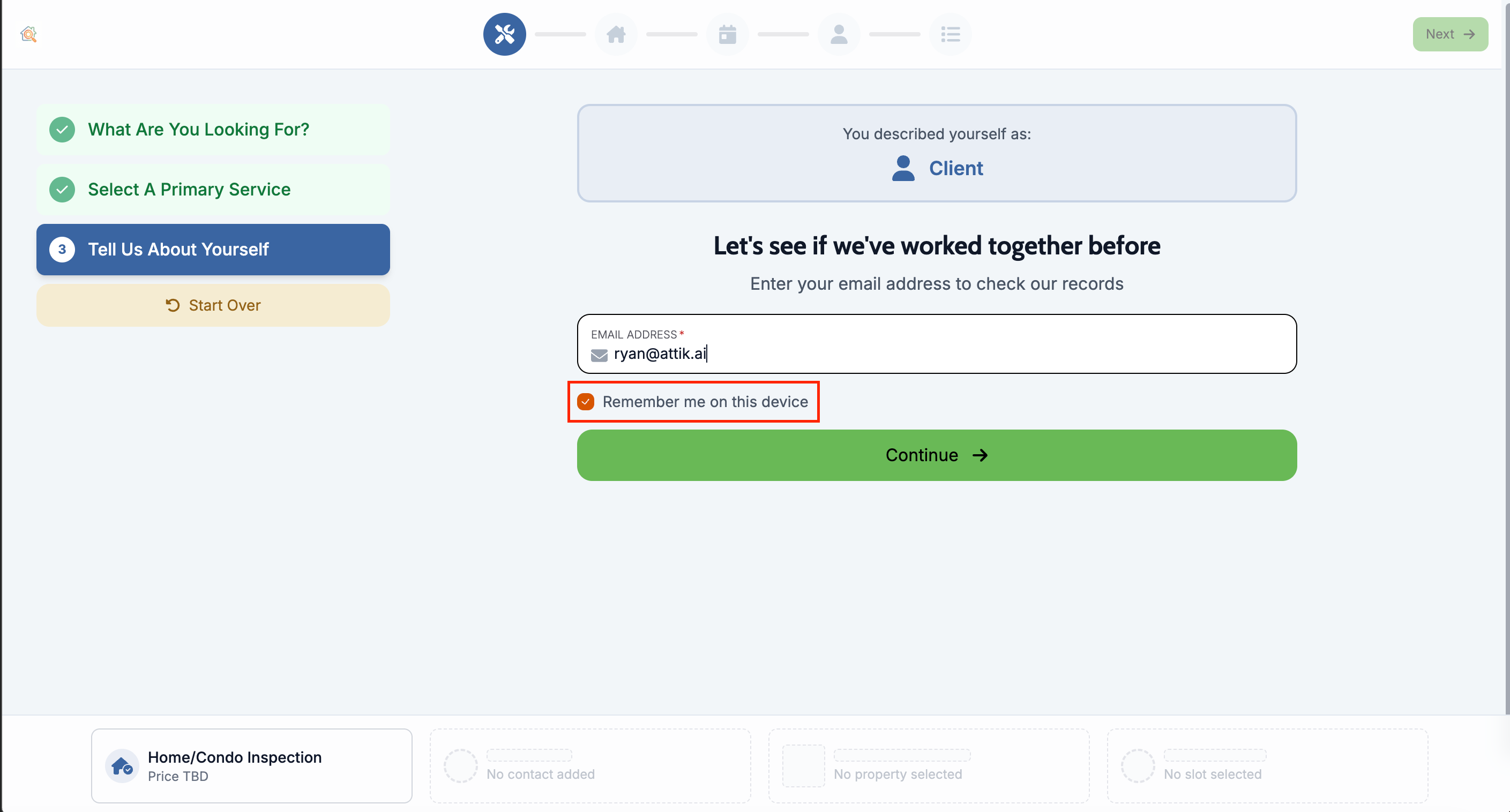
Remember the booker's email on this device
What changed: The online scheduler can remember a booker's email on their device when they tick Remember me, so returning agents and clients don't retype it. Not you? and Forget this device clear it.
Where to find it: Online scheduler, contact step.
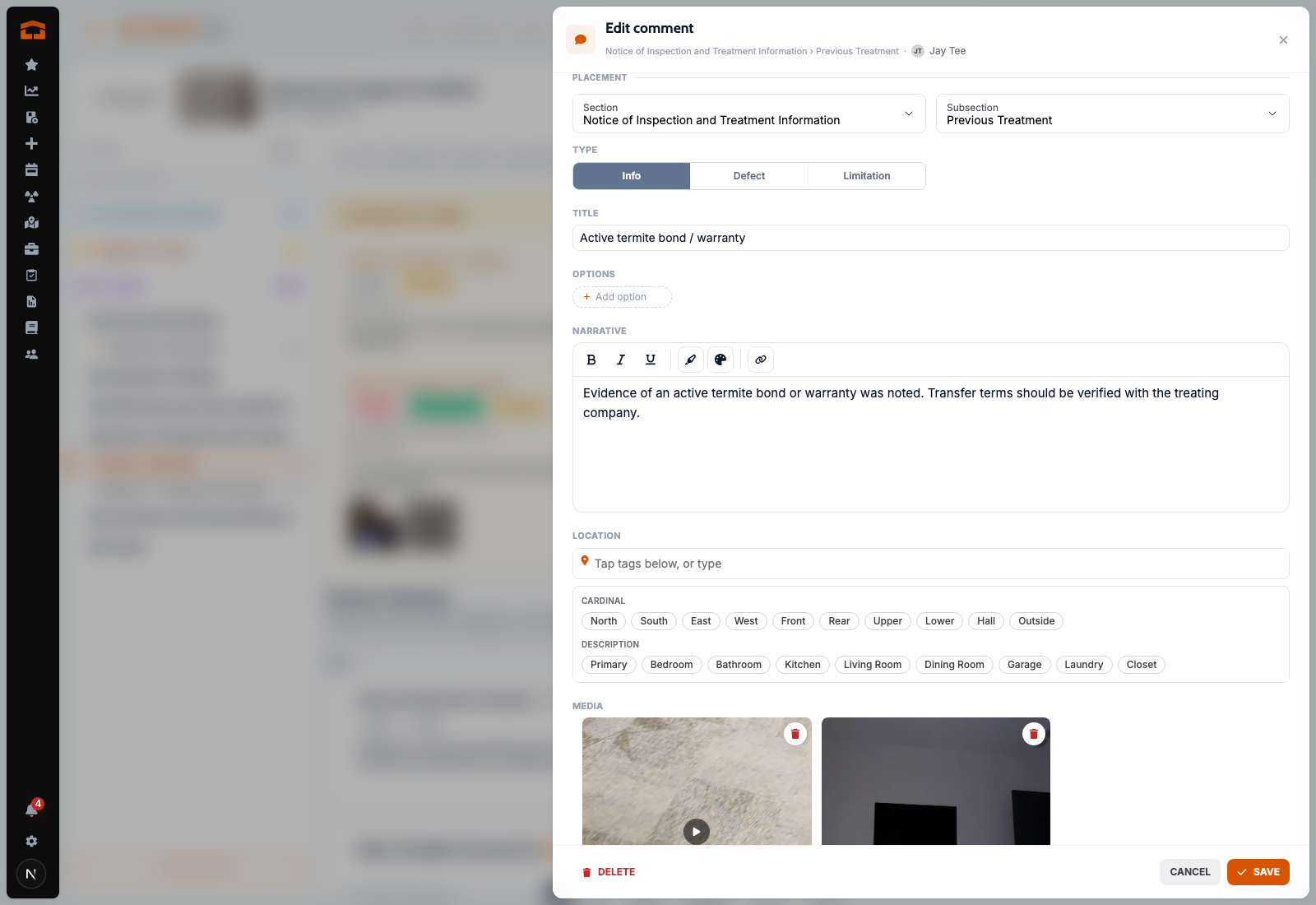
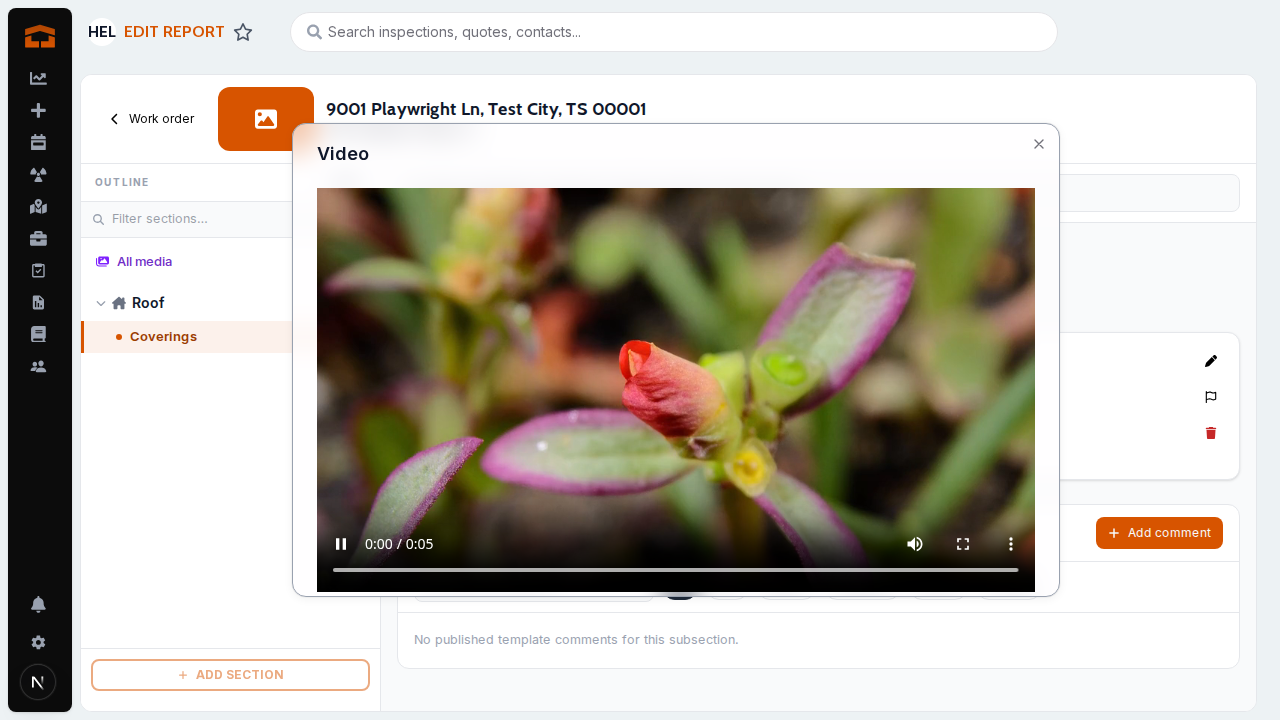
Play videos in the web report editor
What changed: Inspection videos now show as video thumbnails with a play button and play in the web report editor, including in comments, Suggested Matches and the edit drawer. Photo and video counts show separately.
Where to find it: Web report editor, comment media.

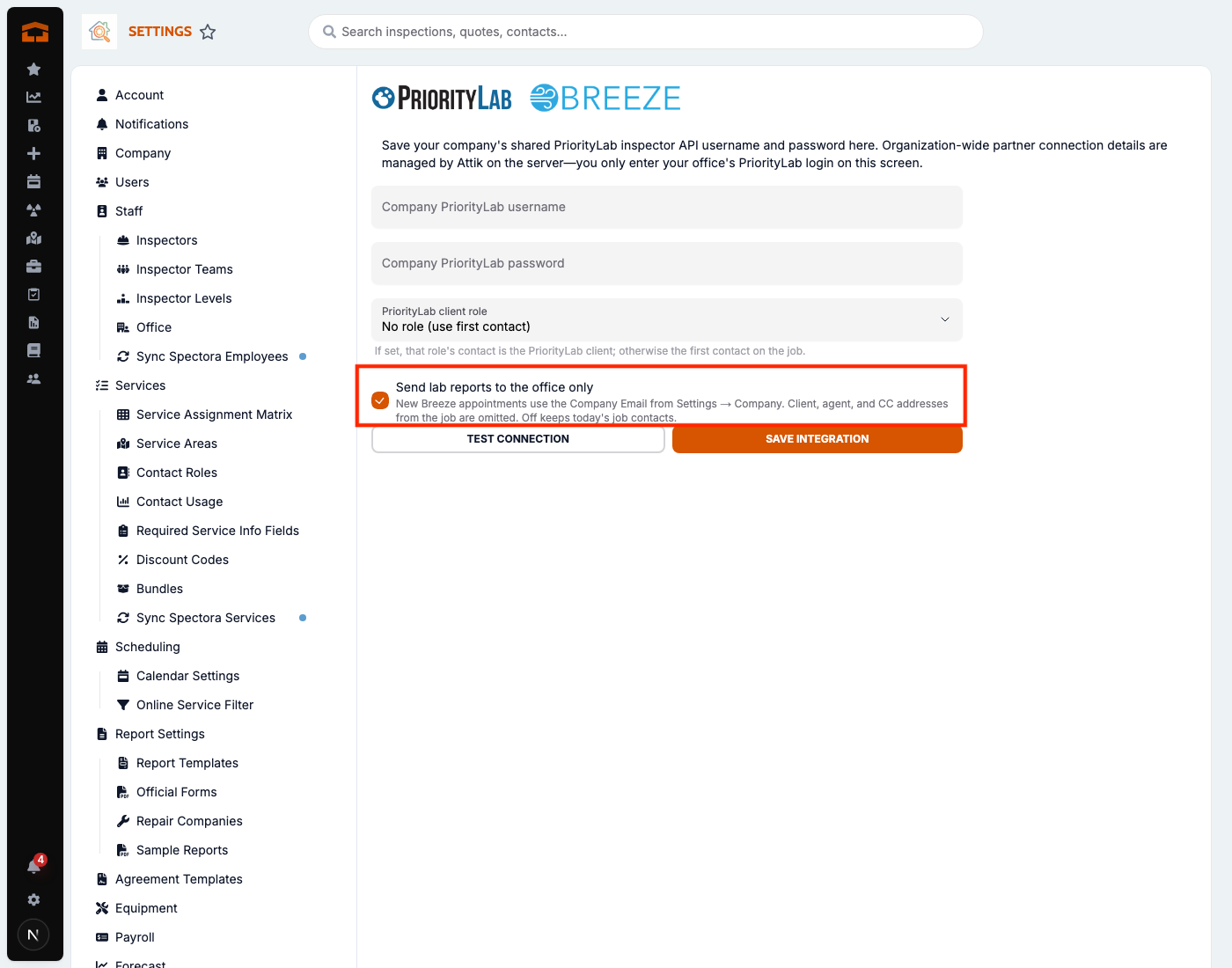
Send PriorityLab and Breeze lab reports to the office
What changed: A company setting can send PriorityLab and Breeze lab reports to your company email instead of the client and agent, so the office can review them first. It is off by default.
Where to find it: Settings → Integrations → PriorityLab.
Setup:
Turn on the office-only recipients option in the PriorityLab integration settings.
Copy email and SMS templates between instances
What changed: Attik staff can copy a single email or SMS template from one instance to another. Merge fields, contact roles and conditions are matched to the other instance by name, and anything with no match is listed before you copy.
Where to find it: Submit Requests to Ryan
Improvements
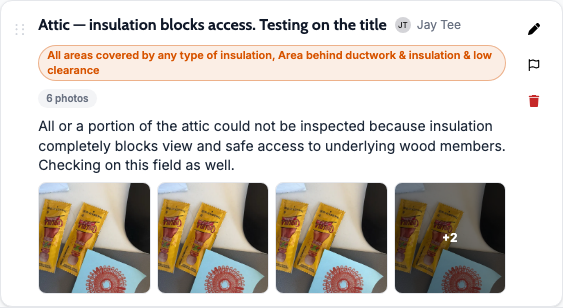
Bubble choices show under comment titles
What changed: In the web report editor, a comment's selected bubble choices now sit on their own line under the title, like on the client report, so long choices are easier to read.
Where to find it: Web report editor, comment list.
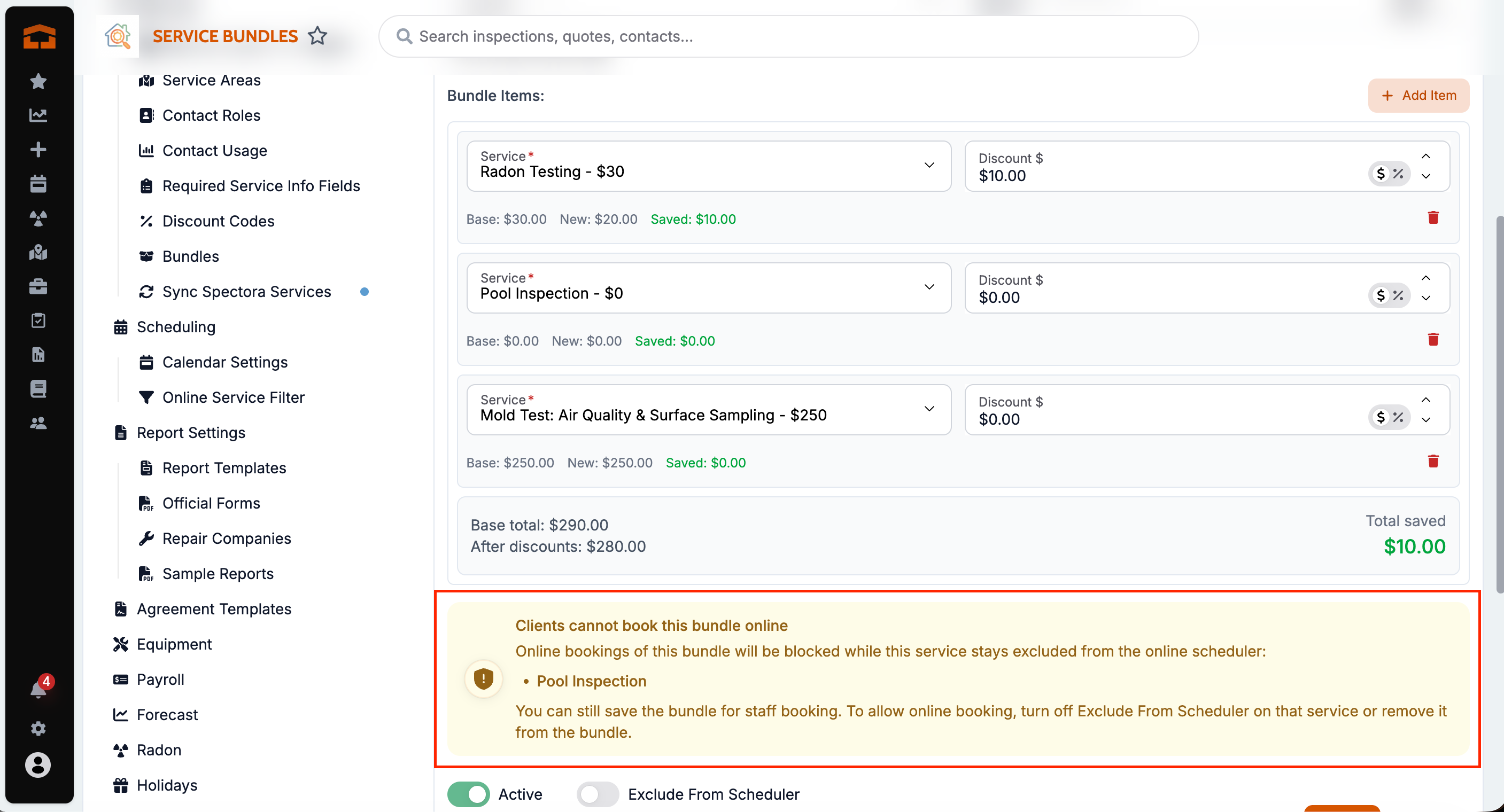
Bundles warn about services not bookable online
What changed: When you create, open or save a bundle that includes a service excluded from the online scheduler, a warning names that service and explains that online bookings of the bundle will be blocked. You can still save it.
Where to find it: Settings → Services, bundle editor.
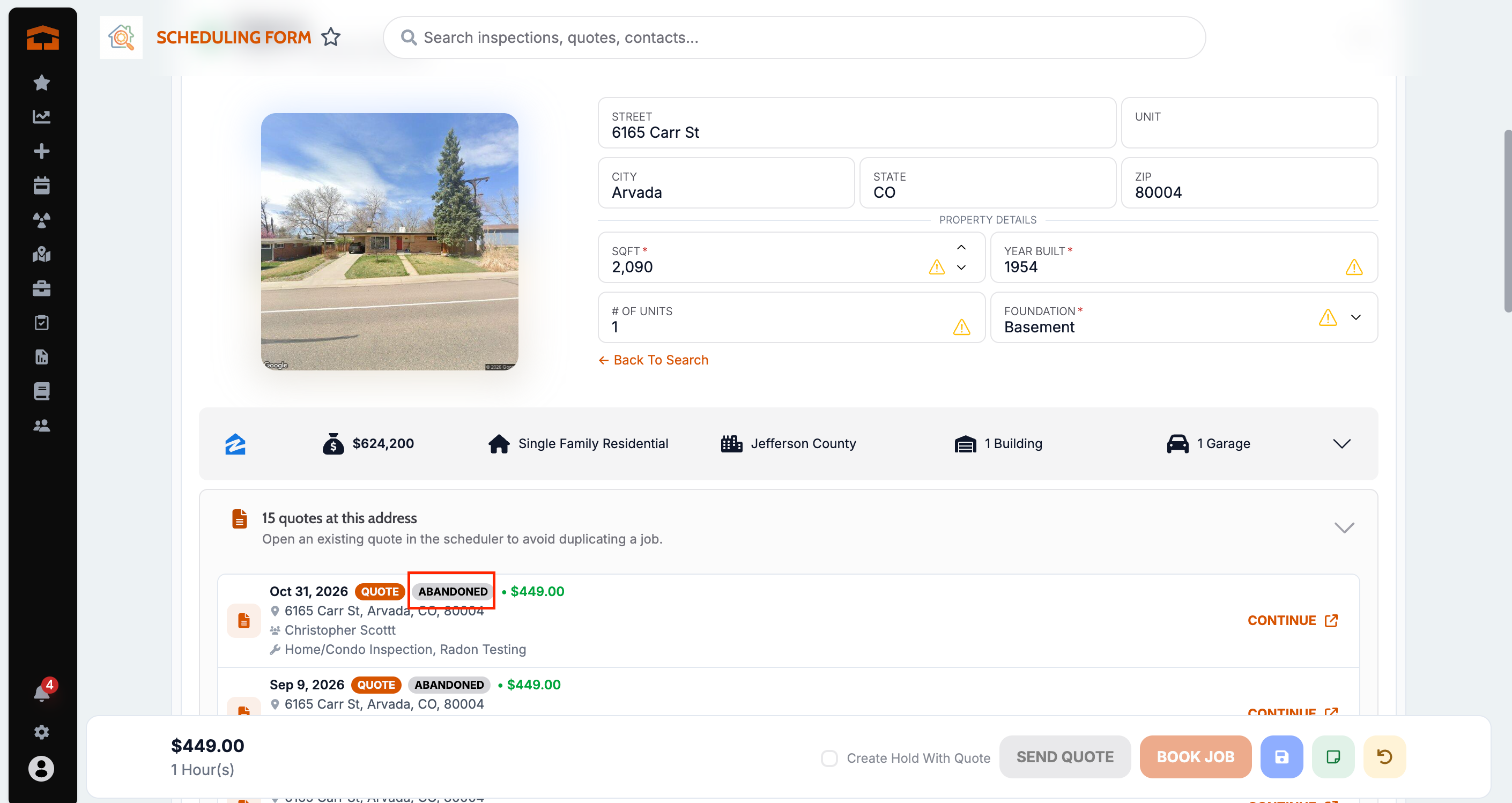
Abandoned online quotes show for the same address
What changed: When staff enter an address in the scheduler, quotes a client abandoned in the online scheduler for that address now show alongside open quotes, so staff can pick up where the client left off.
Where to find it: Scheduling form, address card.
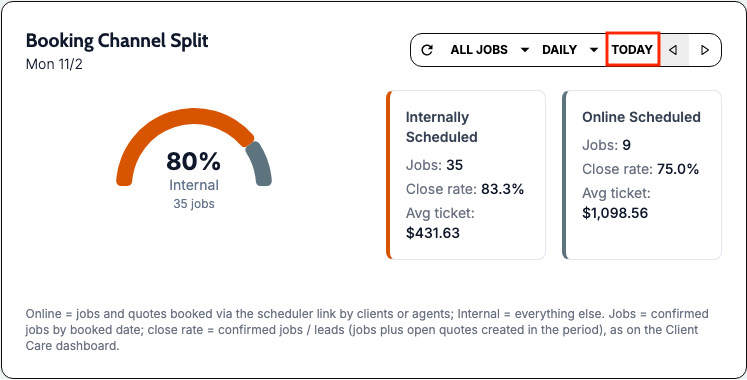
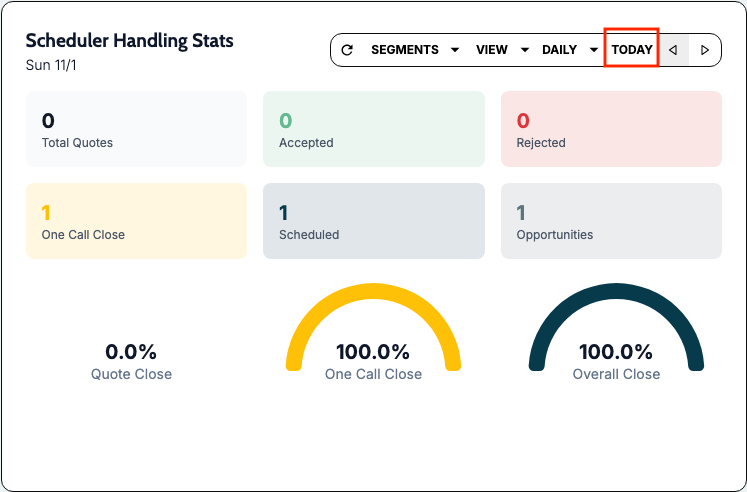
Daily date option on Scheduler Handling Stats and Booking Channel Split
What changed: Scheduler Handling Stats and Booking Channel Split now have a Daily date option, so you can step through today, yesterday and the day before without building a custom range. Custom range stays available.
Where to find it:
Open the Dashboard.
On Scheduler Handling Stats or Booking Channel Split, choose Daily.
Use the arrows to move between days.
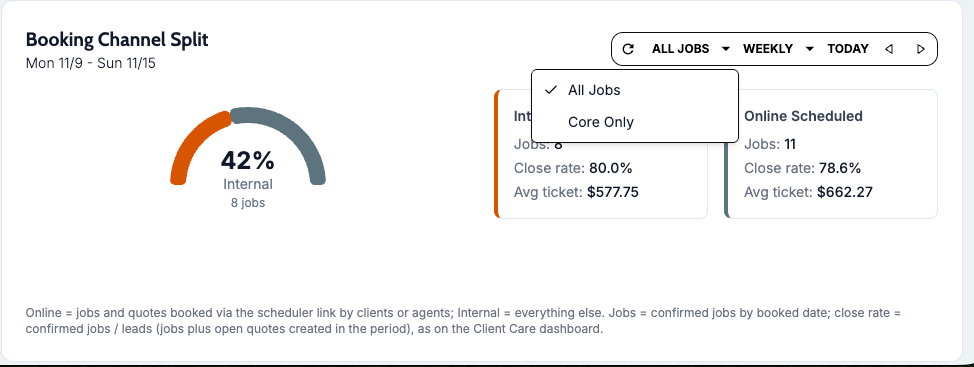
All Jobs and Core Only replace the business-segment filter
What changed: Scheduler Handling Stats and Booking Channel Split now use an All Jobs / Core Only toggle instead of the business-segment filter, so the numbers follow the same core definition as the Client Care dashboard.
Where to find it: Dashboard, Scheduler Handling Stats or Booking Channel Split, All Jobs / Core Only.
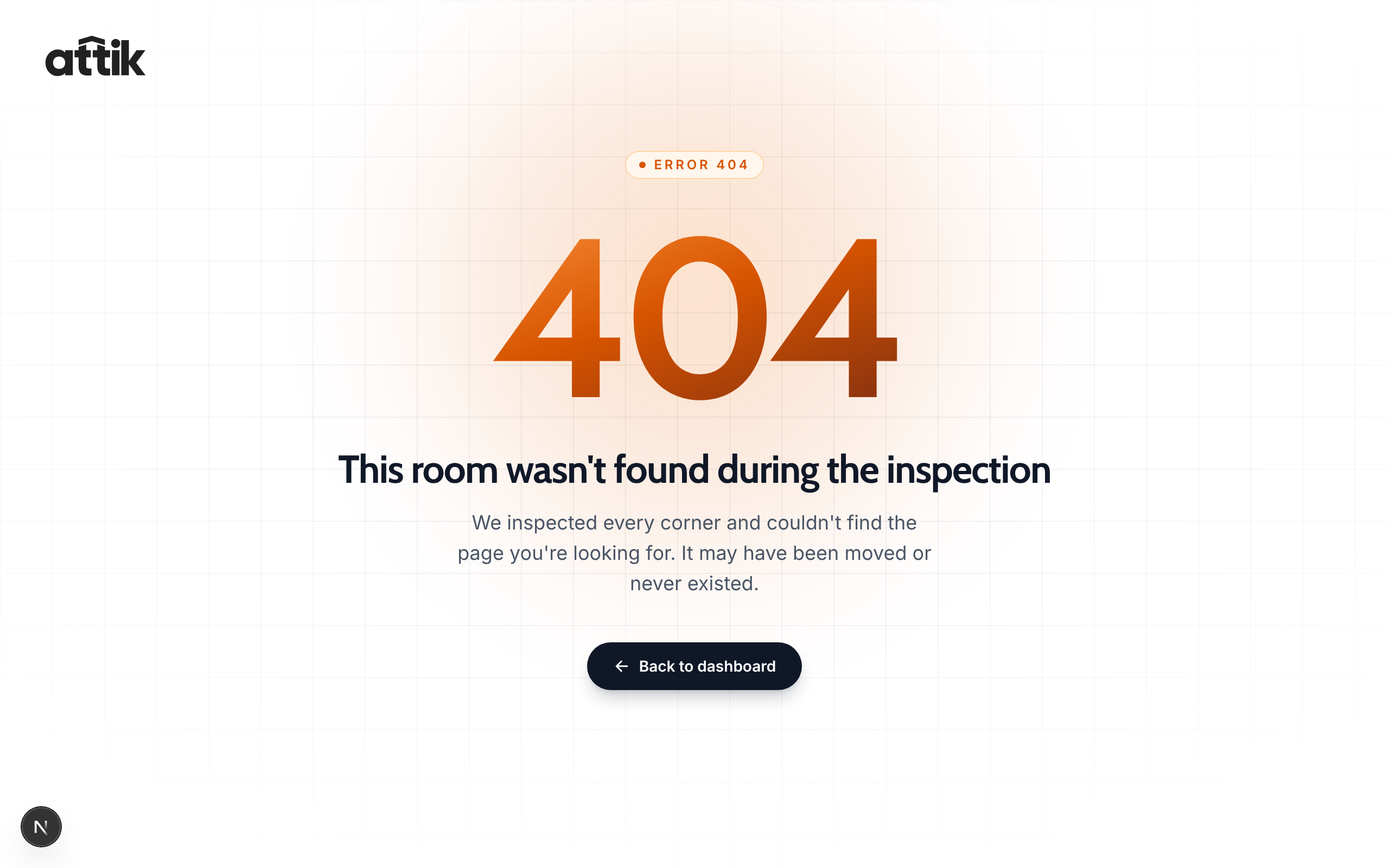
Readable page-not-found screen
What changed: A missing page now shows an Attik-styled not-found page that stays readable in dark mode, with a link back home.
Where to find it: No new screen — takes effect after the update.
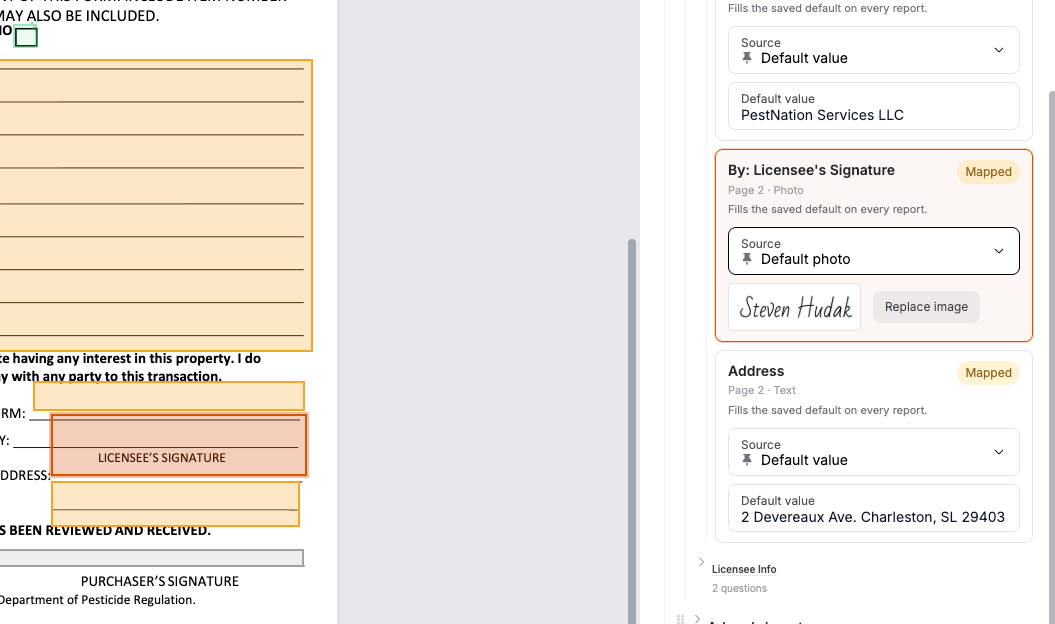
Pick an inspector's signature on official form review
What changed: Reviewers can pick any company inspector's profile signature on official form signature fields. The in-app preview updates to match the exported PDF.
Where to find it: Official form review, signature fields.
Typed additional contacts are saved automatically
What changed: In the online scheduler, a new additional contact typed in and followed by Next or Continue is now saved to the order without clicking Add Contact. A partly filled contact shows what's missing instead of being dropped.
Where to find it: Online scheduler, additional contacts step.
Quote rejection reasons match the standard cancellation reasons
What changed: Rejecting a quote now uses the same reason list as cancelling a job, for example Price/Lost to Competitor and Availability/Schedule Conflict.
Where to find it: Quote, Reject.
Scheduler Handling Stats match Client Care
What changed: Scheduler Handling Stats now count the same way as the Client Care dashboard, with matching labels (# Created, # Confirmed, Close Rate, One Call Close), and the Online Scheduler row in By Representative.
Where to find it: Dashboard, Scheduler Handling Stats.
Unused reports are archived when a service is removed
What changed: Removing a service from a job now archives that service's Attik report if no work has started on it, instead of leaving it under Additional Reports. Adding the service back restores the same report.
Where to find it: Work order, reports.
Bug Fixes
Signature images print on official forms
What changed: A saved signature or image on an official form field now prints on the generated PDF every time.
Where to find it: Official form review and generated PDF.
Applies to: Existing and future records
Official forms use only their own report's Styles & Materials
What changed: Official forms such as the 4-point no longer pull Styles & Materials answers from other or deleted reports on the same job.
Where to find it: Generated official form PDFs.
Applies to: Existing and future records
Payroll covers exactly the dates picked
What changed: Payroll no longer pulls in the day before the range or drops the last day when viewed from a different time zone.
Where to find it: Payroll.
Applies to: Existing and future records
Radon and other auto-events book at the set length
What changed: Auto-events such as Radon Set and Radon Pickup now book at the length set in Duration (Primary/Event), without an extra hour added.
Where to find it: Calendar, auto-events on new bookings.
Applies to: Future records only
Clients always sign the current property address
What changed: If staff change the property address while a client has the portal open, the portal now refreshes before signing so the signed agreement shows the current address. The signer's entries are kept.
Where to find it: Client portal, agreement signing.
Applies to: Existing and future records
Contacts allowed to sign on a job can sign
What changed: Contacts given permission to sign an agreement on a specific job can now sign it in the portal. Contacts who can't sign see a View link instead of a sign button that fails.
Where to find it: Client portal, Sign agreements.
Applies to: Existing and future records
Booking Channel Split matches Client Care
What changed: The Booking Channel Split widget now uses the same rules as the Client Care dashboard, so core jobs, close rate and average fee match for the same dates.
Where to find it: Booking Channel Split widget.
Applies to: Existing and future records
Confirmed Inspections counts imported jobs
What changed: Confirmed Inspections now counts ISN and Spectora jobs along with Attik jobs, so job count and average fee include historicals. The By Representative chart labels them Imported (ISN) and Unassigned.
Where to find it: Dashboard, Confirmed Inspections.
Applies to: Existing and future records
Launchpad Revenue budget follows the selected dates
What changed: Table view budget and projection now match the selected date range, so a weekly range shows a weekly budget. Column headers show the dates used, with tooltips explaining each column.
Where to find it: Launchpad Revenue, Table view.
Applies to: Existing and future records
Long Inspector Balance ranges load
What changed: Loading the Inspector Balance widget for a long date range no longer freezes Attik for everyone.
Where to find it: Inspector Balance widget.
Applies to: Existing and future records
Pay at Close keeps the client on the ISN order
What changed: Pay at Close updates no longer remove the client from the ISN order, which had stopped some clients from finishing Pay at Close.
Where to find it: No new screen — takes effect after the update.
Applies to: Future records only
Dialog buttons stay on screen
What changed: Dialog buttons, such as saving a payroll run, no longer slip past the right edge of the screen on laptops or narrower windows.
Where to find it: All dialogs.
Applies to: Existing and future records
Worklists follow custom date conditions
What changed: Worklists now filter on custom date fields as set in the builder, so follow-up lists only show orders that are actually due.
Where to find it: Worklists.
Applies to: Existing and future records
Abandoned quotes are kept when a client starts over
What changed: A quote already marked abandoned is no longer deleted when the client uses Start Over in the online scheduler, so the Draft Quote Abandoned email opens the quote instead of a blank page.
Where to find it: Online scheduler, Start Over.
Applies to: Future records only
Pay modifiers add to inspector pay
What changed: Equipment-based pay modifiers now add their amount to inspector pay however the job pays (flat rate, custom rate or commission). The modifier type is now called Pay, and each Modifies option has a short description.
Where to find it: Settings → Services → Modifiers, Modifies → Pay.
Applies to: Unclear from release evidence
Online scheduler no longer drops keystrokes
What changed: The online scheduler no longer slows down or loses typing in fields such as the gate code.
Where to find it: Online scheduler.
Applies to: Existing and future records